OSHA home office ergonomics requirements often leave remote workers wondering if their employer has to provide equipment.
The short answer is no. OSHA does not inspect home offices or mandate specific ergonomic equipment for remote workers.
However, that is not the full story. OSHA’s General Duty Clause still applies to clear, preventable hazards. The agency has also published voluntary ergonomic guidelines that are worth understanding. This is especially true in 2026, when a landmark Australian study published in Applied Ergonomics confirmed that a simple 30:15 sit-stand routine can reduce your worst lower-back pain by an average of 1.33 points on a 10-point scale.
Here is what the law actually says, what the science recommends, and exactly what you should do about it.
Understanding OSHA Home Office Ergonomics Requirements: What the Law Says
Let’s address the primary question directly. Despite what many blog posts and AI-generated articles claim, OSHA does not have a specific standard that requires employers to provide ergonomic chairs, standing desks, or monitor arms for home offices. The agency’s General Industry standards around sanitation and housekeeping apply to physical workplaces — not private residences used as remote workstations.
What OSHA’s General Duty Clause Actually Covers
The General Duty Clause (Section 5(a)(1) of the Occupational Safety and Health Act) requires employers to provide a workplace “free from recognized hazards that are causing or are likely to cause death or serious physical harm.”
For home offices, this means an employer could face liability if they knowingly require a remote employee to work in conditions that pose a clearly preventable risk of serious injury — for example, a workstation that forces an employee into a hazardous posture with no alternative. But “ergonomic discomfort” and “serious physical harm” are different thresholds. The General Duty Clause has been applied to ergonomic hazards in traditional workplaces (assembly lines, meatpacking, warehouse sorting stations), but no precedent exists for extending it to a private home office setup.
Why OSHA Doesn’t Inspect Home Offices
OSHA’s own ergonomics program page explicitly states that the agency does not conduct home-office inspections and does not hold employers liable for home workspaces. The rationale is straightforward: OSHA’s jurisdiction covers employer-controlled workplaces. A home office is neither owned nor controlled by the employer, so direct OSHA oversight does not apply. This isn’t a loophole — it’s a deliberate statutory boundary. If your employer provides you with a laptop and says “work from home,” they are not, by that act alone, assuming liability for every ergonomic deficiency in your spare bedroom.
The practical takeaway: OSHA does not require ergonomic equipment for home offices, and you cannot file an OSHA complaint over an uncomfortable chair. But employers who proactively support ergonomic setups reduce their own liability risk under the General Duty Clause and benefit from healthier, more productive employees — which is why many large employers now offer ergonomic stipends or reimbursement programs voluntarily.
What OSHA Recommends (Even Without a Mandate)
Even though OSHA doesn’t mandate home-office ergonomics, understanding the agency’s OSHA home office ergonomics requirements — which are voluntary guidelines developed from decades of research on workplace injury prevention — provides an excellent framework for setting up a home workspace that minimizes strain and discomfort. These guidelines align closely with recommendations from the National Institute for Occupational Safety and Health (NIOSH), which has studied ergonomic risk factors across a wide range of work environments. Together, they focus on three core areas: seating, monitor placement, and keyboard position.
Adjustable Seating and Lumbar Support
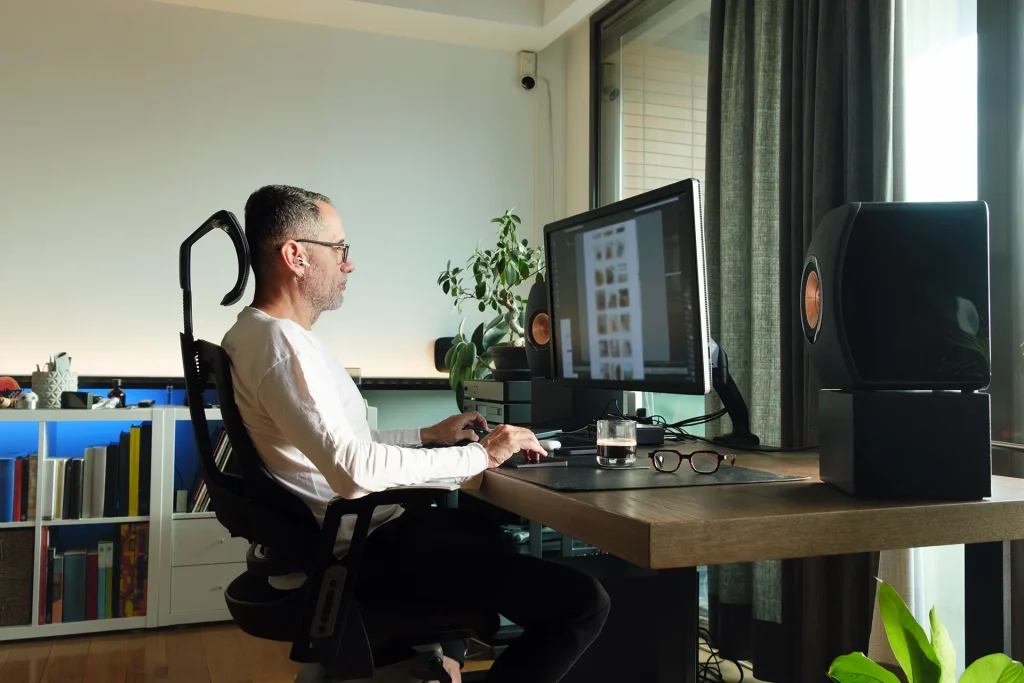
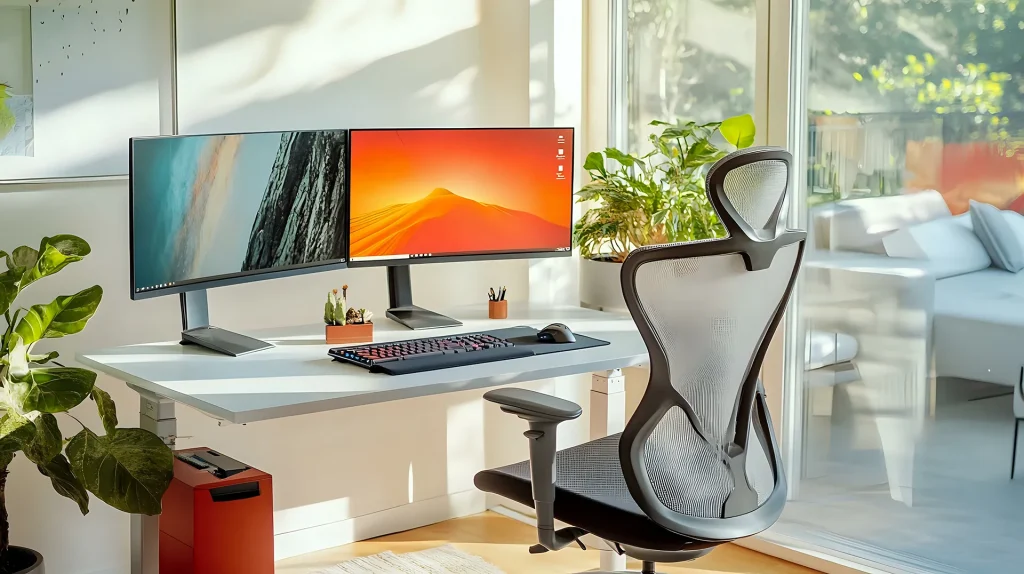
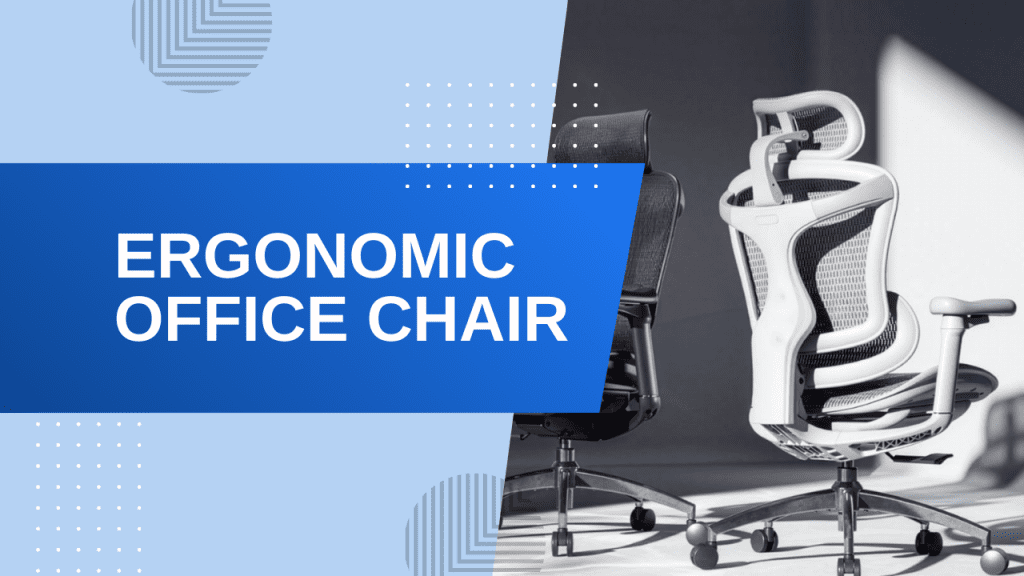
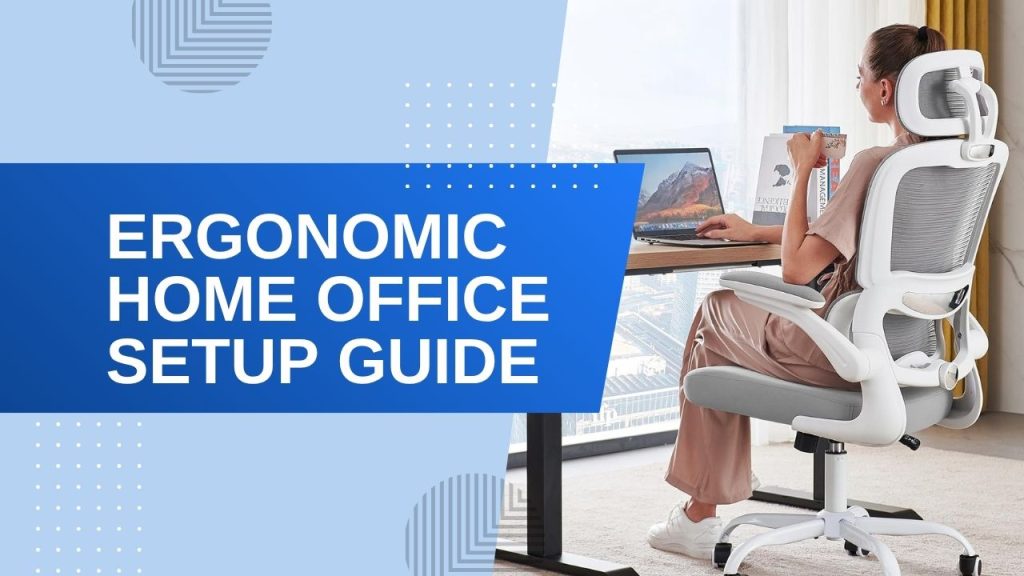
The foundation of any ergonomic workspace is a chair that supports your natural spinal curve. OSHA’s guidelines recommend a chair with adjustable seat height (so your feet rest flat on the floor with knees at roughly 90 degrees), lumbar support that fits the curve of your lower back, and armrests that allow your shoulders to relax while typing.
If your current chair lacks these features, you don’t need to spend a fortune to fix it — there are excellent ergonomic office chairs under $300 that provide the key adjustments most home workers actually need. A chair that keeps your hips slightly higher than your knees (a slight downward angle from hip to knee) distributes your weight more evenly and reduces pressure on your lower spine.
Monitor Height and Eye-Level Placement
OSHA’s voluntary guidance recommends that the top of your monitor screen be at or slightly below eye level, with the screen about an arm’s length away. This keeps your neck in a neutral position — if you’re tilting your head up or down to see the screen, you’re loading your cervical spine with unnecessary stress.
The simplest fix? An adjustable monitor arm lets you dial in the exact height, tilt, and distance of your screen in seconds, freeing up desk space in the process. If a monitor arm isn’t in the budget, a stack of sturdy books works as a temporary riser — just make sure the screen is stable and at the right height.
Keyboard and Wrist Position
Completing the OSHA home office ergonomics requirements picture, your keyboard should be positioned so that your elbows are at roughly 90 degrees and your wrists are straight — not bent up or down. OSHA recommends a flat or slightly negative-tilt keyboard surface (the front edge slightly higher than the back) to keep your wrists in a neutral, handshake position. A standard flat keyboard on a desk that’s too high forces your wrists into extension, which over time can contribute to repetitive strain issues. Wrist rests can help, but they’re a secondary measure — proper keyboard height and posture are the real solution.
The Research-Backed Fix Most People Skip: The 30:15 Sit-Stand Ratio
Perhaps the most actionable ergonomic finding of the past year comes not from OSHA but from a randomized controlled trial published in Applied Ergonomics (Brakenridge et al., February 2026). The study compared a fixed 30-minute-sit / 15-minute-stand schedule against a personalized sit-stand schedule for 56 office workers over a 12-week period. The result was clear: the fixed 30:15 schedule produced a 1.33-point reduction in worst lower-back pain on a 10-point scale, outperforming the personalized approach.
What the Study Actually Found
Participants in the fixed 30:15 group reported significantly less lower-back pain at the study’s conclusion than those on personalized schedules. The 1.33-point reduction on a 10-point scale is clinically meaningful — a drop from a 5 to a 3.67, for example, moves someone from moderate discomfort into the mild range. Equally important, compliance was higher in the fixed-schedule group. Participants found it easier to follow a simple alternating routine (“sit for 30 minutes, stand for 15 minutes”) than to self-manage personalized schedules, suggesting that simplicity itself is a design advantage in ergonomic interventions. You can read the full study on ScienceDirect.
How to Apply It Without a Full Standing Desk
You don’t need an expensive height-adjustable desk to benefit from the 30:15 ratio. A simple timer on your phone or smartwatch set to alternate 30-minute sit and 15-minute stand intervals will do. During standing periods, raise your laptop to eye level using a sturdy box, a laptop stand, or even a stack of books. The key is the alternation itself — the study’s findings suggest that the regular disruption of prolonged sitting drives the pain reduction, not the standing desk hardware. If you do want a dedicated standing solution, a desktop converter (essentially a riser that sits on your existing desk) costs a fraction of a full standing desk and provides the same utility.
If you find yourself consistently logging more than 30 minutes of seated work before remembering to stand, link your 30:15 intervals to natural task boundaries: stand during phone calls, stand while reading emails, stand during your post-lunch dip. The habit forms faster when it’s tied to existing routines.
A Practical Checklist: What to Ask Your Employer For vs. What’s Worth Buying Yourself
Now that you understand what OSHA home office ergonomics requirements actually say (voluntary guidance, not legal mandates), here’s a practical framework for deciding what to request from your employer and what makes more sense to fund yourself.
What to Ask Your Employer For (and How to Frame the Ask)
Many companies offer ergonomic stipends, equipment reimbursement programs, or workstation assessment services — even though nothing legally requires them to. Frame your request around productivity and injury prevention. A simple email template: “I’d like to request a small ergonomic equipment allowance to reduce physical strain while working. Studies show that proper ergonomic support improves focus and reduces discomfort — and a standing desk converter or ergonomic chair costs far less than a single day of lost productivity.” Employers who already have remote-work policies in place are likelier to approve modest requests ($200–$500) than expensive ones. Specific items to ask for:
- Ergonomic chair or seat cushion with lumbar support
- Standing desk converter or height-adjustable desk
- Monitor arm or external monitor for proper screen height
- Keyboard tray or ergonomic keyboard
- Workstation ergonomic assessment (some companies offer this as a free service via their insurer)
What’s Worth Self-Funding
Some ergonomic upgrades are inexpensive enough that buying them yourself — and getting the benefit today instead of waiting for a reimbursement cycle — is the smarter move. The items under $50–$100 that deliver the most impact per dollar include a budget ergonomic footrest (keeps your hips and knees at the optimal 90-degree angle, which improves spinal alignment), a laptop stand, a basic wrist rest, and a timer app or smartwatch reminder for the 30:15 sit-stand schedule. These small purchases solve the most common ergonomic gaps — poor foot support, incorrect screen height, and excessive static sitting — without requiring a manager’s approval or a purchase-order process.
A footrest, in particular, is one of the most overlooked ergonomic upgrades. If your chair is too high for your feet to rest flat on the floor (a common issue with budget office chairs), a footrest restores proper leg posture and takes pressure off your lower back. The budget ergonomic footrest options available today include tilt-adjustable models that let you vary foot angle through the workday, reducing stiffness from a fixed position.
- Chair: Seat height adjustable, lumbar support present, feet flat on floor or footrest
- Monitor: Top of screen at or below eye level, arm’s-length distance
- Keyboard: Elbows at 90 degrees, wrists straight, flat or negative tilt
- Movement: Follow the 30:15 sit-stand ratio (set a timer)
- Lighting: No glare on screen, ambient light balanced with task light
- Foot support: Feet flat or on footrest, knees at roughly 90 degrees
- Regular breaks: Stand, stretch, or walk for 2 minutes every hour
FAQ
Is my employer legally required to provide an ergonomic chair for my home office?
No. OSHA does not have a specific regulation requiring employers to provide ergonomic chairs for remote workers. However, some states and individual employer policies may extend ergonomic support as a benefit. Check your employee handbook or HR policies.
Does OSHA inspect home offices?
No. OSHA’s official guidance states that the agency does not inspect home offices and does not hold employers liable for home workspaces. OSHA’s jurisdiction is limited to employer-controlled workplaces.
What is the 30:15 sit-stand ratio, and does it actually work?
The 30:15 sit-stand ratio — 30 minutes sitting followed by 15 minutes standing — was tested in a 2026 randomized controlled trial published in Applied Ergonomics (Brakenridge et al.). The study found a 1.33-point reduction in worst lower-back pain on a 10-point scale, with higher compliance than personalized sit-stand schedules. It works because it replaces self-management (which most people fail at) with a simple, repeatable routine.
Can I get reimbursed for home office ergonomic equipment?
Some employers offer ergonomic stipends or reimbursement programs, but they are not legally required to. Your best approach is to ask your HR department or manager directly, framing the request around productivity and injury prevention. Reimbursement amounts typically range from $200 to $500.
What’s the minimum ergonomic setup I need to avoid injury?
At minimum: an adjustable chair with lumbar support (or a lumbar cushion), a monitor at eye level, a keyboard at elbow height with straight wrists, and a footrest if your feet don’t rest flat. Plus the 30:15 sit-stand schedule. This basic setup covers the four most common ergonomic risk factors: poor lumbar support, incorrect screen height, wrist extension, and prolonged static sitting.

Sophia Carter has spent years testing productivity tools and workspace setups. She helps remote workers build efficient home offices that support deep focus, ergonomics, and better workflows.