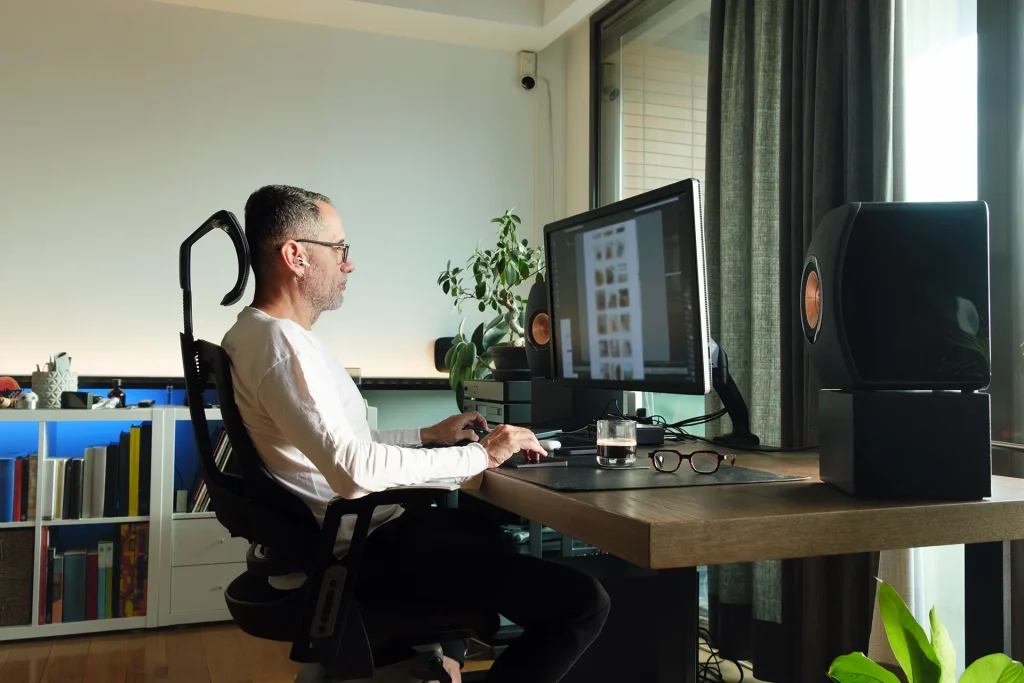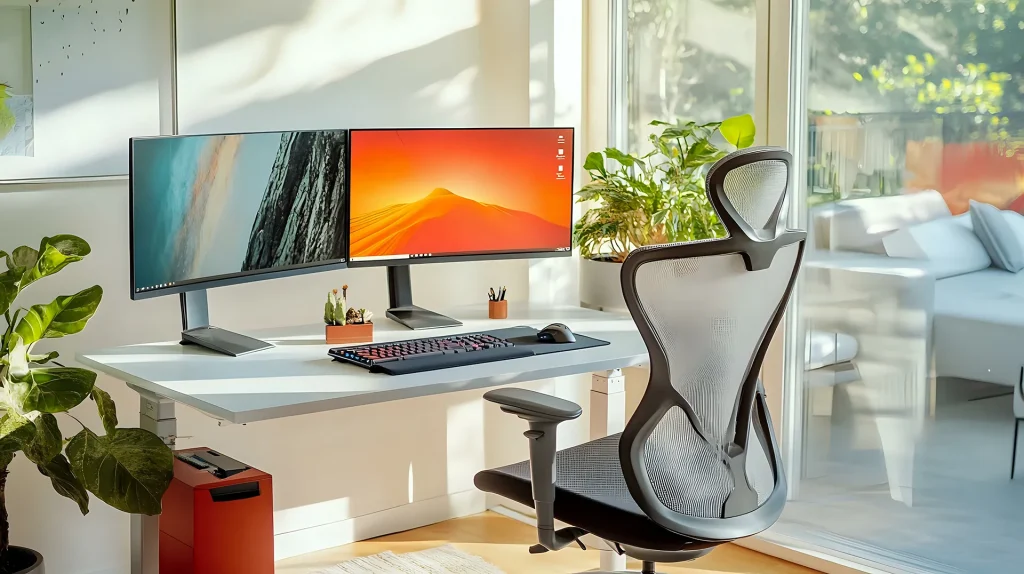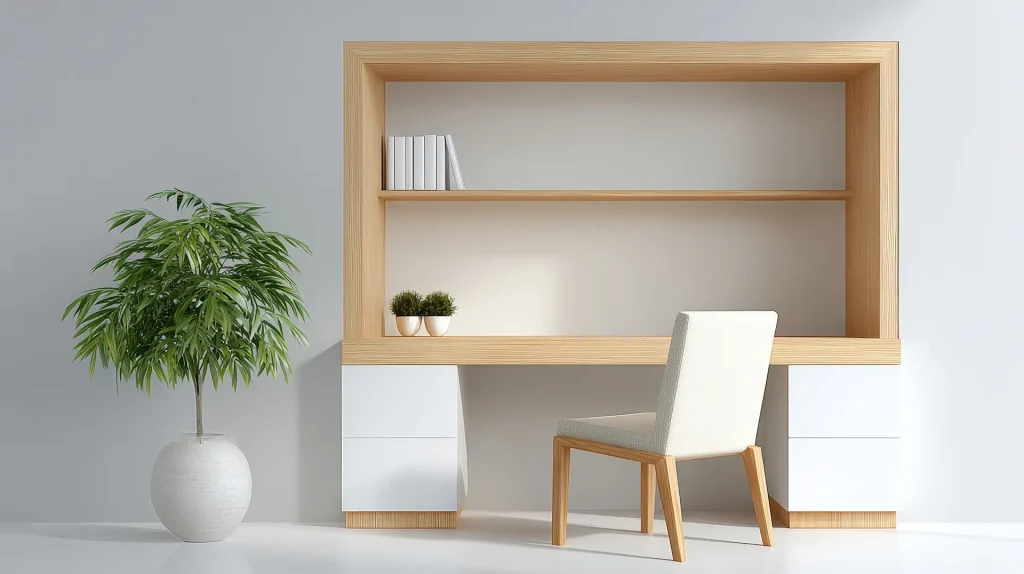
Your ergonomic home office setup guide for 2026 should do one thing: help you work without pain. Whether your neck is stiff after calls, your wrists ache, or your back hurts by lunch, the fix starts here. In this complete ergonomic home office setup guide for 2026, we cover desk height, monitor position, chair support, keyboard placement, and movement habits with exact numbers you can use today.
Disclosure: Some links in this guide are affiliate links. I may earn a small commission at no extra cost if you purchase through them. Read my full affiliate disclosure.Key Takeaways
Start here if you’re short on time. These five adjustments cover 90% of the benefit.
- Desk height: 28–30″ sitting, 40–42″ standing. Elbows at 90° when typing.
- Monitor: Arm’s length away. Top of screen at eye level.
- Chair: Lumbar curve supported. Feet flat. Thighs parallel to floor.
- Keyboard & mouse: Wrists straight. Mouse close to body. Shoulders relaxed.
- Movement: Change position every 30 minutes. No single posture works all day.
Why Your Home Office Needs This Ergonomic Home Office Setup Guide
I didn’t think ergonomics mattered when I started working from home. A chair and a flat surface — that’s enough, right?
Turns out, no. After months of neck stiffness and a weird tingling in my wrist, I realized my setup was slowly wearing my body down.
Here’s the reality: over 80% of remote workers experience neck or back pain at some point. According to the Mayo Clinic, spending hours daily at a poorly configured desk leads to predictable pain patterns.

Common culprits include:
- Chairs that don’t support your lower back
- Monitors positioned too low — forcing you to crane your neck
- Keyboards that bend your wrists at awkward angles
- A mouse placed too far, straining your shoulder
The tricky part? Discomfort builds gradually. You adapt. You shift in your seat. Then one day, simple movements send pain through your forearm.
The good news: these are all fixable with simple adjustments. If you’re already dealing with aches, our guide on reducing shoulder pain while working at a desk covers what helped me most.
Take action today: Spend 10 minutes observing your body while you work. Where do you feel tension? When do you shift positions? Those clues point directly to what needs fixing.
Ideal Desk Height for Your Ergonomic Home Office Setup
Your desk height sets the foundation for your entire ergonomic home office setup. Get this right and everything else follows. This is where most ergonomic home office setup guides start — because it matters that much.
Sitting desk height
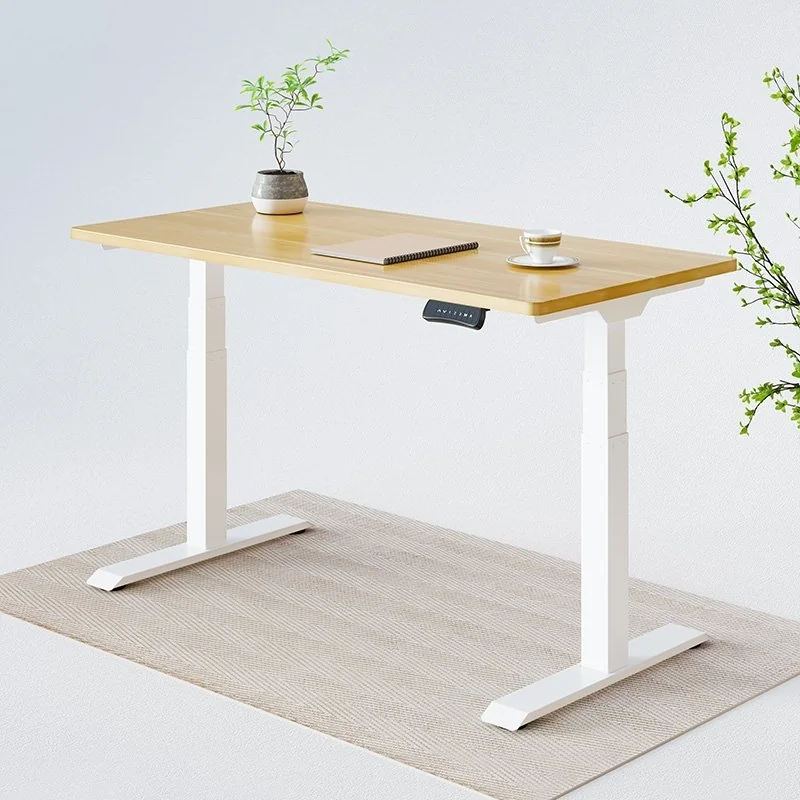
Aim for 28–30 inches. Sit up straight, relax your shoulders, and bend your elbows to 90°. Your forearms should be parallel to the floor. If your shoulders rise toward your ears, the desk is too high. If you’re hunching forward, it’s too low.
Standing desk height
For standing, 40–42 inches works for average-height people. Same 90° elbow rule applies. Keep your knees slightly bent — never locked — and consider an anti-fatigue mat for longer sessions.
Quick height reference
| Setup | Ideal Height | Key Check |
|---|---|---|
| Sitting | 28–30 inches | Elbows at 90°, feet flat, wrists straight |
| Standing | 40–42 inches | Arms relaxed, shoulders down |
| Shorter (under 5’4″) | 24–27 inches | Use footrest if feet don’t reach floor |
| Taller (over 6′) | 44–46 inches | Raise desk or use taller risers |
Take action today: Adjust your chair height so your thighs are parallel to the floor. This single change takes 30 seconds and immediately improves hip and knee alignment.
Monitor Positioning for Neck and Eye Comfort in Your Ergonomic Setup
Your monitor position matters more than you think. I spent months with a stiff neck before realizing my screen was the problem.
Distance: About an arm’s length — 20 to 40 inches from your face. Extend your arm fully. Your fingertips should just touch the screen.
Height: The top of the screen at or slightly below eye level. You should look slightly downward at the center of the screen, not tilt your head up or down.
Why it matters: Every inch your head moves forward adds significant strain to your neck muscles. Forward head posture — ears ahead of shoulders — is one of the most common issues in remote workers, and it’s almost always caused by a monitor that’s too low or too far.
Bifocals? Drop the monitor an extra 1–2 inches so you can read through the lower part of your lenses without craning your neck.
Dual monitors: Primary screen directly in front. Secondary beside it at a slight angle.
The OSHA computer workstation guidelines break this down in detail — worth bookmarking.
Take action today: Stack books under your monitor until the top of the screen reaches eye level. Test this for one week before investing in a monitor arm.
Choosing an Ergonomic Chair
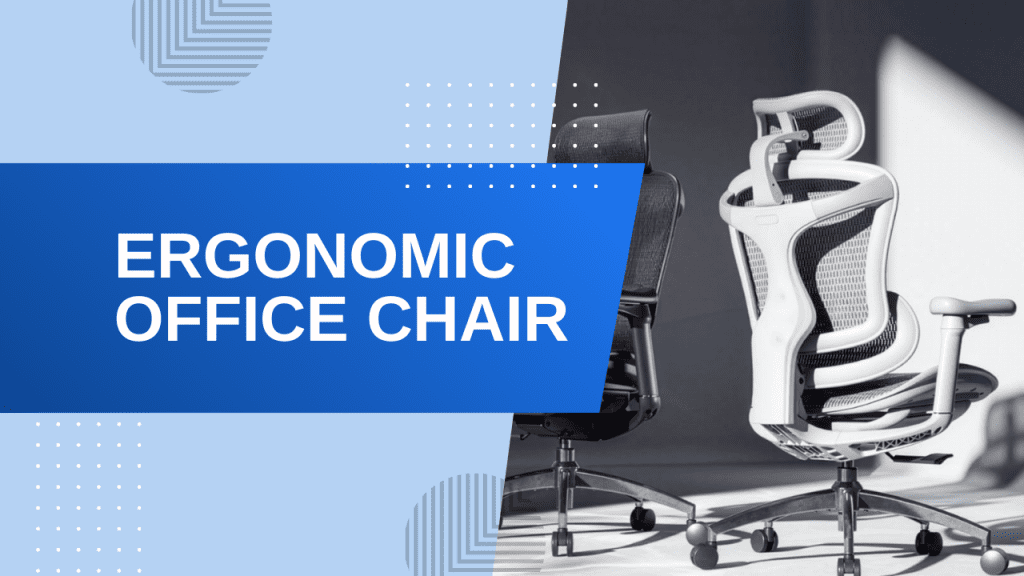
Your chair is the most important piece of furniture in your ergonomic home office setup. You sit in it for hours every day. Invest accordingly.
Lumbar support is non-negotiable. Your lower spine has a natural inward curve. If your chair doesn’t support it, you’ll slouch — and slouching compresses your discs. Look for adjustable lumbar support and dial it in until it fits the curve of your lower back.
Seat height: Feet flat on the floor. Thighs parallel to the ground. If your desk forces you to raise the chair higher, use a footrest. Dangling feet compress your thighs and reduce blood flow.
Seat depth: Maintain a 2–3 finger gap between the back of your knee and the chair edge. This prevents circulation problems during long sessions.
Armrests: Set them so your elbows rest at 90° with shoulders relaxed. If they force you to spread your elbows or raise your shoulders, lower them or remove them entirely. Bad armrests are worse than none.
Budget tip: If you can only afford one high-quality ergonomic item, make it the chair. Herman Miller, Steelcase, and Haworth are the gold standard. Good mid-range options from HON and Branch won’t break the bank. For the full breakdown at every price point, see our roundup of the 7 best ergonomic office chairs of 2026.
Working with a tighter budget? See our picks for the best ergonomic office chairs under $300 — real lumbar support and adjustability without the four-figure price tag.
Also worth reading: sitting position techniques for long hours — it’s not just what you sit on, but how you sit in it.
Take action today: Adjust your chair so your feet rest flat and your thighs are parallel to the floor. This single change takes 30 seconds.
Keyboard and Mouse Placement
Your hands do the work all day. A complete ergonomic home office setup guide for 2026 needs to cover keyboard and mouse placement. If your hands hurt, nothing else matters.
Keyboard: Place it directly in front of you. Wrists straight. Forearms parallel to the floor. Consider a compact (tenkeyless) version — it keeps your mouse closer and reduces shoulder reach.
Mouse: Right next to your keyboard at the same height. Reaching for your mouse across the desk forces your shoulder into an awkward position. The distance from keyboard center to mouse should be under 8 inches.
Already have wrist pain? Try a vertical mouse (handshake position) or a split keyboard. Cleveland Clinic’s ergonomics page explains the science behind neutral wrist positioning.
The rule: elbows close to your body, wrists straight, shoulders relaxed. If any of those are off, adjust until they aren’t.
Take action today: Measure the distance from your keyboard center to your mouse. If it’s more than 8 inches, bring the keyboard closer or move the mouse pad.
Common Ergonomic Home Office Setup Mistakes to Avoid
Knowing what to fix helps. Knowing what not to do prevents setbacks.
- Dangling feet. When your chair is too high and your feet don’t touch the floor, your thighs bear extra pressure. Use a footrest or lower the chair. See our best ergonomic footrests guide.
- Monitor too close or too far. Leaning forward strains your neck. Squinting strains your eyes. Stick to the 20–40 inch sweet spot.
- Slouching. Compresses your spine and tires your core. Reset your posture every time you notice it.
- Reaching for the mouse. Strains your shoulder and upper back. Keep it within easy reach.
- Storing items under your desk. Limits leg movement and forces awkward postures. Keep the area clear.
- Ignoring pain signals. Discomfort is information. Address it early before it becomes chronic.
For budget-friendly fixes to these issues, this step-by-step guide to building an ergonomic home office on a budget covers common pitfalls and affordable solutions.

Quick Ergonomic Checklist
Run through this in 60 seconds at the start of your day:
- ✓ Feet flat on the floor (use footrest if needed)
- ✓ Knees at 90°, slightly lower than hips
- ✓ Monitor at arm’s length, top at eye level
- ✓ Keyboard directly in front, wrists straight
- ✓ Mouse close to keyboard, same surface
- ✓ Elbows at 90°, shoulders relaxed
- ✓ Lumbar curve supported by chair
- ✓ Frequently used items within easy reach
- ✓ Screen brightness comfortable, no glare
- ✓ Stand and stretch planned every 30–45 minutes
Need more layout inspiration? Browse 25 home office desk setup ideas for styling ideas and practical layouts.
Frequently Asked Questions About Your Ergonomic Home Office Setup
What’s the ideal desk height for ergonomics?
28–30 inches for sitting, 40–42 inches for standing (average height). Your elbows should form a 90° angle when typing.
How far should my monitor be?
An arm’s length — 20 to 40 inches. Close enough to read easily, far enough to avoid eye strain.
What’s the best ergonomic chair on a budget?
Branch Ergonomic Chair and HON Nucleus for mid-range. For tight budgets, look for used Herman Miller Aerons or Steelcase Series 1 on Facebook Marketplace. See our best ergonomic office chairs guide for the full list.
How often should I take breaks?
Every 30–45 minutes. Stand up, walk around for 2–3 minutes, or stretch. No single position works all day.
Are standing desks worth it?
Yes, but only if you alternate. Standing all day creates its own problems. A sit-stand desk lets you switch every 45–60 minutes.
Should I buy accessories or fix my setup first?
Fix your setup first. Adjust your chair, desk height, and monitor before buying anything. Accessories fill the gaps that positioning can’t solve. See our complete home office setup guide for the full approach.
For more on organizing your entire workspace, check out cable management solutions for a clutter-free home office and our complete home office setup guide.

David Park researches and reviews productivity software, AI tools, and automation workflows. He helps professionals work smarter by finding the tools that actually deliver results.