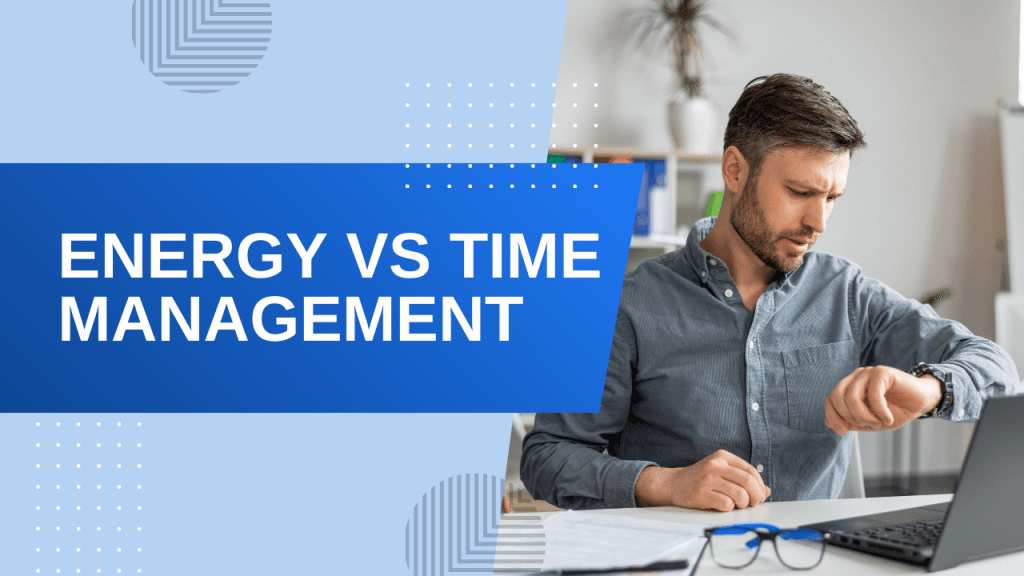
If you have ever ended a day of back-to-back video calls feeling drained, headachy, and mentally foggy, you are not alone. That is Zoom fatigue, and it is one of the most common complaints among remote workers in 2026.
Zoom fatigue is the exhaustion, anxiety, and burnout that comes from spending hours on video conferencing platforms. Unlike in-person meetings, video calls force your brain to work harder. You process unnatural eye contact, adjust for delays in responses, monitor your own appearance on camera, and filter out background distractions from your environment. Your brain never gets a moment of rest.
Research from Stanford University identified four primary causes of Zoom fatigue: excessive close-up eye contact, constant self-evaluation on camera, reduced mobility, and higher cognitive load from processing non-verbal cues through a screen. The good news is that each of these causes has practical solutions.
Here are 10 science-backed strategies to help you prevent Zoom fatigue, protect your energy, and stay productive throughout your workday.
1. Upgrade Your Audio to Reduce Cognitive Load
Poor audio quality is one of the biggest hidden contributors to meeting fatigue. When you cannot hear clearly, your brain works overtime to fill in the gaps. You lean in, strain your ears, and mentally replay what was said. This extra effort adds up fast across multiple calls.
A quality microphone for remote work makes a significant difference. A clear, warm voice reduces the cognitive load for everyone on the call. Conversations feel more natural, and you spend less mental energy trying to decipher muffled words.
If you work in a noisy environment, noise-canceling headphones for remote workers can block background sounds and let you focus entirely on the conversation. Less auditory strain means less fatigue at the end of the day.
2. Hide Your Own Video Feed
One of the most draining aspects of video calls is seeing your own face in real time. This triggers a psychological effect called self-objectification. You constantly check your expression, posture, background, and lighting. It adds a layer of unconscious stress that accumulates over the course of a meeting-heavy day.
Almost every video platform lets you hide your own view. In Zoom, right-click your video and select “Hide Self View.” In Google Meet and Microsoft Teams, the option is under the three-dot menu. Do it. You will immediately feel less self-conscious and more engaged in the actual conversation. This is the single fastest fix for Zoom fatigue and takes about three seconds to implement.
3. Use a Quality Webcam Set at Eye Level
A grainy laptop webcam forces you to sit in awkward positions to look decent on screen. You lean forward, hunch your shoulders, and crane your neck. All while worrying about how you appear to others. That physical tension compounds over a day of calls.
A budget webcam for remote work with good low-light performance solves this. Position the camera at eye level by placing your laptop or monitor on a stack of books or a monitor stand. When your camera is at eye level, you sit up straighter, breathe better, and project more confidence. Better image quality also reduces the mental effort of performing on camera.
4. Improve Your Lighting Setup
Bad lighting makes you look tired on screen, which ironically makes you feel more tired. Harsh overhead lighting creates unflattering shadows under your eyes, while dim rooms force you to strain to see faces and read expressions.
A good desk lamp for your home office positioned in front of you softens your features and reduces eye strain. The ideal setup places your light source behind your monitor or beside it, aimed toward your face at a 45-degree angle. This creates soft, even illumination that makes you look awake and engaged without the harsh glare of overhead lights.
5. Take Real Breaks Between Calls
Back-to-back meetings leave zero time for your brain to reset. Each transition eats mental energy as you context switch. After four consecutive calls, your cognitive ability drops measurably.
The fix is simple but requires intention: build buffers. When scheduling meetings, set them to 25 or 50 minutes instead of the default 30 or 60. Use those 5-10 minute gaps to stand up, stretch, hydrate, close your eyes, or look out a window. Looking at something 20 feet away for just 60 seconds relaxes your eye muscles and resets focus. These micro-breaks are not wasted time. They are what allow you to show up fully for the next call.
6. Go Audio-Only When Appropriate
Not every meeting needs video. Internal check-ins, status updates, collaborative brainstorming sessions, and one-on-ones with trusted colleagues can work perfectly well with audio only. Giving yourself permission to turn off the camera reduces cognitive load significantly.
Stanford research on Zoom fatigue identified constant self-image monitoring as one of the four primary drivers of video call exhaustion. Switching to audio-only for just a few calls per day can dramatically reduce your fatigue level. If you feel like you are expected to keep your camera on, talk to your team or manager about establishing norms that respect everyone’s energy.
7. Optimize Your Monitor Setup for Neutral Posture
Looking down at a laptop screen for hours strains your neck, shoulders, and upper back. When you add the need to glance at the camera or read participants facial expressions on a small screen, the constant micro-movements add up to real physical fatigue.
Raising your screen to eye level with a monitor arm keeps your head in a neutral position. Your ears should align with your shoulders when viewed from the side. Pair this with an external keyboard and mouse so your elbows rest at a 90-degree angle. When your body is in a neutral, supported position, you can focus on the meeting rather than on the discomfort of your setup.
8. Reduce Visual Strain and Screen Glare
Staring at faces on a screen is more visually demanding than reading text. Your brain processes facial expressions, vocal tones, and visual cues simultaneously, all while dealing with screen glare and blue light exposure. By the third or fourth call, your eyes feel heavy and your focus drifts.
Adjust your screen brightness to match your room lighting. A screen that is too bright in a dim room accelerates eye fatigue. Use a matte screen filter if you work in a room with windows behind you. The 20-20-20 rule helps here too: every 20 minutes, look at something 20 feet away for 20 seconds. This gives your ciliary muscles a moment to relax and reduces the physical strain of prolonged screen time.
9. Protect a Daily Focus Block
Constant meetings fracture your workday and prevent deep work. Without uninterrupted time, you end up doing your actual work outside of normal hours. This is a fast track to burnout.
Block at least 2 hours on your calendar as focus time every day. Treat it as non-negotiable. Communicate to your team that you are unavailable during this window. Use productivity gear and tools that support deep concentration during these blocks. Over time, this practice not only protects your output but also reduces the pressure to overwork.
10. Audit Your Meeting Culture for Long-Term Change
Sometimes the best fix is not about your setup but about how your team approaches meetings. Ask yourself honestly: could this update have been an email? Could it be asynchronous? Do all these people need to be on this call?
Encourage a culture of async communication. Use tools like Loom for video updates, Slack for quick questions, and Notion or Google Docs for collaborative feedback. Every meeting that is replaced with an async update frees up time and energy for everyone involved. Good meeting culture starts with one person asking hard questions about which meetings actually matter.
Final Thoughts
Zoom fatigue is not something you have to live with. Small, intentional changes to your hardware, your habits, and your meeting culture compound into noticeably better energy levels by the end of the week.
Start with the simplest fix hiding your own video feed and build from there. Each tip in this guide is designed to reduce the cognitive and physical load of video calls. Pick two or three that resonate with your biggest pain point and implement them consistently for one week.
Your brain and your body will thank you.
Frequently Asked Questions About Zoom Fatigue
What exactly is Zoom fatigue and why does it happen?
Zoom fatigue, also called videoconference fatigue, is the exhaustion and mental burnout caused by spending extended time on video calls. It happens because video calls force your brain to work harder than in-person conversations by processing unnatural eye contact, monitoring your own appearance, adjusting for audio delays, and filtering distractions. Stanford research has identified this as a legitimate form of cognitive overload.
Can better equipment actually reduce Zoom fatigue?
Yes. Upgrading your webcam, microphone, lighting, and headphones reduces the mental effort required to participate in video calls. Clear audio and good lighting reduce strain, while an ergonomic monitor setup reduces physical tension. These hardware improvements compound into noticeably lower fatigue, especially on meeting-heavy days.
How many video calls per day is too many?
Research suggests that more than 3 to 4 hours of active video calls per day leads to measurable increases in fatigue and decreased cognitive performance. If you are doing more than 4 hours of calls, evaluate which meetings could be shortened or moved to audio-only. Aim for no more than 3 to 4 calls per day with at least 15 minutes of buffer between each one.
Does turning off your camera help with Zoom fatigue?
Absolutely. Turning off your camera eliminates the self-evaluation stress of watching yourself on screen. Stanford research identifies this mirror anxiety as one of the primary drivers of Zoom fatigue. Going audio-only for internal meetings and brainstorms can significantly reduce your daily cognitive load while still allowing full participation.
How long does it take to recover from Zoom fatigue?
A 5 to 10 minute break between calls provides immediate relief for mild fatigue. For chronic Zoom fatigue from weeks of heavy meeting schedules, it may take a few days of reduced call volume to fully recover. The best approach is prevention through better meeting habits and equipment.

David Park researches and reviews productivity software, AI tools, and automation workflows. He helps professionals work smarter by finding the tools that actually deliver results.