

I spent three months with a stiff neck before I realized my ultrawide vs dual monitor setup productivity problem wasn’t my chair or my posture—it was my screen layout. I had a “fine” 27‑inch monitor, but I was basically living in Alt+Tab : Slack → Google Docs → calendar → fourteen Chrome tabs that refused to die. Every switch yanked me out of flow. Every sideways glance added another shoulder knot. And my desk? A cable jungle with just enough space left for a sad, unsupported coffee.
If you work from home and you’re juggling more than two apps at once, you’ve felt this: you’re trying to focus, but your workflow keeps interrupting itself. You call it “multitasking.” Your brain calls it context switching into exhaustion.
Here’s the truth: your monitor setup for productivity directly affects how much you get done—and how wrecked you feel afterward. Not in a tech‑bro way. In a very real “why am I fried by 3 PM?” way.
I’ve tested both ultrawide monitor vs dual screens setups in real remote work: writing, research, video calls, spreadsheets, admin, the whole thing. Some days I needed deep focus. Other days I needed to juggle five tools without losing my mind. And what I learned is simple:
The best monitor for remote work depends on how you actually work. Not what Reddit flexes. Not what Amazon pushes.
By the end of this guide, you’ll know exactly which monitor setup decision guide fits your work style—and you’ll have a few solid recommendations that won’t destroy your budget.
Disclosure: This post contains affiliate links. If you make a purchase, I may earn a small commission at no extra cost to you. I only recommend products I personally use and trust to boost productivity. Thank you for supporting my work!
Our Top Picks
- Best Overall: LG 34WN80C‑B 34″ Curved UltraWide
- Best Dual Setup: Dual Dell P2419H 24″ Monitors
- Premium Choice: Samsung Odyssey G9 49″
- Budget‑Friendly: ASUS ProArt Display PA278QV 27″
Quick Verdict
Here’s the honest truth after living with both setups: ultrawide monitor productivity tends to win for focus because everything lives on one continuous screen—no bezels splitting your attention, no physical gap breaking your flow. Dual monitor setup productivity wins for multitasking because task separation is effortless: one screen can be communication, the other can be actual work.
Neither is objectively “better.” It depends on whether you need to go deep… or go wide.
- Best for deep work: Ultrawide monitor (single, uninterrupted canvas keeps you in the zone) — if deep focus is a priority, check out our deep work techniques for finishing your to‑do list by 2 PM.
- Best for multitasking: Dual monitors (clear visual boundaries = faster task switching) — if you live in Slack/email/calls all day, our remote work software stack guide covers tools that make context switching smoother.
- Best for small desks: Ultrawide (one screen, fewer cables, less clutter) — a clean, minimal desk is part of a good home office setup.
- Best for long workdays: Dual monitors (easier ergonomic positioning, less extreme width) — make sure your monitors and chair are positioned correctly by following our ergonomic home office setup guide.
5 Best Monitor Picks for Productivity

1. LG 34WN80C-B 34″ Curved UltraWide – Best Overall Productivity Monitor
Key Specs: 34″ curved IPS | 3440×1440 resolution | USB-C connectivity | Adjustable stand
- Seamless single workspace (no bezels breaking flow)
- Great color accuracy for creators
- One-cable docking makes laptop setups painless
- Heavy multitaskers may feel cramped with 4+ windows
- You’ll want better window-snapping tools/shortcuts
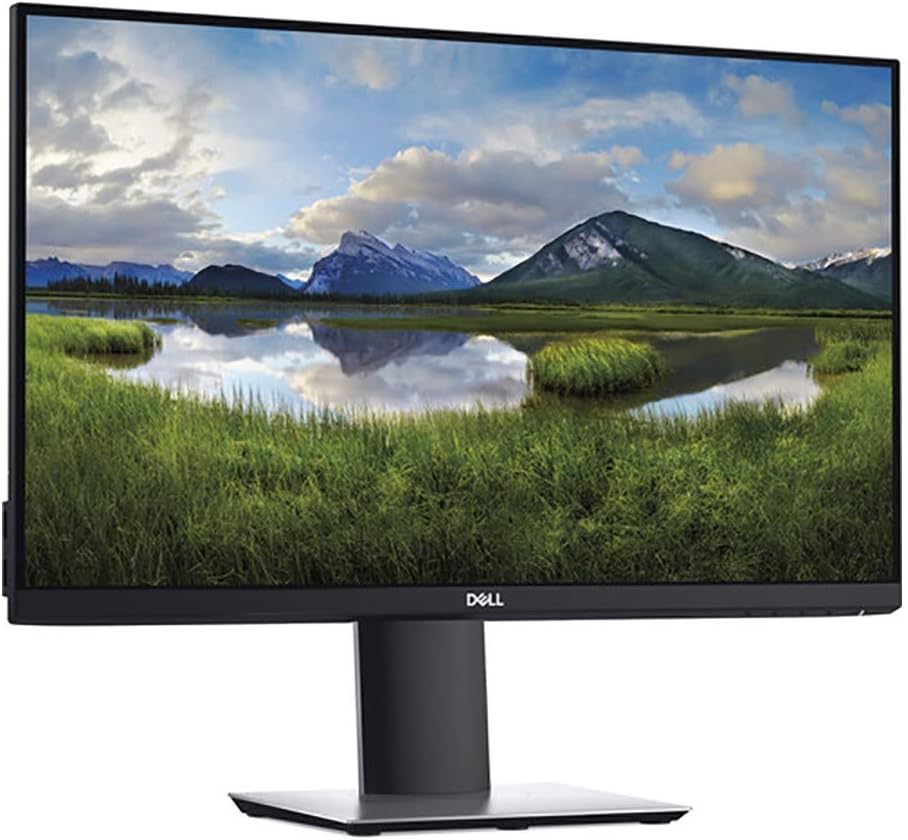
2. Dual Dell P2419H 24″ Monitors – Best Dual Monitor Setup
Key Specs: Dual 24″ IPS panels | Thin bezels | Full HD resolution | VESA mount compatible
- Clear task separation (communication vs work)
- Highly adjustable stands (huge for monitor ergonomics for work)
- Smooth side-by-side experience when aligned properly
- Needs more desk width (plan for ~48″+)
- More cables + setup effort than a single screen

3. Samsung Odyssey G9 49″ – Premium Productivity Powerhouse
Key Specs: 49″ super ultrawide | 5120×1440 resolution | Aggressive curve | High refresh rate
- Massive uninterrupted workspace for 3–4 full-size windows
- Immersive, “everything stays in view” feel
- Eliminates multi-monitor clutter
- Expensive (this is an investment)
- Needs a big desk and decent GPU power

4. ASUS ProArt Display PA278QV 27″ – Budget-Friendly Choice
Key Specs: 27″ IPS | 2560×1440 resolution | Factory color calibrated (100% sRGB / Rec.709) | Built-in USB hub
- Excellent value for professionals
- 1440p is the sweet spot for text clarity
- Great “single monitor” productivity upgrade
- Not ultrawide (traditional 16:9)
- Less multitasking space than duals/ultrawide
Key Takeaways: Which Setup Matches Your Work Style?
| If your day looks like… | Best fit | Why it works |
| Long focus blocks (writing/coding/design) | Ultrawide | Fewer interruptions, smoother deep work |
| Constant switching (Slack/email/calls/dashboards) | Dual monitors | Fast task separation, less mental overhead |
| Small desk / clean setup priorities | Ultrawide | One screen, fewer cables, less clutter |
| Heavy reference workflows (sheet + doc + browser) | Dual monitors | True side‑by‑side without squeezing windows |
| You want “endgame” screen space | Super ultrawide | Maximum visibility, fewer compromises |
How Monitor Setup Impacts Remote Work Productivity
I used to think productivity was willpower and better to‑do lists. Turns out a huge chunk is just reducing friction between you and your work. Your monitor setup for productivity is one of those hidden friction points that becomes obvious the second you fix it.
Context Switching Costs (The Quiet Productivity Killer)
Every time you minimize a window, bounce tabs, or jump between apps, your brain has to reload context. That’s the real enemy—especially if you’re doing knowledge work. With a cramped setup, you’re switching dozens of times an hour without noticing. A better setup reduces the number of “brain resets” you do per day. If context switching is draining your energy, explore our remote work software stack to streamline your tools.
- Ultrawide: more apps visible at once → fewer toggles
- Dual monitors: dedicated screens → faster switching with less confusion
Visual Scanning Fatigue (Why Your Eyes Hurt by Lunch)
When your layout forces you to scan too far (or cram windows into tiny columns), your eyes work overtime. That’s how you end up with headaches and “I can’t look at this screen anymore” energy by mid‑day. This is where ergonomics + screen layout matters.
Ergonomic Posture Strain (The Neck Pain You Ignore Until You Can’t)
This one got me. One slightly off‑center screen can turn into hours of subtle head turning daily. Then suddenly you’re stretching your neck like it’s your side hustle. Good ergonomics isn’t optional if you work from home—our ergonomic home office setup shows how small adjustments in monitor height and chair position can relieve neck or back pain.
Ultrawide Monitor Productivity: Pros, Cons, and Best Use Cases

I switched to an ultrawide thinking I was just buying “a bigger screen.” What I actually bought was a different way of working.
Why Ultrawide Monitors Work for Focus
One continuous canvas is the magic. No bezel. No “two different places.” Your draft and your references sit in the same visual field, which makes it easier to stay locked in. Ultrawide monitor benefits that show up fast:
- Less visual interruption → longer focus streaks
- Less head movement → fewer end‑of‑day aches
- Cleaner desk setup → fewer distractions (and fewer cables) — pair this with a well‑organized home office for maximum impact.
Where Ultrawide Falls Short
Window management matters. Without snapping tools, it’s chaos. Less natural task separation. If you need “communication over there” boundaries, an ultrawide can feel mentally messy. For better window management, use the apps in our software stack guide.
Best Ultrawide Use Cases
Ultrawide is your best friend if you do:
- Writing + research
- Coding + docs/terminal (ultrawide monitor for coding is legit)
- Design + tool panels
- Strategy + dashboards + notes
If your job rewards focus, ultrawide shines.
Dual Monitor Setup Productivity: Pros, Cons, and Best Use Cases

Dual monitors feel like having two separate desks in one chair. It’s not automatically better—just better for certain brains and workflows.
Why Dual Monitors Excel at Multitasking
The physical separation gives you instant structure:
- Left screen = communication (Slack/email/calendar)
- Right screen = work (docs/spreadsheets/design)
That structure reduces decision fatigue and makes switching tasks less draining.
Dual monitor workflow advantages:
- Faster reference work (doc + source side‑by‑side)
- Cleaner video call + notes setup
- Better for roles that require responsiveness
Where Dual Monitors Get Messy
- More desk space, more cables, more clutter
- Ergonomics can go wrong fast if alignment is off—our ergonomic office chair and ergonomic footrest guides can help you avoid lower back and leg discomfort
- Matching monitors can become a weird obsession (ask me how I know)
Best Dual Monitor Use Cases
Dual monitors are ideal for:
- Ops / project management
- Marketing + analytics dashboards
- Finance + spreadsheets
- Admin‑heavy roles
- Anyone living in constant “check/respond/update” mode
Side‑by‑Side: Focus vs Multitasking Monitors
The real difference:
- Ultrawide = continuity (better for deep work)
- Dual monitors = separation (better for multitasking)
If your day is mostly deep work, you want fewer context switches. If your day is mostly reactive work, you want faster switching with less cognitive load.
Which Setup Should You Choose?
Choose an Ultrawide If…
- You do deep work more than you multitask — our deep work techniques can supercharge those focus blocks
- Your desk is tight and you want a clean remote work desk setup
- You hate clutter and want “one screen, one cable” simplicity
- You want fewer distractions and fewer context switches
- You’re okay learning better window snapping
Choose Dual Monitors If…
- Your job demands constant communication + execution
- You need clean visual separation to stay sane
- Your work involves heavy referencing and comparison
- You have enough desk width and you want flexibility
Quick Decision Checklist
If you say “yes” to most of these, that’s your winner:
Go Ultrawide
- I do deep work more than I multitask
- I want a clean, minimal desk
- I want fewer distractions and fewer context switches
- I’m okay learning better window snapping
Go Dual Monitors
- I’m constantly in Slack/email/calls
- I need communication visible while I work
- I reference docs/spreadsheets all day
- I have enough desk width and I want flexibility
Bonus: Make Any Setup More Productive
Even the best productivity desk setup can flop if you ignore the basics:
- Center your primary screen (or primary “zone”) directly in front of you
- Top of the screen: roughly eye level
- Use a simple window system:
- One “work” zone
- One “reference” zone
- One “communication” zone (muted during deep work)
- Pair your setup with remote work productivity tools:
- Calendar blocks for focus time
- A task manager you actually use
- Notification discipline (yes, this matters more than refresh rate)
LG 34WN80C-B 34″ Curved UltraWide
- USB-C with 60W power delivery
- Excellent color accuracy (sRGB 99%)
- Curved design for immersive viewing
- Height & tilt adjustable stand
- Higher price point
- 5ms response time
- Limited to 60Hz refresh rate
Dual Dell P2419H 24″ Monitors
- Excellent value for money
- Fully adjustable stand (HPST)
- ComfortView reduces blue light
- Ultrathin bezels for dual setup
- FHD resolution (lower than ultrawide)
- Requires more desk space
- More cables and setup complexity
Samsung Odyssey G9 49″
- Massive 49″ ultrawide screen
- Ultra-fast 240Hz refresh rate
- 1ms response time for gaming
- QLED with vibrant colors
- Premium price point
- Requires significant desk space
- Needs powerful GPU
ASUS ProArt Display PA278QV 27″
- Excellent value for money
- Factory calibrated (ΔE < 2)
- 100% sRGB & Rec. 709 coverage
- Fully adjustable stand
- Standard 16:9 aspect ratio
- 60Hz refresh rate
- Not ideal for gaming
Conclusion
If you take nothing else from this: ultrawide vs dual monitor setup productivity isn’t about which option is “best.” It’s about which setup removes friction from your workflow. Ultrawide monitors are ridiculous for focus. Dual monitors are ridiculous for multitasking. Both can boost your output—but only if they match how you actually work. Choose based on your real day: deep work vs constant switching, small desk vs big desk, continuity vs separation.
And if you want the simplest next step, do this: pick one setup from the recommendations above, fix your ergonomics, and commit for two weeks. Your energy, your focus, and your output will make the decision for you—because the right choice is the one that makes ultrawide vs dual monitor setup productivity feel effortless instead of exhausting.


