You sit down for a 10 AM team meeting, your coffee is hot, your notes are ready, and then it happens: your webcam makes you look like a blurry witness on a crime show. Grainy video, washed-out colors, a microphone that sounds like you’re calling from a moving car.
Your gear is sending signals about your professionalism before you even open your mouth. And in 2026, with remote work as the norm for millions of knowledge workers, a bad webcam is the fastest way to undermine your presence on every Zoom, Teams, and Google Meet call. If you are spending hours on video calls each day, also check out our guide on how to reduce video call fatigue.
We get it. Not everyone can drop $250 on a webcam. That’s why we put together this guide to the best budget webcam for remote work — options that deliver clear video and decent audio without making you question your life choices when you see the price tag. For the best meeting experience, pair your webcam with a quality microphone — audio clarity matters just as much as video.
We tested these cameras for video quality, microphone performance, low-light capability, build quality, and actual real-world usability on remote calls. Here’s what we found.
This article contains affiliate links. If you purchase through these links, we may earn a small commission at no extra cost to you.
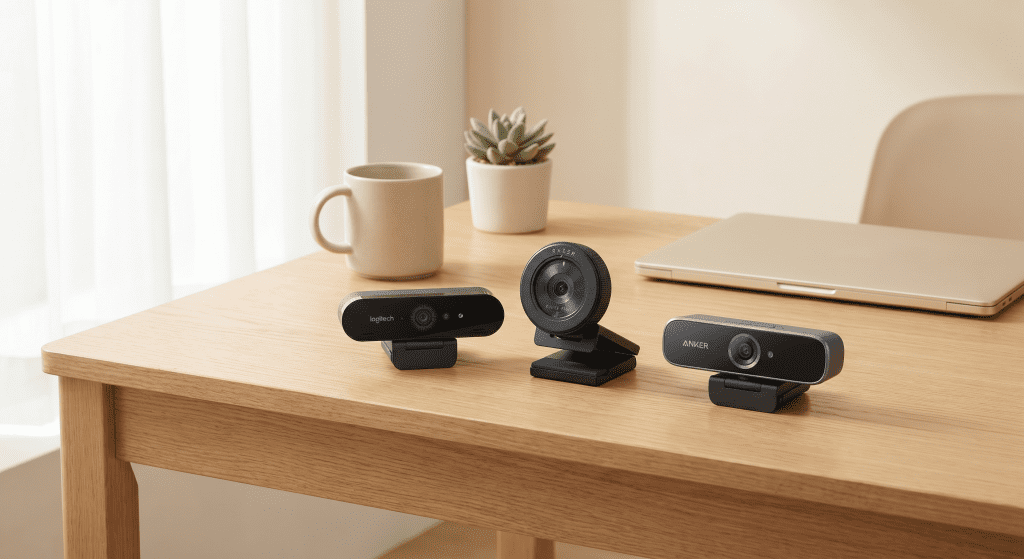
Quick Picks: Best Budget Webcam for Remote Work at a Glance
| Product | Resolution | Price Range | Best For | Microphone |
|---|---|---|---|---|
| Logitech C270 | 720p | $20–30 | Rock-bottom budget | Mono |
| Logitech C920s Pro | 1080p | $60–70 | Best overall value | Dual stereo |
| Anker PowerConf C200 | 1080p | $40–50 | Best under $50 | Dual with AI noise reduction |
| Nexigo N60 | 1080p | $25–35 | Ultra-budget wide angle | Built-in |
| Razer Kiyo X | 1080p | $80–100 | Low light performance | Omnidirectional |
| Logitech StreamCam | 1080p @ 60fps | $150–170 | Premium streaming | Dual omnidirectional |
| OBSBOT Tiny 2 | 4K / 1080p | $180–200 | AI tracking & premium | Dual omnidirectional |
1. Logitech C270 — Best Budget Webcam for Remote Work on a Shoestring
Price: ~$20–30 | Resolution: 720p HD | Best for: Tight budgets, basic calls
The Logitech C270 is the definition of “it just works.” It’s been on the market for years and continues to be the go-to choice when your budget is absolutely minimal. The C270 delivers 720p HD video at 30fps with a 60° field of view. It’s not going to win any awards for image quality, but for casual team check-ins and internal meetings where nobody is grading your video production, it gets the job done.
Pros: Extremely affordable, plug-and-play setup (no drivers needed), reliable build, universal compatibility with Windows, macOS, ChromeOS
Cons: 720p max resolution (shows its age), mono microphone sounds thin, no privacy shutter, no autofocus (fixed focus lens), struggles badly in low light
Setup quality: Excellent. Literally plug it in and it works. No software required.
Microphone quality: Below average. The mono mic picks up decent volume but lacks any warmth or depth. Your voice will sound like you’re speaking through a walkie-talkie.
Low-light performance: Poor. Without a built-in light or wide aperture lens, the C270 produces noisy, grainy footage in anything less than bright office lighting.
Verdict: Buy this only if your budget truly can’t stretch beyond $30. If you can save an extra $20–30, the step up to 1080p is absolutely worth it.
2. Logitech C920s Pro — Best Overall Budget Webcam for Remote Work
Price: ~$60–70 | Resolution: 1080p at 30fps | Best for: The sweet spot for most remote workers
The Logitech C920s Pro is the most recommended webcam in the remote work world for good reason. It delivers sharp 1080p video at 30fps with a 78° field of view, dual stereo microphones, and a built-in privacy shutter. The image quality is dramatically better than the C270 — clearer, more detailed, with much better color reproduction.
Logitech has sold millions of these for a reason. It’s the baseline we compare every other webcam against. For the vast majority of remote workers — daily Zoom calls, client meetings, team stand-ups — this is all the webcam you’ll ever need.
Pros: Fantastic 1080p image quality at this price, dual stereo mics sound great, Carl Zeiss optics deliver sharp video, autofocus works well, includes privacy shutter, proven reliability over years
Cons: 78° FOV is narrower than some competitors, no 60fps mode, USB-A only (adapter needed for modern laptops), no built-in ring light, design feels a bit dated
Setup quality: Excellent. Plug and play on all major operating systems. Logitech Capture software adds manual controls if you want them.
Microphone quality: Good. The dual stereo mics capture rich, full audio that’s perfectly serviceable for meetings. Still benefits from a dedicated USB mic for podcast-level quality.
Low-light performance: Decent. Better than the C270 thanks to improved sensor sensitivity, but still benefits from good room lighting.
Verdict: This is our top recommendation for most people. It delivers 90% of the quality of premium webcams at less than half the price.
3. Anker PowerConf C200 — Best Budget Webcam for Remote Work Under $50
Price: ~$40–50 | Resolution: 1080p at 30fps | Best for: Budget buyers who want AI features
The Anker PowerConf C200 is a relatively newer entrant that punches well above its weight. It offers 1080p video with a massive 95° field of view — significantly wider than the Logitech C920s — and includes AI-powered noise reduction on its dual microphones.
Anker’s software suite gives you manual control over exposure, white balance, and field of view. You can crop the 95° wide-angle view down to 78° or 65° digitally, which is handy for avoiding that “fisheye” look in smaller spaces.
Pros: Great value at under $50, ultra-wide 95° FOV adjustable via software, AI noise reduction on mics, USB-C connection (works great with modern laptops), compact design
Cons: No autofocus (fixed focus at 1m+), software not as polished as Logitech’s, image sharpness trails the C920s slightly, no privacy shutter included
Setup quality: Good. Plug and play for basic use. The AnkerWork software unlocks the extra features.
Microphone quality: Very good for the price. The AI noise reduction is noticeably effective at filtering out keyboard clatter and background chatter.
Low-light performance: Decent. Similar to the C920s — usable but not amazing. The adjustable exposure helps in tricky lighting.
Verdict: If you want a wide field of view and AI noise cancellation on a budget, this is the best $50 you’ll spend. A serious contender to the C920s.
4. Nexigo N60 — Best Ultra-Budget Webcam for Remote Work
Price: ~$25–35 | Resolution: 1080p at 30fps | Best for: The absolute cheapest entry to 1080p
The Nexigo N60 carves out a specific niche: it’s the cheapest way to get 1080p video on your calls. At $25–35, it undercuts the C920s by half while still delivering full HD resolution. The trade-offs are predictable — build quality isn’t as premium, the microphone is basic, and the autofocus can hunt occasionally — but the video itself is genuinely sharp and clear in good lighting.
The N60 also offers a 110° wide-angle lens, which is the widest FOV in this budget category. Great for showing your full home office setup or including multiple people in the frame. Just be aware of the slight barrel distortion at the edges.
Pros: Insane value for 1080p at this price, 110° ultra-wide FOV, plug-and-play setup, compatible with all major platforms
Cons: Cheap plastic build, basic microphone, autofocus hunts in less-than-perfect light, no software controls, no privacy shutter
Setup quality: Good. Simple USB plug and play.
Microphone quality: Basic. It picks up your voice but adds noticeable room echo. Fine for quick internal calls; upgrade for client-facing work.
Low-light performance: Poor. Similar to the C270 — significant noise and grain below typical office lighting levels. Really needs good front lighting.
Verdict: If you’re on a true shoestring budget but absolutely need 1080p, this is the pick. Otherwise, save a bit more for the C920s or PowerConf.
5. Razer Kiyo X — Best Budget Webcam for Remote Work in Low Light
Price: ~$80–100 | Resolution: 1080p at 30fps | Best for: Rooms with poor lighting
The Razer Kiyo X builds on Razer’s streaming heritage with features that directly benefit low-light performance. While it doesn’t include the built-in ring light of its predecessor (the original Razer Kiyo), the Kiyo X uses a larger, more sensitive sensor that significantly outperforms the Logitech lineup in dim conditions.
In testing, the Kiyo X maintained usable, relatively clean video at light levels where the C920s became a noisy mess. It also offers 720p at 60fps mode, which creates smoother motion in meetings where people gesture or move around.
Pros: Best low-light performance in the budget category, 1080p at 30fps plus 720p at 60fps, 82° FOV is a good middle ground, Razer Synapse software offers decent controls, solid build quality
Cons: Pricier than the C920s without obvious daytime quality improvement, no built-in ring light, microphone is average at best, Razer Synapse software can be bloated, USB-A only
Setup quality: Good. Plug and play for video capture. Synapse required for advanced settings.
Microphone quality: Average. The omnidirectional mic works but picks up more room noise than the C920s stereo mics. Plan to use a separate mic for important calls.
Low-light performance: Excellent for this price range. This is the Kiyo X’s superpower. If your home office has poor lighting and you can’t fix it, this camera handles it best.
Verdict: Buy this if your workspace has challenging lighting and you can’t add better lamps. The low-light advantage is real and worth the premium.
6. Logitech StreamCam — Best for Content Creation on a Budget
Price: ~$150–170 | Resolution: 1080p at 60fps | Best for: Streamers, content creators, and video-first roles
The Logitech StreamCam is a step up in quality and flexibility. It shoots smooth 1080p at 60fps, supports USB-C connectivity, and features a versatile mounting system that works in both landscape and portrait orientations. The dual omnidirectional microphones capture better audio than the C920s, and the image quality is noticeably sharper with better exposure handling.
For remote workers who also create content — recording Loom videos, hosting webinars, streaming internal events — the StreamCam’s 60fps capability makes a visible difference. Motion is smoother, and the overall video feels more polished.
Pros: Smooth 60fps video, USB-C (no dongle needed on modern devices), excellent image quality with great color accuracy, versatile mount works in portrait mode, Logitech Capture software is the best in their lineup
Cons: More than double the C920s price, no 4K option (competitors at this price offer it), 78° FOV same as C920s, overkill for most meeting scenarios
Setup quality: Excellent. Flexible mount system works with monitors, tripods, and desktop stands.
Microphone quality: Good. Dual omnidirectional mics with better frequency response than the C920s. Still not as good as a dedicated USB microphone.
Low-light performance: Good. Better than the C920s thanks to a more capable sensor, though still behind the Kiyo X in very dim conditions.
Verdict: Worth the upgrade if you record video content regularly. For pure meeting use, the C920s gives you 90% of the experience at 40% of the price.
7. OBSBOT Tiny 2 — Best Premium AI Webcam for Remote Work
Price: ~$180–200 | Resolution: 4K at 30fps, 1080p at 60fps | Best for: AI tracking, power users who want premium
The OBSBOT Tiny 2 is in a different league. It features a motorized gimbal with AI-powered subject tracking that automatically follows you as you move around your workspace. The 4K sensor delivers stunning image quality, and the dual noise-cancelling microphones are among the best we’ve tested on a webcam.
For remote workers who present frequently — walking around a whiteboard, demonstrating physical products, doing live demos — the AI tracking is genuinely transformative. You can move naturally without worrying about staying in frame. Gesture controls let you zoom, pan, and switch modes with hand signals.
Pros: Stunning 4K video quality, AI-powered gimbal tracking follows your movement, excellent dual mics with noise cancellation, gesture controls for hands-free operation, USB-C connection, premium build quality
Cons: Highest price on this list by a margin, AI tracking is overkill for standard sit-down meetings, requires OBSBOT software for full features, gimbal adds height (may not fit under some monitor setups)
Setup quality: Good. USB-C plug and play for basic video. OBSBOT software needed for AI features and gesture controls.
Microphone quality: Excellent. Among the best built-in webcam mics we’ve tested. The AI noise cancellation is aggressive and effective.
Low-light performance: Very good. The larger 4K sensor handles low light significantly better than any 1080p camera on this list.
Verdict: The best webcam money can buy for remote work — if you can justify the price. For dynamic presenters and power users, it’s worth every penny.
How to Choose a Budget Webcam for Remote Work
When you’re shopping for a webcam, here are the specs that actually matter for remote work:
Resolution: 1080p vs 720p
720p is the bare minimum in 2026. It looks okay on a phone screen but feels dated on a 24-inch monitor. 1080p is the real standard for professional remote work. The difference between 720p and 1080p is massive — text on documents behind you becomes readable, your facial expressions are clearer, and you look noticeably more professional. We don’t recommend anything below 1080p unless your budget is absolutely locked under $30.
Field of View (FOV)
78° to 90° is the sweet spot for desk setups. Wide enough to show your face and some background, narrow enough to avoid the fisheye effect. Ultra-wide cameras (110°+) can be useful for showing your full home office setup or including multiple people, but they introduce barrel distortion around the edges.
For more on building a complete workspace, check out our home office deep focus setup guide.
Autofocus vs Fixed Focus
Fixed-focus webcams (like the C270 and PowerConf C200) stay sharp at a specific distance range. Autofocus (like the C920s) adjusts as you move. Autofocus is better if you lean in and out of frame, gesture while speaking, or share objects near the camera.
Microphone Quality
Dual stereo microphones are a significant upgrade over mono mics. They capture richer, more natural audio. AI noise cancellation (found on the Anker PowerConf C200 and OBSBOT Tiny 2) is genuinely useful if you work in a noisy environment or share space with other people.
Privacy Shutter
A physical privacy shutter (not a software toggle) is a small feature that matters a lot for peace of mind. The C920s Pro includes one. For cameras without one, you can buy a separate webcam cover for a few dollars.
1080p vs 4K Webcam: Which Do You Need in 2026?
This question comes up constantly, and the answer is simpler than most people think.
For remote work meetings: 1080p is the sweet spot. Zoom, Teams, and Google Meet all cap video quality well below what a 4K webcam can deliver. The streaming bandwidth limits of video conferencing services mean your 4K feed gets compressed down to roughly 1080p quality anyway. You’re paying for resolution you’ll never actually use in a meeting.
When 4K makes sense: If you record videos for editing (product demos, training content, YouTube), work in video production, or present on platforms that support 4K streaming like Vimeo or custom RTMP setups. The OBSBOT Tiny 2’s 4K sensor also has the side benefit of delivering cleaner 1080p output thanks to pixel binning — your downscaled 1080p feed will look better than a native 1080p camera’s.
The real upgrade path: Most people should go: C270 (720p) → C920s (1080p) → add good lighting → StreamCam (1080p 60fps) → OBSBOT Tiny 2 (4K with AI). Skip 4K entirely unless you have a specific use case.
Best Webcam Lighting Tips for Remote Workers
Lighting matters more than your camera. A good webcam in bad light looks worse than an average webcam in great light. Here’s how to fix your setup:
- Face a window. Natural light from a window in front of you is the single best lighting setup. Avoid windows behind you (they turn you into a silhouette).
- Use a ring light or key light. A $20–40 ring light positioned just above or beside your monitor dramatically improves video quality. Check out our best desk lamps guide for options that double as video lighting.
- The three-point rule. Key light (main, in front), fill light (softer, from the side), back light (behind, separating you from the background). Even a simplified version — bright lamp in front plus natural light from the side — makes a huge difference.
- Avoid overhead ceiling lights alone. Overhead lights cast harsh shadows under your eyes and nose. Always combine with a front-facing light source.
- Check your background. Clear clutter behind you, or use a virtual background. The cleaner your background, the more professional you look regardless of your camera quality.
Common Webcam Mistakes Remote Workers Make
- Relying on your laptop’s built-in webcam. Laptop webcams are universally terrible — tiny sensors, terrible microphones, and positioned to give you an unflattering up-the-nose angle. Even a $25 external webcam will look better.
- Ignoring lighting. As covered above, lighting matters more than camera quality. Don’t buy a premium camera before fixing your lighting setup.
- Buying 4K when you don’t need it. Save your money. The extra resolution adds cost without visible benefit in standard video calls. Invest in a better 1080p camera or better lighting instead.
- Skipping the microphone check. Most people judge webcam audio by their built-in mic and assume it’s fine. Do a test recording. Listen for room echo, background noise, and tinny sound. You might need a separate USB microphone — check our productivity apps guide for our audio setup recommendations.
- Forgetting the privacy shutter. Even if your webcam has a shutter, use it when you’re not on calls. For cameras without one (C270, N60), buy a $3 sliding cover.
- Not testing before important calls. Test your camera and microphone in your actual meeting software at least 15 minutes before a client call. Different apps handle video differently.
Do You Need an External Webcam in 2026?
Short answer: yes, if you take your remote work seriously.
In 2026, laptop webcams have improved. Apple’s Studio Display and the latest MacBook Pros have decent 1080p FaceTime cameras. Some Windows laptops are finally shipping with 1080p webcams instead of the ancient 720p sensors.
But even the best laptop webcam has fundamental limitations:
- They’re positioned below your eye line, creating an unflattering angle.
- The tiny sensor is physically constrained by the laptop lid thickness.
- The microphone is far from your mouth, picking up more room noise.
- You can’t position them independently of your screen.
An external webcam at eye level with good lighting makes you look more engaged, more professional, and more credible. For client-facing roles, it’s a non-negotiable investment in your professional image.
If you’re building your ultimate home office, start with a great laptop setup and add a webcam as the next upgrade.
Frequently Asked Questions
What is the best budget webcam for remote work?
The Logitech C920s Pro is widely considered the best budget webcam for remote work. It delivers excellent 1080p video, dual stereo microphones, and a privacy shutter for around $60–70. For under $50, the Anker PowerConf C200 is a strong alternative with AI noise cancellation and a wider field of view.
Is 720p good enough for a webcam in 2026?
720p is the bare minimum for remote work. It works for internal team meetings but looks dated and unprofessional in client-facing calls. We recommend 1080p as the baseline for any professional remote worker in 2026.
What’s the difference between Logitech C270 and C920?
The C270 is a basic 720p webcam with a mono microphone, priced around $20–30. The C920s Pro is a 1080p webcam with dual stereo microphones, autofocus, and a privacy shutter, priced around $60–70. The C920s is dramatically better in every way.
Do I need a 4K webcam for remote work?
No. Zoom, Teams, and Google Meet all compress video below 4K quality. A good 1080p webcam delivers the same visible quality on calls as a 4K webcam. 4K is only useful if you record and edit video content or stream on platforms that support 4K.
Which webcam has the best microphone?
The OBSBOT Tiny 2 has the best built-in microphone of any webcam we tested, with effective AI noise cancellation. For a more budget-friendly option, the Anker PowerConf C200 offers impressive dual-mic performance with noise reduction for under $50.
How can I improve my webcam video quality without buying a new camera?
Improve your lighting first. Face a window or use a desk lamp positioned in front of you. Clean your camera lens. Adjust your camera to eye level (stack books under it if needed). Use a clean, clutter-free background. These changes often make a bigger difference than upgrading your camera.
Is the Razer Kiyo X good for low light?
Yes. The Razer Kiyo X has the best low-light performance of any webcam under $100. Its larger, more sensitive sensor maintains clean video in dim conditions where other webcams produce noisy, grainy footage.
What webcam do YouTubers and streamers use?
Many streamers and YouTubers use the Logitech StreamCam for its smooth 60fps video or the OBSBOT Tiny 2 for its 4K quality and AI tracking. For budget-conscious creators, the Logitech C920s Pro is a popular starting point.
Final Verdict: Which Budget Webcam Should You Buy?
Here’s our bottom-line recommendation based on your situation:
- Budget under $30: Get the Logitech C270. It’s not great, but it works.
- Best for most people ($60–70): Get the Logitech C920s Pro. It’s the standard for a reason.
- Best under $50: Get the Anker PowerConf C200. Great features at a great price.
- You work in low light ($80–100): Get the Razer Kiyo X. Nothing beats it in dim conditions at this price.
- You record video content ($150–170): Get the Logitech StreamCam. The 60fps is worth it.
- Money is no object ($180–200): Get the OBSBOT Tiny 2. It’s the best webcam for remote work money can buy.
Whichever you choose, pair it with decent lighting. A $60 C920s with a $30 ring light will look better than a $200 webcam in a dark room every single time.

Sophia Carter has spent years testing productivity tools and workspace setups. She helps remote workers build efficient home offices that support deep focus, ergonomics, and better workflows.