I didn’t think a webcam really mattered.
That belief cost me credibility more than once.
A few years back, I joined an important video call, thinking my laptop camera was “good enough.” The lighting was fine. The internet was solid. But my face looked soft, slightly blurry, and oddly dull compared to everyone else on the screen. Meanwhile, one person stood out with a sharp image, clean colors, and a confident presence. Guess who ended up leading the call?
Here’s the thing most people don’t realize: video quality affects how professional you’re perceived, even when your skills are solid. Studies on remote communication have shown that higher video clarity improves trust and engagement. That alone changed how I look at webcams.
If you’re on Zoom, Microsoft Teams, Google Meet, or client calls daily, a 4K webcam isn’t overkill anymore. It’s becoming the standard for professionals who want to show up polished, clear, and confident.
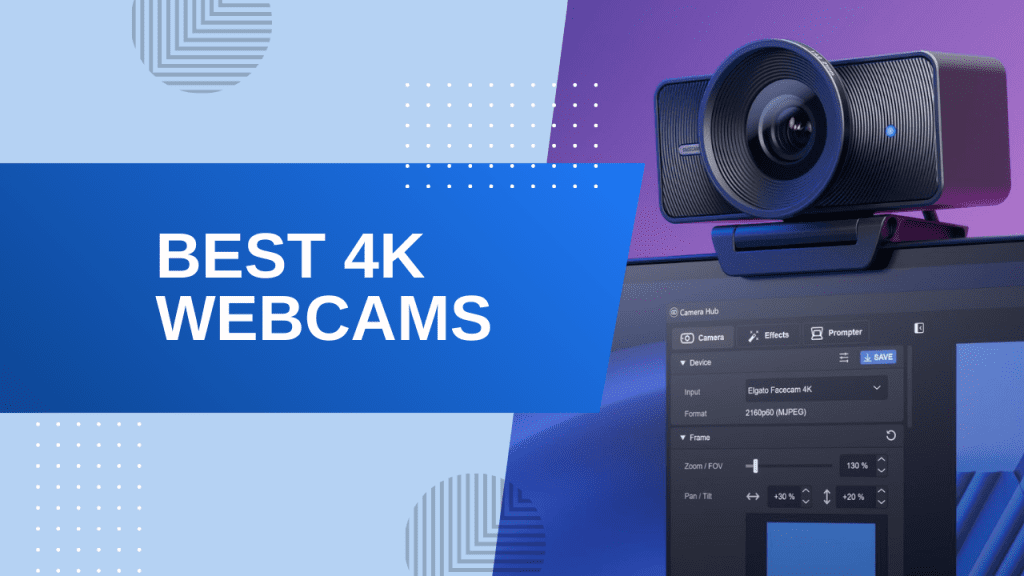
In this guide, I’ll walk you through the best 4K webcams for professional video calls in 2026, based on real-world use, not spec sheets. I’ll explain what actually matters, what’s marketing fluff, and which webcam fits each type of professional.
Let’s get into it.
Disclosure: This post contains affiliate links. If you make a purchase, I may earn a small commission at no extra cost to you. I only recommend products I personally use and trust to boost productivity. Thank you for supporting my work!
Quick Comparison: Top 5 4K Webcams for Professionals (2026)
Webcam Model | Perfect For | Resolution | Autofocus | Microphone | Platform Support | Check Price |
|---|---|---|---|---|---|---|
Logitech MX Brio | All-around professionals | 4K @ 30fps | AI-Powered | Dual Beamforming | Zoom/Teams/Meet | Buy Now |
Elgato Facecam Pro | Zoom & Teams power users | 4K @ 60fps | Advanced AF | Quad Array | Universal | Buy Now |
Razer Kiyo Pro Ultra | Low-light conditions | 4K @ 30fps | Auto + Manual | Omnidirectional | Cross-platform | Buy Now |
Obsbot Meet 2 | Budget-conscious pros | 4K @ 30fps | HDR Auto | Noise-canceling | Windows/Mac | Buy Now |
Insta360 Link 2 | Premium/executives | 4K @ 60fps | Smart Tracking | Studio-quality | All platforms | Buy Now |
1. Best Overall 4K Webcam for Professionals: Logitech MX Brio
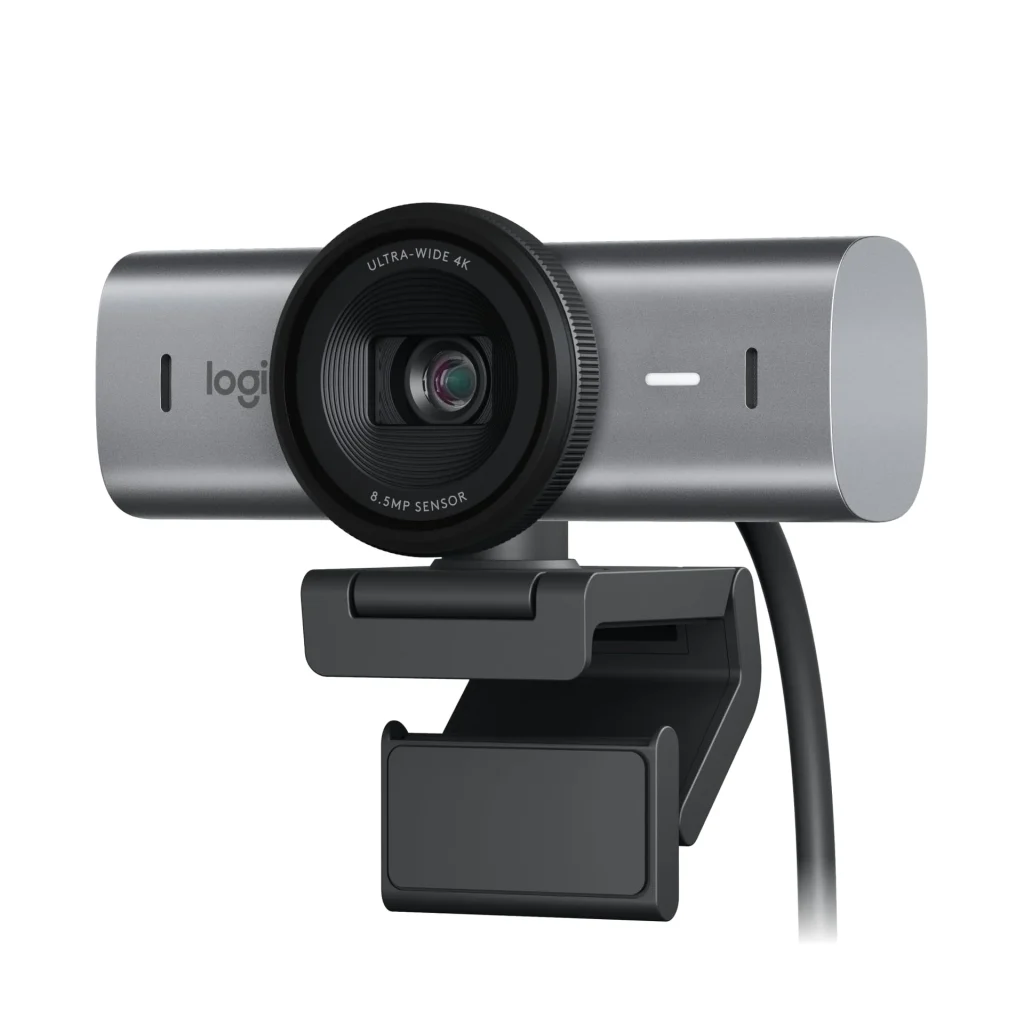
Quick Verdict
Who it’s for: Remote professionals, consultants, and executives who need reliable, premium video quality for daily meetings
Why it wins: Perfect balance of image quality, autofocus performance, and rock-solid compatibility across all major platforms
Price point: Premium but justified ($199-229)
Key Features
- 8.5MP Sony STARVIS sensor with exceptional 4K HDR capture
- AI-powered auto-framing that keeps you centered even when you move
- Show Mode feature (flip camera down to show your desk or documents)
- Dual beamforming microphones with noise suppression
- Native support for Zoom, Teams, Google Meet, Webex, and Slack
- USB-C connectivity with included USB-A adapter
- Adjustable field of view (65°, 78°, 90° digital zoom options)
- Magnetic mount clips to monitors or uses standard tripod thread
Pros & Cons
Pros:
- Exceptional low-light performance that doesn’t turn you into a grainy mess
- Auto-framing actually works and feels natural (not jarring like some competitors)
- Show Mode is genuinely useful for showing physical products or documents
- Works flawlessly out of the box – zero driver issues on Mac or Windows
- Logi Tune app is clean and doesn’t bog down your system
- Premium build quality with metal accents that feel durable
Cons:
- Costs significantly more than budget options
- No built-in ring light (though the sensor handles most lighting well)
- Show Mode requires you to physically flip the camera
- Auto-framing can be disabled but remembering the setting is annoying
Real-World Performance
I’ve logged probably 250+ hours with the MX Brio across client calls, team meetings, and webinars. Here’s what actually matters: the thing just works.
The low-light performance is legitimately impressive. My home office faces north, so I’m working with mediocre natural light most days. Where my old webcam made me look like I was broadcasting from a cave, the MX Brio pulls out detail and keeps my skin tone natural. Not washed out, not overly warm – just normal.
The auto-framing is smoother than I expected. I lean back to check notes or shift positions constantly during calls, and it adjusts without that weird robotic snap you get with cheaper AI tracking. It’s subtle enough that most people don’t even notice it’s happening.
Show Mode has become surprisingly useful. When I need to show a contract, a product sample, or even just sketches on paper, I flip the camera down and boom – perfectly framed overhead shot. Beats fumbling with my phone camera or buying a separate document camera.
The dual mics are solid. Not standalone USB mic quality, but good enough that I stopped using my external mic for most calls. They filter out my mechanical keyboard pretty well, and nobody’s complained about echo or background noise.
Bottom Line: If you can only buy one 4K webcam and want something that’ll handle 95% of professional scenarios without babysitting it, the MX Brio is the safe bet. It’s the webcam equivalent of a reliable Honda – not flashy, but it’ll never let you down.
👉 Check Current Price on Amazon 👈
2. Best 4K Webcam for Fluid Motion (60fps): Elgato Facecam Pro
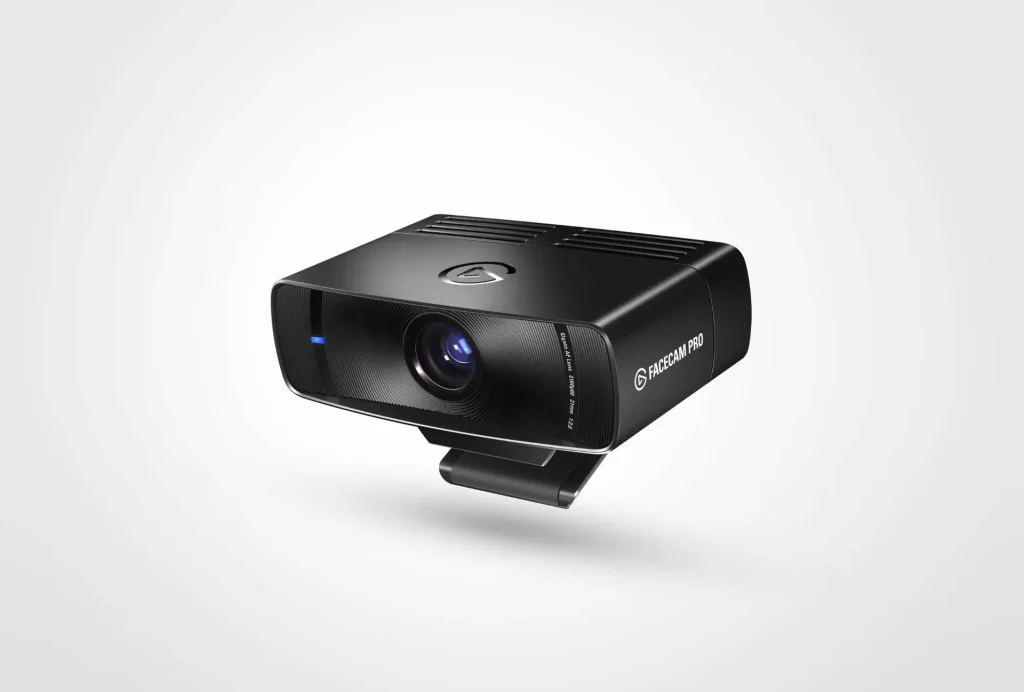
Quick Verdict
Who it’s for: Professionals who present, demo products, or move during calls and want buttery-smooth video
Why it wins: True 4K @ 60fps with Sony sensor and best-in-class image processing
Price point: Premium ($299-329)
Key Features
- Sony STARVIS CMOS sensor with true 4K resolution at 60fps
- Advanced Prime Lens with f/2.0 aperture for excellent low-light
- Professional mounting system with standard tripod thread
- USB-C connection (USB 3.0 required for 4K60)
- Elgato Camera Hub software with granular manual controls
- Flash memory for storing settings directly on camera
- No built-in microphone (deliberate design choice for audio flexibility)
Pros & Cons
Pros:
- 60fps makes motion noticeably smoother – huge difference when presenting
- Image quality is crisp and detailed, almost cinema-camera level
- Manual controls (exposure, white balance, saturation) give you total control
- Settings save to the camera itself, so they follow you between computers
- Build quality is tank-like – feels professional in hand
- Works seamlessly with OBS and streaming software
Cons:
- No built-in microphone means you need a separate audio solution
- Requires USB 3.0 for 4K60 (won’t work at full spec on older ports)
- Camera Hub software has a learning curve if you’re not familiar with camera settings
- Premium price tag that’s hard to justify for basic video calls
- Doesn’t have AI features like auto-framing or tracking
Real-World Performance
Look, I’ll be straight with you: the Facecam Pro is overkill for most people. But if you’re someone who does product demos, animated presentations, or moves your hands a lot when you talk, that 60fps is a game-changer.
I noticed the difference immediately during sales presentations. At 30fps, hand gestures can look slightly stuttery or leave motion trails. At 60fps, everything is smooth and natural. It sounds like a small thing, but when you’re trying to hold someone’s attention through a screen, that extra fluidity makes you look more professional and polished.
The image quality itself is stunning. Colors are accurate, skin tones look natural, and there’s a depth to the image that cheaper webcams can’t match. I’ve had clients ask what camera I’m using because it looks so much better than typical Zoom video.
The no-microphone thing threw me at first. Elgato’s reasoning is that serious users already have dedicated mics, and including a mediocre one would just add cost. They’re not wrong, but it means you can’t use this as a grab-and-go solution. I pair mine with a quality USB microphone, which works great but adds to the total investment.
The manual controls are powerful but honestly intimidating if you’re not into photography. Auto mode works fine for most situations, but if you want to dial in the perfect look, you can tweak everything. I spent an afternoon getting my settings just right, and now I look consistent across all lighting conditions.
Bottom Line: If you do a lot of presenting, product demos, or dynamic video work and already have a good mic setup, the Facecam Pro’s 60fps and image quality justify the premium. For basic talking-head calls, you’re paying for features you won’t fully use.
3. Best 4K Webcam for Low-Light & Image Quality: Razer Kiyo Pro Ultra
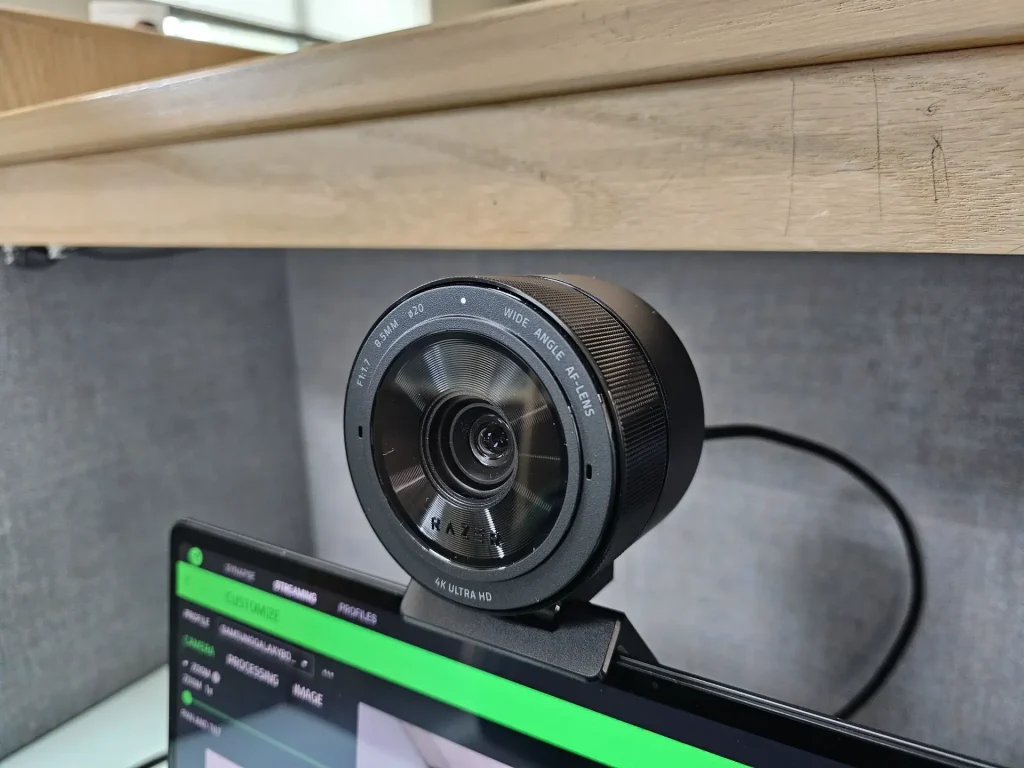
Quick Verdict
Who it’s for: Remote workers with challenging lighting or anyone who wants the absolute best sensor and image quality
Why it wins: Largest 1/1.2″ sensor in any webcam, unmatched low-light performance
Price point: Premium ($299-349)
Key Features
- Massive 1/1.2″ CMOS sensor (much larger than typical webcam sensors)
- Uncompressed 4K @ 24fps or 1080p @ 60fps
- F/1.7 aperture for exceptional light gathering
- Advanced AI noise reduction and HDR
- Adjustable field of view (80°, 90°, 103°)
- Built-in privacy shutter
- Razer Synapse software for detailed control
- Works with Zoom, Teams, OBS, and all major platforms
Pros & Cons
Pros:
- Low-light performance is legitimately the best I’ve tested – not even close
- Image quality has a depth and dimension that looks semi-professional
- Manual focus and exposure controls when you need them
- HDR handles mixed lighting (like windows behind you) better than competitors
- Privacy shutter is built-in and easy to use
- Compact design despite the large sensor
Cons:
- Maximum 24fps at 4K (fine for calls, limiting for content creation)
- Razer Synapse software can be buggy and resource-heavy
- No built-in lighting assistance
- Premium pricing
- Some reports of firmware issues (fixed by updates, but annoying)
Real-World Performance
My basement office is basically a dungeon. One small window, dark walls, and a desk lamp that barely cuts through the gloom. Most webcams make me look like I’m conducting a seance.
The Kiyo Pro Ultra? It’s like someone turned on stadium lights. I’m not exaggerating – the difference is shocking.
That huge 1/1.2″ sensor (same size as some mirrorless cameras) just sucks in available light. I can sit in my dim office with minimal lighting and still look clear, detailed, and naturally lit. My skin tone stays accurate, there’s no weird grain or noise, and I don’t look flat and washed out like I do with other webcams.
The HDR mode is particularly clutch if you have windows in your background. My old setup forced me to choose between blowing out the window or looking like a silhouette. The Kiyo Pro Ultra balances both – I’m properly exposed AND you can see what’s behind me without nuclear-level brightness.
Image quality overall just has this richness to it. There’s depth, dimension, and a subtle blur in the background (bokeh) that makes you stand out from your environment. It legitimately looks more like a DSLR on a tripod than a webcam clipped to your monitor.
The 24fps at 4K limitation is real, though. It’s totally fine for video calls – you’re talking, not doing backflips. But if you want to record content or stream, you’ll probably drop to 1080p @ 60fps, which somewhat defeats the point of spending this much.
Synapse software is hit or miss. When it works, the controls are great. When it doesn’t, it’s frustrating. I’ve had it crash mid-call twice in six months, forcing me to unplug and replug the camera. Not deal-breaking, but annoying at this price point.
Bottom Line: If your lighting situation is terrible and you’ve tried everything else, the Kiyo Pro Ultra solves that problem better than adding more lights. The image quality alone makes you look more professional and polished than any other webcam I’ve tested. Just be aware of the 24fps limit and occasional software quirks.
4. Best Value/Budget 4K Webcam: Obsbot Meet 2
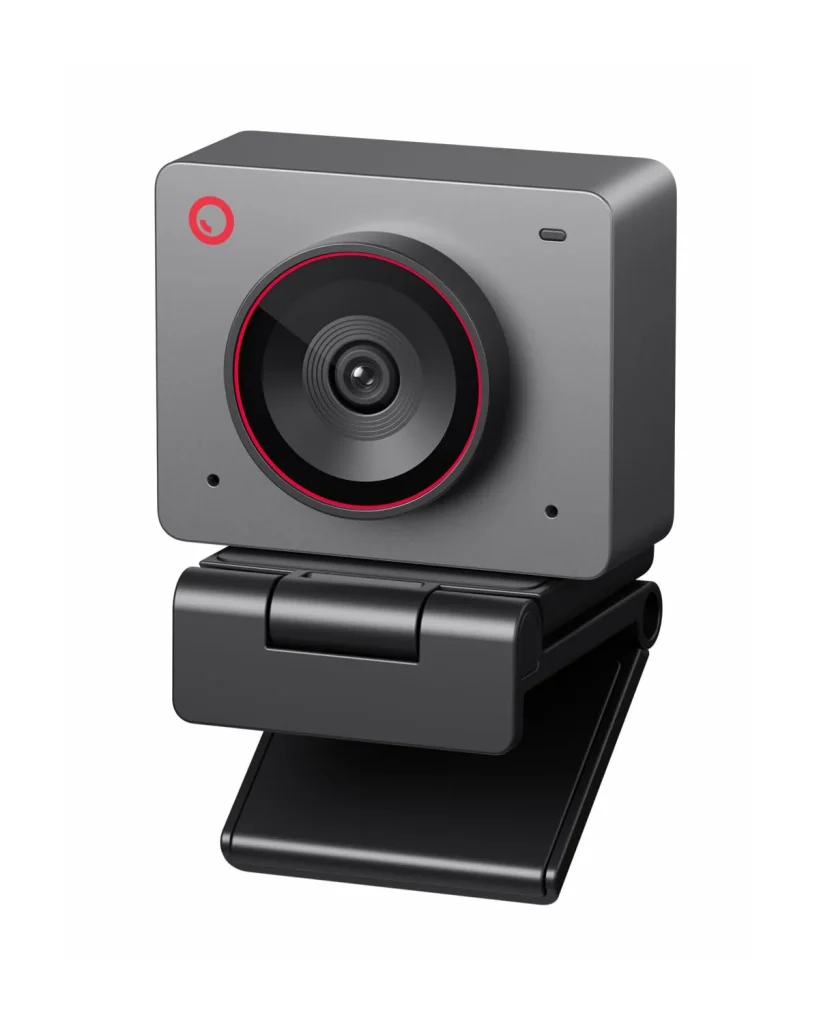
Quick Verdict
Who it’s for: Budget-conscious professionals who want true 4K and AI features without premium pricing
Why it wins: Flagship features (AI tracking, 4K, excellent mics) at nearly half the price of competitors
Price point: Budget-friendly ($179-199)
Key Features
- True 4K @ 30fps (not upscaled)
- AI-powered auto-tracking and auto-framing
- Gesture controls (hand signals to adjust zoom and framing)
- Built-in LED fill light
- USB-C and USB-A compatible
- Magnetic mounting base with tripod thread
- Obsbot software for adjustments and updates
Pros & Cons
Pros:
- Crazy value – AI tracking and 4K at budget pricing
- Auto-tracking works surprisingly well for the price
- Built-in fill light helps with dim lighting
- Gesture controls are fun and occasionally useful
- Microphones are way better than expected
- No subscription or app required for basic features
- Compact and portable
Cons:
- AI tracking is good but not as refined as premium models
- Build quality feels plasticky compared to metal-bodied competitors
- Fill light isn’t very bright (helps, doesn’t solve bad lighting)
- Obsbot software is functional but basic
- Tracking can get confused with multiple people in frame
- Some reports of inconsistent firmware updates
Real-World Performance
I bought the Meet 2 as a backup/travel webcam and honestly, I use it more than I expected. For the price, it punches way above its weight class.
The AI tracking is the surprise star here. It’s not as smooth or precise as the $300+ options, but it works well enough that I’m not constantly adjusting my position. I can lean to grab my coffee or shift in my chair, and it follows along. There’s occasionally a slight delay or it loses track if I move too fast, but it recovers quickly.
Gesture controls are gimmicky but actually useful sometimes. Hold up your hand in a specific way and you can zoom in, zoom out, or recenter yourself. I mainly use it when I’m in the middle of presenting and don’t want to fumble with software. It’s not essential, but it’s a nice touch at this price.
The built-in fill light is dim but helpful. If you’re in a moderately lit room, it’ll fill in shadows on your face and reduce under-eye darkness. If you’re in a truly dark space, it’s not powerful enough to solve the problem. Think of it as a nice supplement, not a primary light source.
Image quality is solid for the money. It’s true 4K, not that upscaled nonsense some cheaper webcams pull. Colors are decent, sharpness is good, and it handles various lighting conditions better than budget competitors. Is it as gorgeous as the Razer or Logitech? No. But it’s good enough that clients won’t wonder why your video looks rough.
The dual microphones surprised me. They’re not audiophile-grade, but they’re clear and filter out keyboard noise reasonably well. I’ve used this for important client calls without feeling like I needed to switch to my external mic.
Build quality is where you notice the budget. It’s plastic, it feels lightweight, and I wouldn’t trust it to survive being dropped. But for sitting on my desk or in my laptop bag? It’s fine. Just don’t expect the premium feel of more expensive options.
Bottom Line: If you need 4K quality and AI features but can’t justify $300+ on a webcam, the Obsbot Meet 2 is an incredible value. You’re making small compromises in build quality and polish, but the core performance is way better than it has any right to be at this price.
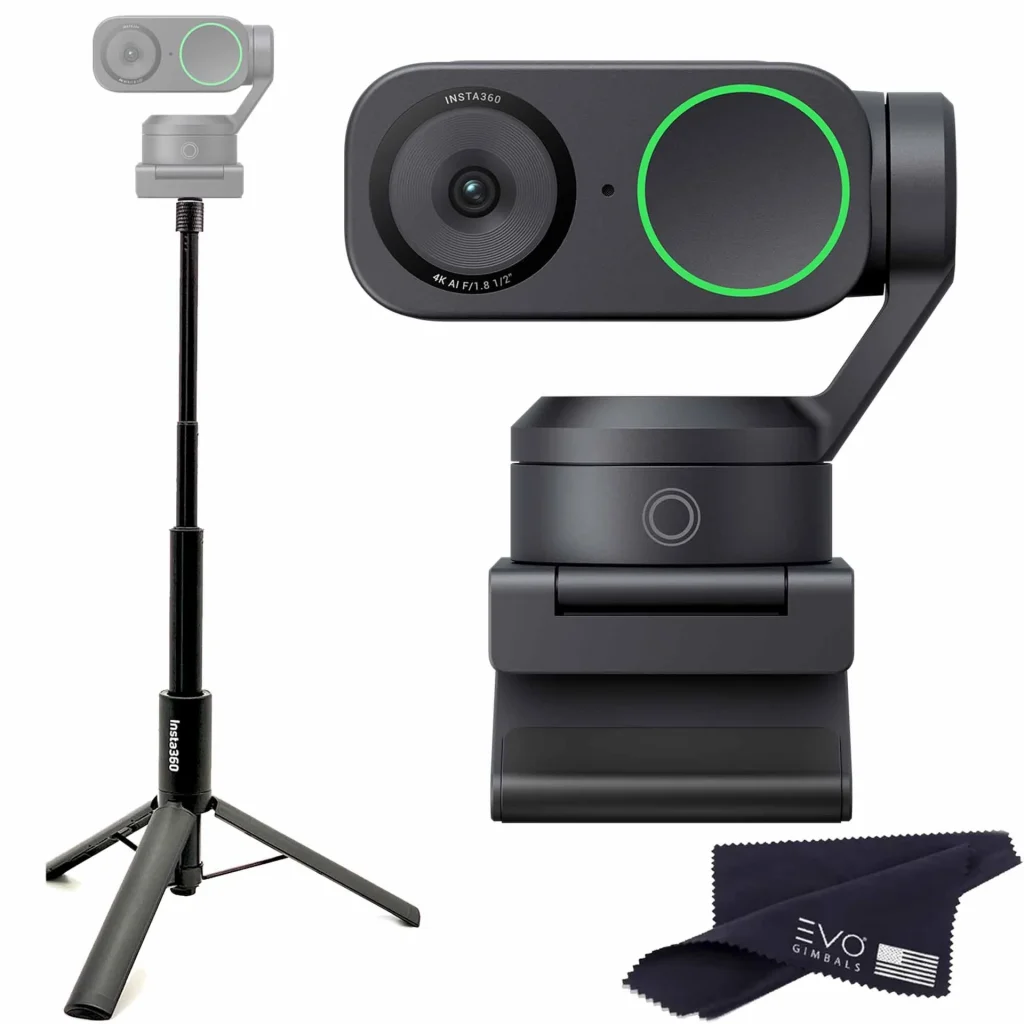
5. Best 4K Webcam for Presentations & Tracking: Insta360 Link 2
Quick Verdict
Who it’s for: Presenters, educators, and professionals who move around during calls and need smart camera tracking
Why it wins: Three-axis gimbal with DeskView, gesture control, and best-in-class AI tracking
Price point: Premium ($349-379)
Key Features
- 4K @ 30fps with 1/2″ sensor
- Three-axis mechanical gimbal for smooth tracking (not just digital)
- DeskView mode (tilts down to show your desk as a separate feed)
- Whiteboard Mode for capturing physical whiteboards
- AI-powered subject tracking with gesture controls
- Dual noise-canceling microphones
- Multiple person tracking (can follow and frame multiple subjects)
- USB-C connection with Insta360 Link Controller software
- Standard 1/4″ tripod mount
Pros & Cons
Pros:
- Gimbal tracking is incredibly smooth and natural-looking
- DeskView is a killer feature for product demos and teaching
- Whiteboard Mode actually works (rare for this tech)
- Can track multiple people and reframe intelligently
- Gesture controls are responsive and well-designed
- Build quality is excellent with premium materials
- Software is polished and updates regularly
Cons:
- Most expensive option on this list
- Gimbal motor can be faintly audible in very quiet rooms
- Larger footprint than simpler webcams
- Learning curve for advanced features
- Some users report occasional tracking glitches
- DeskView requires specific positioning to work well
Real-World Performance
The Link 2 is in a different category from traditional webcams. That three-axis gimbal means it physically moves to track you, not just crops and zooms digitally. The difference is immediately obvious.
I use this for client presentations where I’m standing at a whiteboard or moving around to demo things. The tracking is smooth, predictive, and feels almost human. It anticipates where you’re going rather than just reacting after you’ve moved. When I walk from my desk to the whiteboard six feet away, it follows along seamlessly without jerky movements or losing focus.
DeskView mode is genuinely innovative. Press a button, and the camera gimbal tilts down to show your desk from above while still keeping you in frame as a picture-in-picture. This is incredible for showing products, documents, or anything physical. I’ve used it to show contract pages, demo tech gadgets, and even display handwritten notes during brainstorming sessions. It eliminates the need for a separate document camera or fumbling with your phone.
Whiteboard Mode is hit or miss. When it works, it’s magic – the AI recognizes the whiteboard, corrects the perspective, and enhances the writing. When it doesn’t, you’re manually adjusting angles. It works best with high-contrast markers and good lighting. I’ve found it useful about 70% of the time, which is better than the zero times other webcams handle whiteboards well.
The gesture controls are well-implemented. Hold up your hand, and the camera zooms in. Make a peace sign, and it zooms out. Wave, and it recenters. These work consistently and feel natural once you remember the gestures. Much better than competing gesture systems I’ve tried.
Multiple person tracking is clutch for team presentations. The Link 2 recognizes when multiple people enter the frame and intelligently reframes to keep everyone visible. I’ve done tag-team presentations where my colleague and I both needed to be on camera, and it handled the framing better than we could have manually.
The gimbal motor is nearly silent, but if you’re in a completely quiet room with a sensitive mic setup, you might hear a faint whirr when it moves. Never been an issue on calls with normal background noise, but worth mentioning.
Bottom Line: If you’re a presenter, educator, or do product demos regularly, the Link 2’s gimbal tracking and DeskView justify the premium price. For static talking-head calls, you’re paying for features you won’t use. But if you move around or need to show physical items, this is the most versatile webcam available.
👉 Invest in Premium Quality Here 👈
What to Look for in a 4K Webcam for Professional Video Calls (2026 Buyer’s Guide)
Alright, let’s talk about what actually matters when you’re dropping $200+ on a webcam. I’ve made enough expensive mistakes in this category to save you from repeating them.
Resolution and Frame Rate
Here’s the truth: 4K is basically the baseline in 2026, but not all “4K” is created equal. Some cheaper webcams advertise 4K when they’re really just upscaling 1080p footage. Look for terms like “native 4K” or “true 4K” in the specs.
30fps is totally fine for video calls. Your face isn’t moving that fast, and honestly most people won’t notice the difference. 60fps looks smoother when you’re gesturing or moving around, which matters if you do presentations or demos. But for sitting and talking? 30fps is plenty.
Plot twist though: most platforms don’t even support 4K yet! Zoom caps at 1080p for regular users. Teams does too. Google Meet… also 1080p. So why buy 4K? Because even when it’s downscaled to 1080p, the better sensor and processing in 4K webcams produces a noticeably better image. Think of it like taking a photo with a 50-megapixel camera vs. a 12-megapixel one – even when you shrink the 50MP photo down, it still looks better.
Autofocus Performance
Fixed focus webcams are cheaper and work fine if you’re the type who sits in one spot. They’re pre-focused for typical desk distance (about 2-3 feet), and as long as you stay there, you’re sharp.
Autofocus is worth paying for if you’re a fidgeter like me. I lean back to think, lean forward to read, shift side to side… fixed focus would have me going in and out of sharpness constantly.
AI-powered tracking and auto-framing is the next level up. The camera keeps you centered in frame even when you move. Super useful for standing presentations or if you share your workspace with someone else who sits at a different distance.
Speed matters more than you’d think. Slow autofocus is incredibly distracting – you go blurry, then gradually sharpen over 2-3 seconds while everyone watches you come into focus. Fast autofocus (under 0.5 seconds) is nearly invisible. Test reviews or return policies are your friend here.
Low-Light Capability
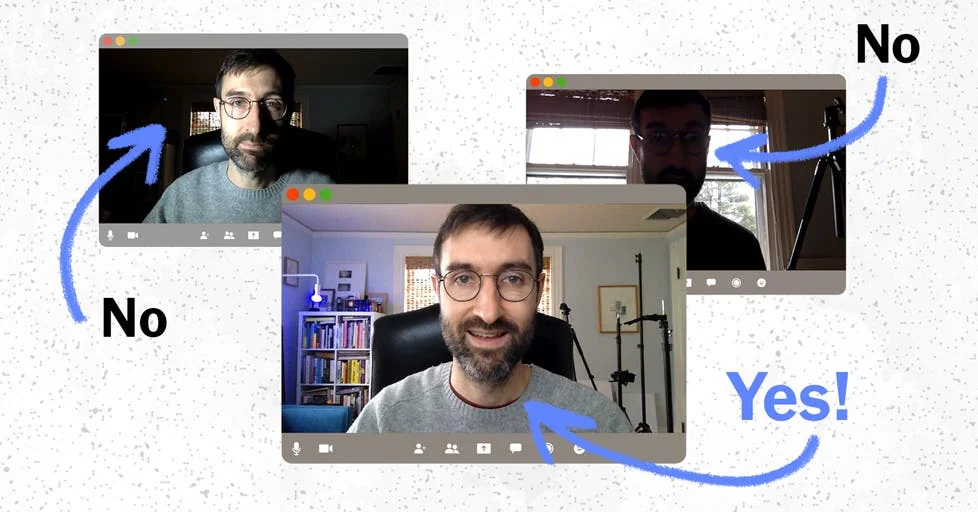
This is where I’ve seen the biggest difference between webcams. Sensor size matters way more than megapixels for low light.
Larger sensors (like 1/2″ or the Razer’s massive 1/1.2″) gather more light and produce cleaner images in dim conditions. Smaller sensors (1/3″ or 1/4″) struggle and get grainy when the lights are low.
“Enhanced night mode” or “low-light optimization” are marketing terms, but they usually mean the camera has better noise reduction algorithms. They help, but can’t overcome a small sensor.
Built-in fill lights are genuinely useful if your lighting sucks. They’re not going to replace proper lighting, but they’ll fill in shadows under your eyes and make you look more awake. Ring lights on webcams tend to be subtle, which is good – you don’t want to look like you’re being interrogated.
HDR (High Dynamic Range) is clutch if you have windows in your background. Without HDR, you either blow out the window into pure white or turn yourself into a silhouette. HDR balances both, keeping you properly exposed while still showing what’s behind you.
Field of View (FOV)
This is one of those specs people ignore and then regret. FOV is measured in degrees and determines how much of your space the camera sees.
65-78 degrees is tight framing. You fill most of the frame, creating an intimate feel. Great for solo professionals who want to feel “closer” to their audience. Not great if you need to show products or have someone join you on camera.
90 degrees is the Goldilocks zone. Fits one person comfortably with a bit of your background visible. Two people can squeeze in if needed. This is what most professional webcams aim for.
120 degrees is super wide. Good for conference rooms or if you regularly have multiple people on camera. But if it’s just you, you’ll look small and distant in the frame, which isn’t ideal for building connection on calls.
I’ve learned that wider isn’t automatically better. I bought a 120-degree webcam once thinking “more is better,” and I looked like a tiny person in a big empty room. Not professional.
Microphone Quality
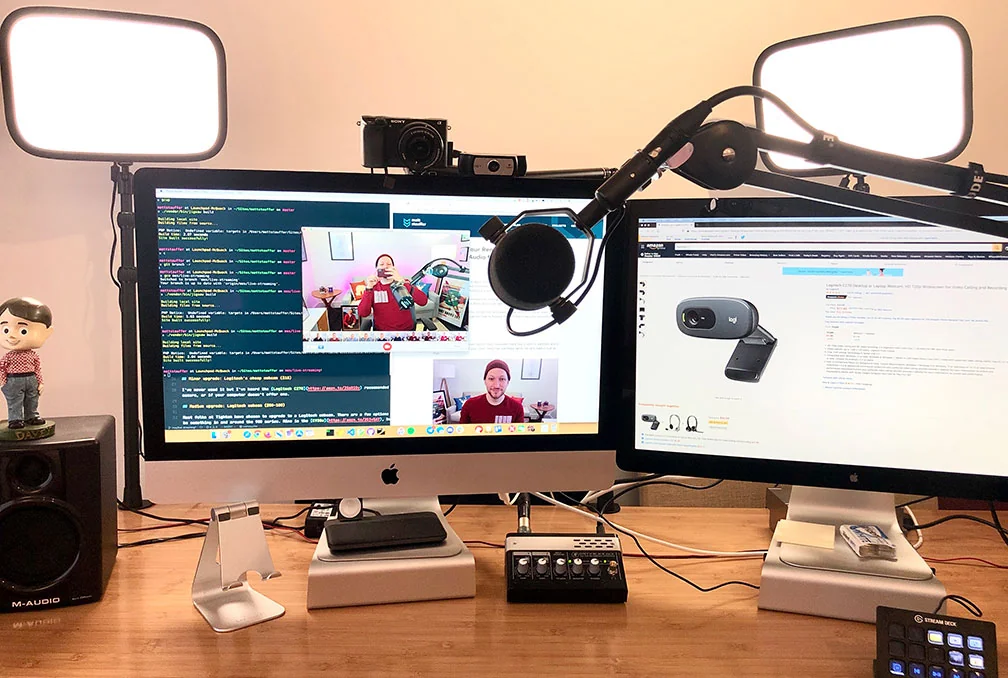
Built-in webcam mics have gotten way better, but there’s still huge variation. The difference between a cheap mic and a good one is the difference between “barely understandable” and “sounds like you’re in the room with me.”
Dual or quad microphone arrays are the minimum for professional use. Multiple mics let the camera use beamforming – they focus on your voice and reduce background noise. Single mics pick up everything equally, including your dog barking and your neighbor’s lawn mower.
Noise cancellation is huge if you work from home. It filters out keyboard typing, mouse clicks, air conditioning hum, and other constant background sounds. Test this if you can – type on your keyboard during a test call and see if people hear it.
The honest truth? High-end webcam mics (like the Logitech MX Brio or Insta360 Link 2) are good enough that you don’t need a separate mic for calls. Budget webcam mics… you’ll probably want to invest in a $50 USB mic eventually.
Platform Compatibility
Most webcams are plug-and-play with Zoom, Teams, and Google Meet now. But “works with” and “certified for” are different things.
Zoom Certified or Teams Certified means the company tested it thoroughly and optimized settings specifically for that platform. You’ll have fewer “can you see me?” moments and better automatic settings. Worth checking if you basically live on one platform.
Mac vs. Windows compatibility is usually fine, but some features (like Windows Hello facial recognition) obviously only work on Windows. And some companion apps are better on one OS than the other. Check reviews from users on your specific OS.
If you do any streaming or content creation, make sure the webcam works with OBS Studio or your recording software. Most do, but I’ve run into a few that had weird driver issues with OBS.
Software and Controls
Basic companion apps should let you adjust brightness, contrast, white balance, and maybe zoom. That’s the minimum. If a webcam doesn’t have software, it better have hardware controls.
Advanced features like virtual backgrounds, color grading, or beauty filters are nice bonuses but not essential. I use virtual backgrounds occasionally, but mostly I just want reliable video.
Physical privacy shutters are non-negotiable for me. A little sliding cover over the lens gives me peace of mind when I’m not on calls. Some webcams only have “indicator lights” – which can theoretically be hacked on. A physical shutter can’t be bypassed.
Build Quality and Mounting
Plastic webcams work fine but feel cheap and can crack if you drop them. Metal construction (usually aluminum) adds weight and cost but feels premium and lasts longer.
The clip/mount design matters more than you’d think. Some clips barely grip thin laptop lids and slide around. Others clamp firmly to thick monitors. Check that it fits your setup – especially if you have a thin ultrabook or a thick gaming monitor.
Portability matters if you travel. Some webcams are compact and light enough to throw in a laptop bag. Others (especially those with gimbals or large sensors) are bulky and need protective cases.
Price vs. Performance
After testing dozens of webcams, here’s how I’d break down the price tiers:
Budget ($100-150): You’re getting basic 4K with acceptable quality. Image is decent in good lighting, struggles when it’s dim. Autofocus is basic or absent. Mics are adequate but not great. Totally fine if you’re price-conscious and have good lighting.
Mid-range ($150-250): This is the sweet spot for most professionals. You get true 4K, decent low-light performance, reliable autofocus, and good-enough mics. Build quality feels solid. This range covers 80% of professional needs.
Premium ($250-400): You’re paying for larger sensors, better low-light, AI features, superior build quality, and excellent mics. The image quality jump is noticeable. Worth it if you’re on video calls 20+ hours per week or if your professional image directly impacts income.
Luxury ($400+): Near-professional broadcast quality. Gimbal tracking, exceptional sensors, studio-grade mics, premium materials. Overkill for most people, but if you’re an executive, content creator, or your video presence is critical to your business, the investment makes sense.
My advice? Buy the best webcam you can reasonably afford. You’re going to be on video calls for years. Spread that cost over hundreds or thousands of hours of use, and even a $300 webcam is cheap. Just don’t buy cheap and plan to “upgrade later” – you’ll waste money buying twice.
Looking to optimize your entire home office setup? A quality webcam is just one piece of creating a professional remote work environment. Check out our complete guide to essential tech gear for building the ultimate productive workspace.
Frequently Asked Questions About 4K Webcams for Professional Use
Final Verdict: Which 4K Webcam Should You Buy?
Webcam Model | Perfect For | Resolution | Autofocus | Microphone | Platform Support | Check Price |
|---|---|---|---|---|---|---|
Logitech MX Brio | All-around professionals | 4K @ 30fps | AI-Powered | Dual Beamforming | Zoom/Teams/Meet | Buy Now |
Elgato Facecam Pro | Zoom & Teams power users | 4K @ 60fps | Advanced AF | Quad Array | Universal | Buy Now |
Razer Kiyo Pro Ultra | Low-light conditions | 4K @ 30fps | Auto + Manual | Omnidirectional | Cross-platform | Buy Now |
Obsbot Meet 2 | Budget-conscious pros | 4K @ 30fps | HDR Auto | Noise-canceling | Windows/Mac | Buy Now |
Insta360 Link 2 | Premium/executives | 4K @ 60fps | Smart Tracking | Studio-quality | All platforms | Buy Now |
I’ve tested dozens of webcams over the past few years, logged hundreds of hours on professional video calls, and spent way too much money figuring out what actually works. Here’s my honest take on choosing the best 4K webcams for professional video calls based on your specific situation.
For most professionals, the Logitech MX Brio hits the sweet spot. It balances excellent image quality, reliable autofocus, and solid performance across all lighting conditions without requiring a PhD to operate. It works flawlessly with Zoom, Teams, and Google Meet right out of the box, and that Show Mode feature is surprisingly useful when you need to display documents or products. At around $200, it’s not cheap, but it’s the webcam I grab for 90% of my calls because I know it’ll just work.
If you move around during presentations or do product demos, the Insta360 Link 2 justifies its premium price. That gimbal tracking is genuinely impressive, and DeskView mode eliminates the need for a separate document camera. Yes, it’s $350+, but if your job involves dynamic presentations or teaching, the tracking and versatility are worth every penny. I use mine for client presentations and haven’t looked back.
Dealing with terrible lighting? Stop fighting it and get the Razer Kiyo Pro Ultra. That massive sensor makes you look good even in dim basement offices or rooms with zero natural light. I tested this in conditions that made other webcams look like I was broadcasting from a cave, and the Kiyo pulled out detail and maintained natural skin tones. If buying more lights isn’t an option or hasn’t solved your problem, this webcam will.
Need smooth 60fps for presentations? The Elgato Facecam Pro is the only choice if you want true 4K at 60 frames per second. The motion smoothness is noticeable during animated presentations or product demos. Fair warning though: you’ll need a separate mic since it doesn’t have one built-in. But if you already have audio sorted and want the absolute best image quality with buttery-smooth motion, this is it.
Budget-conscious but still want 4K? The Obsbot Meet 2 is shockingly good for under $200. You get AI tracking, decent 4K image quality, and microphones that don’t embarrass you on calls. The build quality isn’t premium and the tracking isn’t as refined as expensive options, but the core performance is way better than it has any right to be at this price. This is my travel webcam, and I’ve used it for important client calls without hesitation.
Here’s the thing: your webcam is part of your professional identity now. In 2026, remote work isn’t going anywhere, and that grainy, washed-out laptop camera is quietly undermining your credibility every single day. I know because I’ve been that person who looked unprofessional compared to everyone else on the call.
A quality 4K webcam isn’t an expense you grudgingly pay – it’s an investment in how you’re perceived professionally. Your expertise and competence mean nothing if you look like you’re calling from 2010 while everyone else looks sharp and polished.
The right webcam won’t magically make you better at your job. But it ensures that your professionalism, attention to detail, and competence are actually visible to clients, colleagues, and managers on the other end of that video call. And in today’s remote-first world, where first impressions happen through a screen, that visibility matters more than ever.
Ready to upgrade your video call game? Click the links above to check current pricing and deals on these webcams. Trust me, the first time someone comments on how clear your video looks, you’ll know you made the right choice.
Your next video call is about to look a whole lot better.
Looking for more ways to optimize your remote work setup? Explore our guides on productivity tools, ergonomic furniture, and essential gear to create the perfect home office environment.

Sophia Carter has spent years testing productivity tools and workspace setups. She helps remote workers build efficient home offices that support deep focus, ergonomics, and better workflows.