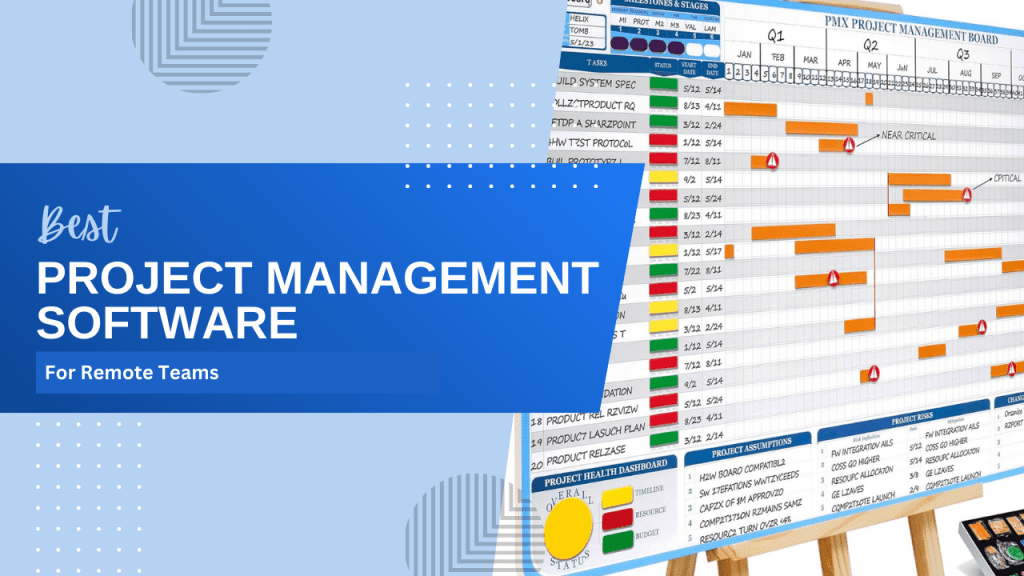
Choosing the right project management software can make or break a remote team—especially in 2026, when distributed work is the norm and expectations for speed, clarity, and accountability are higher than ever. I learned this the hard way, during the exact moment I realized my remote team wasn’t struggling because of talent, but because we were drowning in chaos. We were juggling three different tools that didn’t talk to each other, and half my day was spent just trying to figure out who was doing what.
Honestly, managing a distributed team without a central “brain” isn’t just difficult—it’s a recipe for burnout. I’ve lived through the missed deadlines and the endless “Sorry, I missed that notification” messages. It’s exhausting.
But here’s the game-changer: once we found the right ecosystem, everything clicked. Suddenly, we weren’t just busy; we were productive. In this guide, I want to save you the trial and error I went through. We’re going to look at the best project management software remote teams can use in 2026—comparing the features, the costs, and the reality of using them—so you can finally stop chasing updates and start getting work done.
Our Top Picks
- Best for Visual Teams: Monday.com
- Best for Task Management: Asana
- Best for All-in-One Needs: ClickUp
- Best for Simple Kanban: Trello
- Best for Teams of 15+ (Flat Fee): Basecamp
- Best for Documentation-Heavy Work: Notion
- Best for Enterprise Teams: Wrike
- Best for Client Work & Agencies: Teamwork
| Feature | ||||||||
|---|---|---|---|---|---|---|---|---|
| Starting Price | $8/user/month | $10.99/user/month | $7/user/month | $5/user/month | $299/month flat | $10/user/month | $9.80/user/month | $10.99/user/month |
| Best For | Visual teams | Task management | All-in-one needs | Simple kanban | Teams of 15+ | Documentation-heavy | Enterprise teams | Client work & agencies |
| Free Plan | ||||||||
| Mobile App | ||||||||
| Top Feature | Visual boards & automation | Multiple project views | Customization & features | Simplicity & ease of use | Flat pricing & communication | Flexibility & wikis | Advanced reporting | Client billing & profitability |
What Makes Great Project Management Software for Remote Teams?
Look, I’ve wasted thousands of dollars on fancy project management tools that promised the world but delivered nothing. So let me save you that headache by breaking down what actually matters when you’re managing a remote team.
The biggest thing people miss? Remote teams need DIFFERENT features than in-office teams. When your team is sitting in the same office, you can just tap someone on the shoulder or have a quick huddle. But when Sarah’s in Seattle, Marcus is in Mumbai, and you’re somewhere in between, you need software that compensates for those missing casual interactions.
First up, you absolutely need robust async communication features. I’m talking threaded comments on tasks, the ability to record video messages or voice notes, and a clear activity feed so people can catch up on what happened while they were sleeping. Real-time isn’t always possible across time zones, and that’s okay!
Integration capabilities are where most teams screw up. Your project management tool needs to play nice with Slack, Zoom, Google Drive, and whatever other tools your team already loves. I once tried forcing my team onto a tool that didn’t integrate with anything, and it was a disaster. People just stopped using it within two weeks.
Mobile accessibility is non-negotiable in 2026. Your team members aren’t always at their desks – they might be checking updates from a coffee shop or responding to urgent stuff while traveling. If your PM software has a clunky mobile app (or worse, no mobile app), you’re gonna have problems.
Security features matter way more for remote teams than you might think. When everyone’s logging in from different networks, sometimes from public WiFi, you need solid encryption, two-factor authentication, and good permission controls. I learned this after a contractor accidentally deleted an entire project because our old tool had terrible permission settings!
And here’s something nobody talks about – you need a tool that scales WITHOUT making you start from scratch. Nothing’s worse than outgrowing your software and having to migrate everything to a new platform. Been there, done that, have the stress-induced gray hairs to prove it.
1. Monday.com: Best for Visual Project Tracking
⭐ Rating: 4.5/5 | Starting Price: $8/user/month | Free Trial: 14 days
At a Glance: Is Monday.com Right for You?
✅ Perfect for: Visual thinkers, marketing teams, creative agencies, teams valuing aesthetics
❌ Skip if: Tight budget, tiny team (1-3 people), prefer minimalist interfaces
Interface & User Experience: Actually Fun to Use
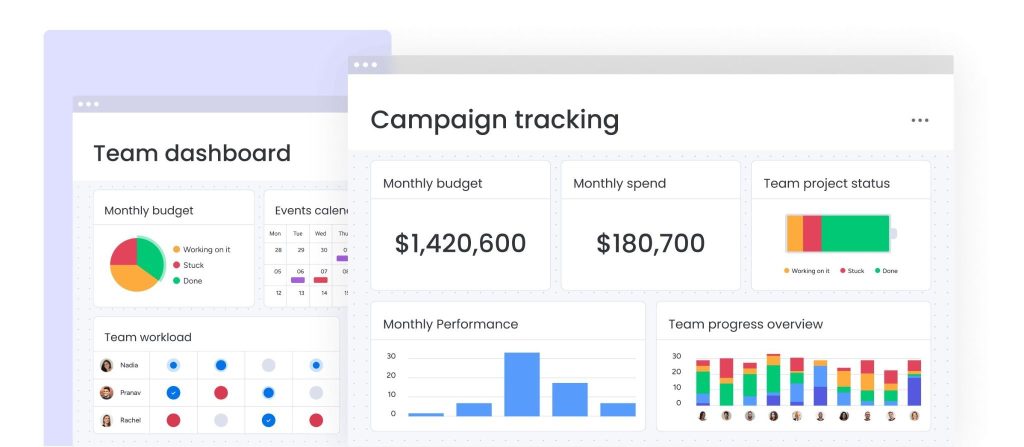
Monday.com was the first PM tool that made me think “wow, this doesn’t look boring!” The colorful, intuitive interface matters more than you’d think when getting remote teams excited about updating tasks.
What stands out:
- Color-coded everything (statuses, priorities, people)
- Drag-and-drop that actually works
- Real-time updates
- Clean dashboard without overwhelm
Learning curve is moderate – my team got comfortable in about a week. Expect some training time for less tech-savvy members.
Pricing: What You’ll Actually Pay
| Plan | Price | Best For | Key Features |
| Free | $0 | Testing only | 2 users, very limited |
| Basic | $8/user/mo | Small teams | No timeline, basic integrations |
| Standard | $10/user/mo | Most teams | Timeline + integrations (best value) |
| Pro | $16/user/mo | Growing teams | Time tracking, 25K automations |
| Enterprise | Custom | Large orgs | Advanced security |
Real costs:
- 5-person team on Standard: $600/year
- 15-person team on Pro: $2,880/year
- 30-person team on Pro: $5,760/year
💡 Skip Basic – too limited. Start with Standard.
Best Features That Matter
Visual Boards
See entire projects at a glance with progress bars and color-coded statuses. Multiple views (kanban, timeline, calendar, chart). Customizable columns for any data. I can instantly spot bottlenecks without clicking through menus.
Automation (No Coding Required)
Saves me 5-6 hours weekly handling repetitive stuff. Visual builder is so intuitive even non-tech team members figured it out.
Popular automations:
- Status changes to “Done” → notify client, move to archive
- Deadline approaches → send reminder
- Priority set to “High” → notify manager
- New item created → auto-assign by category
⚠️ Watch out: Automation actions count against monthly limits. We hit 25K faster than expected!
Custom Workflows
Build workflows matching how your remote team actually operates, not forced into someone else’s process.
Integrations: Plays Well With Others
Connects with basically everything:
Communication: Slack, Microsoft Teams, Zoom
Storage: Google Drive, Dropbox, OneDrive, Box
Dev: GitHub, GitLab, Jira
Marketing: Mailchimp, HubSpot
Other: Zapier (3,000+ more apps)
Slack integration is excellent – create items, get notifications, update statuses without leaving Slack. Huge for remote teams living in Slack.
Pros:
✅ Gorgeous interface teams enjoy using
✅ Powerful automation saves hours
✅ Excellent mobile apps
✅ Multiple view options
✅ Strong integrations
✅ Scales well
Cons:
❌ Gets expensive as you grow
❌ Free plan useless (2 users only)
❌ Steeper learning curve than Trello
❌ Automation limits restrictive
❌ Can feel overwhelming initially
❌ Overkill for small teams
Who Should Choose Monday.com?
Perfect for:
- Remote teams of 5-50 people
- Marketing and creative teams
- Agencies with multiple clients
- Visual thinkers
- Teams willing to invest $10-16/user monthly
Skip it if:
- Solo or 2-person team (too expensive)
- Need simple tool (try Trello)
- Extremely tight budget (try ClickUp/Asana free)
- Hate colorful interfaces
- Need enterprise reporting (try Wrike)
Current Deals (2026)
Annual discount: Save 18% paying annually
- Standard: $98/user/year (vs $120)
- Pro: $157/user/year (vs $192)
Nonprofit discount: Up to 30% off
Free trial: 14 days, no credit card
💡 Start with Standard, not Pro. Upgrade later when you hit limitations.
Final Verdict
Rating: 4.5/5
Monday.com hits the sweet spot for mid-sized remote teams wanting powerful features in a beautiful interface. Not the cheapest, but not enterprise-expensive. The automation alone justifies the cost, and people actually enjoy using it.
Bottom line: Great for visual remote teams with reasonable budgets. Skip if tiny, broke, or prefer minimalist tools.
Try the 14-day free trial on Standard plan to see if the visual approach works for your team.
→ Visit Monday.com Official Website
2. Asana: Best for Task Management and Team Collaboration
⭐ Rating: 4.7/5 | Starting Price: $10.99/user/month | Free Plan: Yes (up to 15 users)
At a Glance: Is Asana Right for You?
✅ Perfect for: Task-focused teams, cross-functional collaboration, teams wanting view flexibility
❌ Skip if: You need built-in time tracking, client billing features, or maximum customization
Project Views: Work However You Want
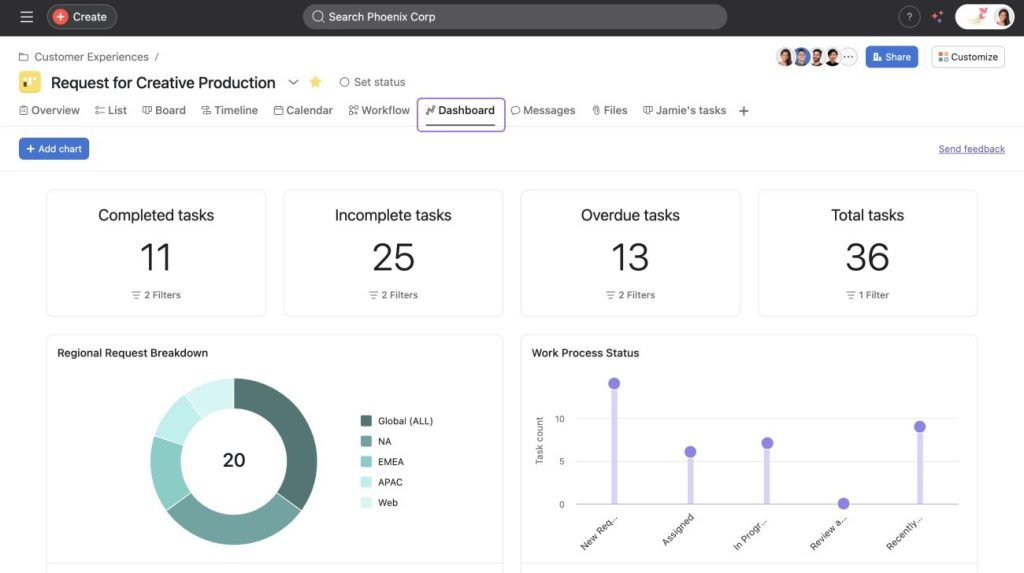
Here’s what sold me on Asana – everyone on my remote team can view projects differently while looking at the same data. Sarah uses board view, I live in timeline view, and Marcus prefers simple lists. Nobody’s forced into one way of working.
List View – Classic task list. Fast, clean, perfect for daily to-dos.
Board View – Kanban-style drag-and-drop. Great for visual workflows and content pipelines.
Timeline View (Premium) – Gantt chart showing dependencies. Absolute game-changer for complex projects.
Calendar View – Month view of all deadlines. Perfect for editorial calendars and event planning.
Real talk: I thought timeline view was overkill until our product launch. Once I could see how delaying one task affected everything downstream, our missed deadlines dropped by 40%.
Free Plan vs Premium: What Actually Matters
Asana’s free plan is legitimately usable – not a crippled trial. I ran an 8-person remote team on it for six months.
| Feature | Free | Premium ($10.99/user/mo) | Business ($24.99/user/mo) |
| Users | Up to 15 | Unlimited | Unlimited |
| Timeline View | ❌ | ✅ | ✅ |
| Custom Fields | ❌ | ✅ | ✅ |
| Advanced Search | ❌ | ✅ | ✅ |
| Portfolios | ❌ | ❌ | ✅ |
| Workload Management | ❌ | ❌ | ✅ |
| Automations | ❌ | Rules Builder | Advanced |
When to upgrade:
- Free → Premium: When you need timeline views or custom fields (usually 5-10 users)
- Premium → Business: When managing 10+ projects and need portfolio/workload views (usually 20+ users)
Real costs:
- 10-person team on Premium: $1,319/year
- 25-person team on Premium: $3,297/year
- 50-person team on Business: $14,994/year
Advanced Features Worth Knowing About
Dependencies – Mark that Task B can’t start until Task A finishes. When deadlines shift, Asana warns you about the domino effect. Essential for remote teams where people aren’t in the same room catching these conflicts.
Milestones – Flag important checkpoints as diamonds on your timeline. Keeps distributed teams aligned on major wins without constant status meetings.
Portfolios (Business plan) – See all projects in one dashboard with rolled-up status updates. I didn’t think I needed this until I had 15 projects running. Now I can’t live without it – instantly see what’s on track or at risk.
Custom Fields – Track priority, client name, budget, whatever matters to YOUR workflow. Then filter and sort by those fields. We use “Content Type,” “Priority,” and “Estimated Hours” constantly.
Cross-Functional Collaboration: Asana’s Superpower
When designers, developers, and marketers need to work together on my remote team, Asana handles it smoothly.
Multi-team access without organizational chaos
Assign tasks to multiple people (weirdly hard in other tools!)
Threaded comments on every task keep conversations contextual
@mentions work everywhere for quick notifications
Approval workflows for multi-stage sign-offs across time zones
My setup: Marketing, Product, and Engineering are separate teams, but projects span all three. Everyone sees what they need without drowning in irrelevant stuff.
Integrations: 200+ Native Connections
Asana plays nice with everything your remote team already uses.
Top integrations: Slack, Microsoft Teams, Gmail, Google Drive, Dropbox, GitHub, GitLab, Figma, Zoom, Harvest (time tracking), Zapier
The Slack integration is perfect. Create tasks, comment, get notifications, mark complete – all without leaving Slack. For remote teams living in Slack, this eliminates constant tool-switching.
API: Robust REST API with solid documentation if you need custom integrations.
Performance Across Team Sizes
Small teams (3-10): Excellent. Free plan works great.
Medium teams (10-50): Still fast. Premium plan recommended.
Large teams (50+): Handles it well. Business or Enterprise needed.
I’ve used Asana with teams from 3 to 150 people. It doesn’t slow down like ClickUp sometimes does. The mobile apps are genuinely excellent – I’ve managed entire projects from my phone.
One limitation: Minimal offline capability. You can view cached data but can’t make changes offline.
Pros:
✅ Actually usable free plan (rare!)
✅ Multiple views suit different work styles
✅ Minimal learning curve
✅ Scales from 3 to 300+ people
✅ Fast, reliable performance
✅ Excellent mobile apps
Cons:
❌ No built-in time tracking
❌ Timeline view locked behind paywall
❌ Limited customization vs ClickUp
❌ Basic automation on Premium
Who Should Choose Asana?
Perfect for: Remote teams prioritizing task management, cross-functional collaboration, reliability over bells-and-whistles
Skip if: You need time tracking/billing, maximum customization, or highly visual interfaces
Final Verdict
Rating: 4.7/5
Asana is the reliable workhorse – not flashy, but consistently delivers. The flexibility of multiple views matters more than you’d think for remote teams with different work styles.
Bottom line: Want reliable, flexible task management that scales without breaking the bank? Asana’s an excellent choice. Premium at $10.99/month is reasonable for what you get.
Start with the free plan – run a 15-person team on it and only upgrade when you need advanced features. No credit card required.
→ Visit Asana Official Website
3. ClickUp: Best All-in-One Solution for Remote Teams
⭐ Rating: 4.6/5 | Starting Price: $7/user/month | Free Plan: Yes (unlimited users)
At a Glance: Is ClickUp Right for You?
✅ Perfect for: Teams wanting maximum features for minimum cost, power users who love customization
❌ Skip if: You want simple plug-and-play, hate setup time, need enterprise-level speed
“One App to Replace Them All” – Is It True?
ClickUp isn’t kidding with this tagline. I switched my remote team to ClickUp eighteen months ago and eliminated three other tools we were paying for. Saved us about $200/month.
What ClickUp replaces:
- Project management (obviously)
- Docs & wikis (goodbye Google Docs for some stuff)
- Goal tracking (OKRs built-in)
- Time tracking (no more Toggl)
- Whiteboards (brainstorming sessions)
- Chat (reduce Slack dependency)
- Mind maps (visual planning)
- Forms (intake requests)
The catch? The first month was rough. SO many features that my team felt lost. But once we got past that learning curve? Game changer.
Feature Breakdown: What You Actually Get
Tasks (The Foundation)
Multiple views: list, board, calendar, Gantt, timeline, workload, table, and more. Subtasks, checklists, dependencies, recurring tasks – everything you’d expect plus stuff you didn’t know you needed.
Docs
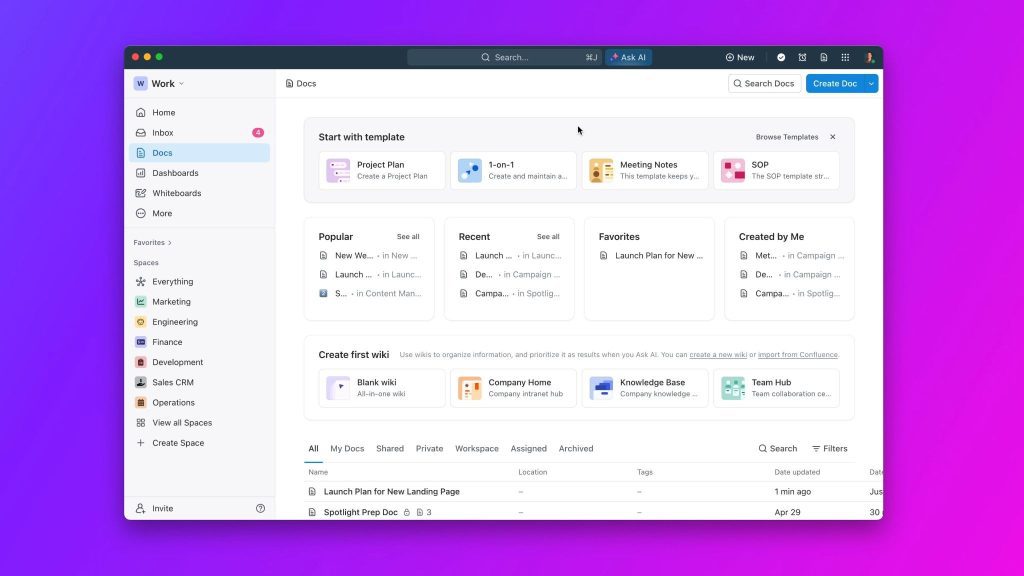
Collaborative documents that live right alongside your tasks. We use these for meeting notes, SOPs, and project briefs. Not as polished as Notion, but good enough to replace some Google Docs usage.
Goals
Built-in OKR tracking with progress bars and rollups. Set company goals, team goals, individual goals – all connected to actual tasks. Finally stopped using spreadsheets to track quarterly goals.
Time Tracking
Native time tracking on every task. Start/stop timers, manual entry, time estimates vs actuals. Huge for remote teams needing to track billable hours or just understand where time goes.
Whiteboards
Digital whiteboard for brainstorming with your distributed team. Sticky notes, drawings, connecting ideas. Works well for sprint planning and strategy sessions.
Chat
Built-in messaging tied to tasks and projects. Honestly, it’s not replacing Slack for us, but it reduces the “where did we discuss this?” problem.
Dashboards
Custom dashboards with widgets showing whatever metrics you want. I have one showing all overdue tasks, team workload, and sprint progress. Super helpful for remote team visibility.
Automations
Similar to Monday.com but with more actions available. “When status changes, assign to person X and set due date to 3 days from now.”
Customization: Blessing and Curse
ClickUp lets you customize EVERYTHING. Statuses, fields, views, workflows, literally everything. This is amazing for power users but overwhelming for newbies.
What you can customize:
- Custom fields (text, numbers, dropdowns, dates, relationships)
- Custom statuses for different workflow stages
- Custom views saved per user
- Custom automation rules
- Custom dashboards and reporting
- Custom permissions and access levels
I spent probably 10 hours setting up our workspace initially – creating templates, organizing everything, building automations. But that upfront investment paid off because the system now works exactly how we need it to.
Learning curve reality: Plan on 2-4 weeks for your remote team to feel comfortable. First week is “WTF is all this?” Second week is “okay, I’m getting it.” By week three, most people are productive.
💡 Pro tip: Don’t try to use every feature. Pick 5-6 core features and master those first. Add more later.
Pricing: Insane Value
This is where ClickUp destroys the competition on value.
| Plan | Price | Best For | Key Features |
| Free Forever | $0 | Small teams | Unlimited users, 100MB storage, most features |
| Unlimited | $7/user/mo | Best value | Unlimited storage, integrations, dashboards |
| Business | $12/user/mo | Advanced needs | Advanced automations, workload, goal folders |
| Enterprise | Custom | Large orgs | White label, advanced permissions, SSO |
What’s in the FREE plan:
- ✅ Unlimited users (insane!)
- ✅ Unlimited tasks
- ✅ Most core features
- ✅ Docs, Goals, Whiteboards
- ✅ Kanban boards, calendars
- ❌ Only 100MB storage
- ❌ Limited integrations
- ❌ Limited dashboards
Real costs:
- 10-person team on Unlimited: $840/year
- 25-person team on Unlimited: $2,100/year
- 50-person team on Business: $7,200/year
I know remote teams of 10+ people successfully using the free plan. That’s unheard of with other tools.
Performance: The Honest Truth
2023: ClickUp was honestly pretty slow and buggy. Frustrated the hell out of my team.
2025: Way better. ClickUp invested heavily in infrastructure and it shows. Still not as snappy as Asana, but totally usable now.
Current performance:
- Page loads: Decent (1-3 seconds for complex pages)
- Real-time updates: Good
- Mobile apps: Significantly improved
- Large projects (500+ tasks): Occasional lag but manageable
- Offline mode: Limited (can view but not edit)
Comparison to competitors:
- Faster than: Notion (for large databases)
- Slower than: Asana, Monday.com
- About same as: Wrike
My team doesn’t complain about speed anymore, which is a huge improvement from 2023.
Best Use Cases for Remote Teams
When ClickUp shines:
Budget-conscious teams – Get enterprise features at startup prices. We’re talking thousands in savings annually.
Teams consolidating tools – If you’re paying for project management + docs + time tracking + goals separately, ClickUp can replace all of them.
Power users who want control – If someone on your team loves tinkering and optimizing workflows, ClickUp is their playground.
Growing remote teams – The free plan grows with you. Start with 5 people, scale to 20 without paying more.
Agencies tracking time – Built-in time tracking is solid for billable hours.
When ClickUp struggles:
Simple, quick projects – Too much overhead for “let’s just get this done” situations. Use Trello instead.
Teams wanting zero setup – If you want to sign up and start working in 5 minutes, ClickUp ain’t it.
Non-technical teams – If your remote team struggles with tech, the learning curve might not be worth it.
Need for speed demons – If millisecond load times matter to you, Asana is faster.
vs Other All-in-One Tools
ClickUp vs Notion
- ClickUp: Better for task management, time tracking, traditional PM
- Notion: Better for documentation, wikis, databases
- Verdict: ClickUp for PM focus, Notion for knowledge management
ClickUp vs Monday.com
- ClickUp: More features, cheaper, steeper learning curve
- Monday.com: Prettier, easier to learn, more expensive
- Verdict: ClickUp for value, Monday.com for simplicity
ClickUp vs Asana
- ClickUp: More customization, includes docs/goals/time tracking
- Asana: Simpler, faster, more polished experience
- Verdict: ClickUp for power users, Asana for ease of use
Pros:
✅ Insane value (free plan is actually good!)
✅ Replaces 3-5 other tools
✅ Unlimited customization
✅ Built-in time tracking, docs, goals
✅ Constantly adding new features
✅ Generous free plan with unlimited users
Cons:
❌ Overwhelming feature overload initially
❌ Steep learning curve (2-4 weeks)
❌ Requires significant setup time
❌ Still slower than Asana/Monday
❌ Can feel bloated if you don’t need everything
❌ Mobile experience still improving
Who Should Choose ClickUp?
Perfect for:
- Remote teams wanting maximum features for minimum cost
- 5-30 person teams on tight budgets
- Power users who love customization
- Teams currently using 3+ separate tools
- Agencies needing time tracking built-in
Skip it if:
- You want simple, no-setup-required tools
- Your team is non-technical
- You need enterprise-level performance
- You prefer “it just works” over “configure everything”
Final Verdict
Rating: 4.6/5
ClickUp offers incredible value if you’re willing to invest the setup time. It genuinely can replace multiple tools, and the free plan is generous enough for small teams to use indefinitely.
The learning curve is real, but once you’re over it, you’ll have a powerhouse system molded exactly to your remote team’s workflow.
Bottom line: Best value in project management software. Choose it if you want maximum features for minimum cost and someone on your team is willing to be the ClickUp admin.
Start with the free plan – unlimited users means you can run a 20-person team on it and only pay when you need more storage or integrations.
→ Visit ClickUp Official Website
4. Trello: Best for Simple Kanban-Style Project Management
⭐ Rating: 4.2/5 | Starting Price: $5/user/month | Free Plan: Yes (unlimited users)
At a Glance: Is Trello Right for You?
✅ Perfect for: Small teams wanting simplicity, visual kanban workflows, quick project setup
❌ Skip if: You need dependencies, timeline views, complex project management, or advanced reporting
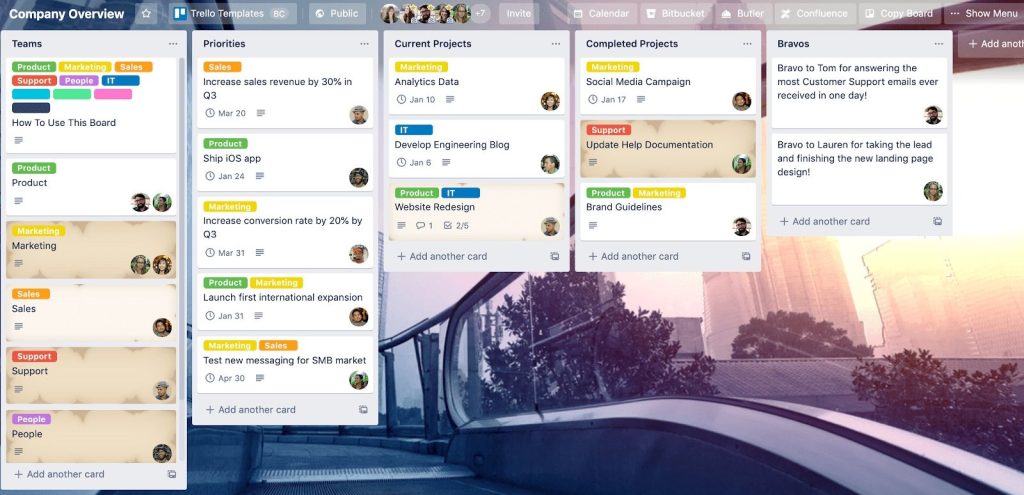
Boards, Lists & Cards: Dead Simple
Trello is the gateway drug of project management. It’s usually the first tool people try because it’s stupid simple to understand. Boards → Lists → Cards. That’s it.
I still use Trello for certain projects even though I have fancier tools. Why? Sometimes you just need a kanban board without bells and whistles.
How it works for remote teams:
- Board = One project (like “Q1 Marketing Campaign”)
- Lists = Workflow stages (like “To Do,” “In Progress,” “Done”)
- Cards = Individual tasks you drag between lists
- Members = Assign cards to remote team members
- Due dates = Set deadlines visible on cards
- Comments = Discuss work right on the card
I’ve onboarded people onto Trello in literally 5 minutes. Try doing that with ClickUp!
For remote teams: The visual simplicity means less “where do I put this?” confusion. Everyone immediately gets it. No training needed.
Power-Ups: Making Trello Actually Useful
Trello’s basic features are limited. Power-Ups are how you extend functionality.
Popular Power-Ups for remote teams:
Calendar – See all card due dates in month view
Custom Fields – Add dropdowns, numbers, dates to cards
Card Repeater – Create recurring tasks automatically
Voting – Let team members vote on ideas
Time Tracking – Track hours spent on tasks
Slack – Get Trello notifications in Slack
Google Drive – Attach Drive files directly
The catch: Free plan limits you to 1 Power-Up per board. That’s… pretty restrictive. Need calendar AND custom fields? Too bad, pick one or upgrade.
This is why I upgraded to Standard ($5/user/month) – just to use multiple Power-Ups, which is basically necessary for real work.
Pricing: When to Upgrade
| Plan | Price | Power-Ups | Best For |
| Free | $0 | 1 per board | Testing, super simple projects |
| Standard | $5/user/mo | Unlimited | Small remote teams |
| Premium | $10/user/mo | Unlimited + advanced features | Larger teams |
| Enterprise | $17.50/user/mo | All + admin controls | Big organizations |
Real costs:
- 10-person team on Standard: $600/year
- 20-person team on Premium: $2,400/year
When to upgrade from Free:
Free → Standard ($5/user/mo):
- When 1 Power-Up per board kills your workflow
- When you need unlimited board commands (automation)
- When you want saved searches and custom backgrounds
Standard → Premium ($10/user/mo):
- When you need calendar view across boards
- When managing multiple teams
- When you want dashboard/reporting views
- When you need admin and security features
Honest take: If you need Premium features, just switch to Asana or ClickUp. Better value at that price point.
Limitations for Complex Remote Projects
Trello is fantastic for simple workflows. But it falls apart fast for complex remote team projects.
What Trello CAN’T do:
❌ No dependencies – Can’t link “Task B can’t start until Task A finishes”
❌ No timeline/Gantt view – Can’t see project schedule visually
❌ No native time tracking – Need Power-Ups (limited on free)
❌ No workload view – Can’t see who’s overloaded
❌ Limited reporting – Hard to track team productivity
❌ No custom workflows – Stuck with basic list structure
❌ No resource management – Can’t allocate team capacity
When Trello breaks down:
- Projects with 50+ cards get messy
- Multiple interconnected projects
- Need to track budget or hours
- Complex approval workflows
- Cross-functional remote team coordination
I’ve seen remote teams outgrow Trello within 6 months. They start with “this is perfect!” and end with “we need something more powerful.”
Butler Automation: Simple But Effective
Butler is Trello’s automation feature. Not as powerful as Monday.com or ClickUp, but way easier to set up.
How it works:
Natural language rules like “when a card is moved to ‘Complete,’ add a green label and assign to me for review.”
Common automations for remote teams:
- Move card → change due date
- Due date approaching → send email reminder
- Card created in list → automatically assign to team member
- Every Monday → create weekly standup card
- Label added → move to specific list
Limitations:
- Free plan: Limited automation runs per month
- Standard: 1,000 automation runs/month
- Premium: Unlimited runs
Butler is perfect for simple repetitive tasks. Not for complex workflows.
Atlassian Ecosystem Integration
Trello is owned by Atlassian, so it integrates well with their other tools.
Jira Integration
Connect Trello cards to Jira issues. Great if your dev team uses Jira but marketing/ops teams prefer Trello’s simplicity. Changes sync both ways.
Confluence Integration
Link Trello cards to Confluence pages. Useful for connecting tasks to documentation.
Other Atlassian Tools
Bitbucket, Statuspage, Opsgenie – all play nice together.
Non-Atlassian Integrations:
Slack, Google Drive, Dropbox, GitHub, Zapier – the basics are covered.
For remote teams: If you’re already in the Atlassian ecosystem, Trello makes sense. If not, the integration advantage doesn’t matter much.
Pros:
✅ Insanely simple to learn (5-minute onboarding)
✅ Visual kanban is intuitive
✅ Free plan works for small teams
✅ Great for content calendars and simple workflows
✅ Clean, uncluttered interface
✅ Excellent mobile apps
✅ Good for personal task management too
Cons:
❌ Limited to kanban-style workflows
❌ No timeline or Gantt views
❌ 1 Power-Up per board on free (restrictive!)
❌ No native time tracking or reporting
❌ Outgrow it quickly with complex projects
❌ Can’t handle dependencies
❌ Gets messy with 50+ cards per board
Who Should Choose Trello Over Complex Tools?
Perfect for:
Small remote teams (2-10 people) just getting started with PM software
Simple, visual workflows like content calendars or sales pipelines
Non-technical teams who get overwhelmed by feature-rich tools
Personal productivity alongside team projects
Quick, temporary projects that don’t need elaborate structure
Secondary tool for specific workflows while using something else as main PM
Choose Trello if you:
- Value simplicity over power
- Have straightforward “To Do → Doing → Done” workflows
- Don’t need dependencies or timeline views
- Want something you can start using TODAY with zero training
- Are managing content, creative work, or simple task lists
Skip Trello if you:
- Manage complex projects with dependencies
- Need timeline views or Gantt charts
- Track time, budgets, or resources
- Coordinate large remote teams (20+ people)
- Need advanced reporting and analytics
- Require custom workflows and automations
Real talk: Trello is perfect as your first PM tool or as a simple secondary tool. But most growing remote teams will need to graduate to something more powerful within 6-12 months.
Final Verdict
Rating: 4.2/5
Trello does ONE thing really well: simple, visual kanban boards. It’s the easiest PM tool to learn, with the gentlest learning curve. For small remote teams or simple projects, that’s often exactly what you need.
But it’s not built for growth. Once your remote team needs dependencies, timelines, or complex workflows, you’ll feel the pain of Trello’s limitations.
Bottom line: Choose Trello if you want dead-simple kanban boards and hate complexity. But know that you’ll likely outgrow it. Also great as a secondary tool for specific workflows (I use it for content calendars even though ClickUp is my main tool).
Start with the free plan – it’s actually usable for small teams. Upgrade to Standard ($5/user/month) when the 1 Power-Up limit drives you crazy, which it will.
5. Basecamp: Best for Communication-Focused Remote Teams
⭐ Rating: 4.3/5 | Price: $299/month flat (unlimited users) | Free Trial: 30 days
At a Glance: Is Basecamp Right for You?
✅ Perfect for: Teams of 15+, agencies with clients, communication-heavy work, anti-micromanagement culture
❌ Skip if: Small team (under 10), need Gantt charts/dependencies, want detailed task tracking
The Basecamp Philosophy: Communication Over Tasks
Basecamp is the rebel of project management tools. Instead of obsessing over tasks and subtasks, it prioritizes communication and context. The philosophy? Keep remote teams aligned through good communication, not micromanagement.
What’s different: No time tracking, no “active now” indicators, no surveillance features. They treat remote workers like adults. I loved this with my 35-person team. Managers wanting detailed visibility? Not so much.
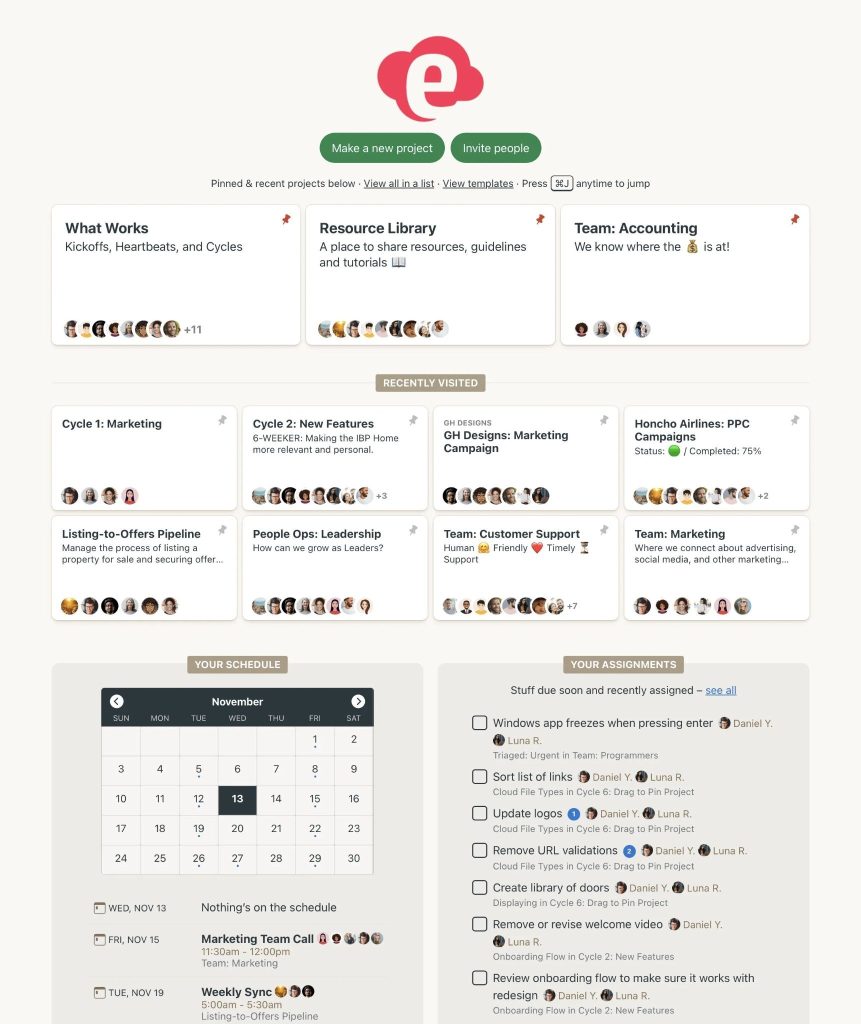
Core structure: Message boards for discussions, to-do lists for tasks, docs for documentation, check-ins for status updates. Simple but opinionated.
Flat Pricing: When It Actually Saves Money
$299/month. Unlimited users. That’s it.
| Team Size | Basecamp Annual | Asana Premium | You Save |
| 5 people | $3,588 | $659 | ❌ Lose $2,929 |
| 15 people | $3,588 | $1,978 | ❌ Lose $1,610 |
| 30 people | $3,588 | $3,956 | ✅ Save $368 |
| 50 people | $3,588 | $6,594 | ✅ Save $3,006 |
The math: Basecamp makes zero sense for teams under 15. But for 30+ people? Massive savings. Plus you get free client access – huge for agencies.
Communication Tools: What Actually Works
Message Boards – Topic-based discussions that don’t get lost like Slack threads. Way better than endless email chains. Every project has organized conversations with full context.
Automatic Check-ins – This is genius. Set recurring questions like “What did you work on today?” Basecamp automatically asks everyone and compiles responses. Replaced our daily standups and gave better visibility without meetings.
Campfire (Chat) – Real-time chat for quick stuff, but Basecamp pushes async communication. Perfect for remote teams across time zones.
Pings – Direct messaging. Works fine, not as polished as Slack.
File Storage & Docs: Functional But Basic
Store files, create simple documents, version control, commenting. It works but isn’t as powerful as Google Drive or Notion for collaborative editing. We used Basecamp for finals and project storage, Google Docs for heavy collaboration.
Storage limit: 500GB (grows fast with media files)
Love It or Hate It: Why The Split?
Teams that love it:
- Communication-first work (consulting, creative)
- Anti-micromanagement cultures
- Agencies needing free client access
- Distributed teams across time zones
- People tired of feature bloat
Teams that find it limiting:
- No timeline/Gantt views (deal-breaker for complex projects)
- Basic task management (no custom fields, priorities)
- Limited reporting (no productivity metrics)
- Minimal integrations
- Feels backwards if you’re used to traditional PM tools
vs Traditional PM Tools
Basecamp focuses on “why” and “what’s the context” through message boards.
Asana/Monday focus on “who does what by when” through task tracking.
Totally different philosophies. Basecamp is simpler but less powerful for detailed project planning.
Best Practices for Remote Teams
Set up smart check-ins – “What did you accomplish today?” (daily), “What’s your focus this week?” (Mondays)
Use projects as ongoing workspaces – Not just time-bound projects. Create “Marketing Team” or “Client Name” projects.
Give clients limited access – Show progress without overwhelming them with internal discussions.
Create a Company HQ project – Team handbook, policies, important links all in one place.
Don’t fight the system – Basecamp works best when you embrace its philosophy, not force it to be Asana.
Pros:
✅ Flat pricing (amazing for 30+ teams)
✅ Free client access
✅ Excellent async communication
✅ Automatic check-ins replace meetings
✅ Simple, not overwhelming
Cons:
❌ Expensive for small teams
❌ No timeline/Gantt views
❌ Basic task features
❌ Limited reporting
❌ Minimal integrations
Final Verdict
Rating: 4.3/5
Basecamp is excellent for communication-first remote teams of 15+ people. The flat pricing saves thousands for larger teams, and the async-first approach works beautifully across time zones.
But it intentionally doesn’t do sophisticated task tracking. Do the math on pricing and make sure you’re okay with the limitations.
Try the 30-day trial – you’ll know within a week if Basecamp’s philosophy clicks or frustrates your team.
6. Notion: Best for Documentation-Heavy Remote Work
⭐ Rating: 4.4/5 | Starting Price: $10/user/month | Free Plan: Yes (individuals)
At a Glance: Is Notion Right for You?
✅ Perfect for: Documentation-heavy teams, knowledge management, startups wanting one affordable tool
❌ Skip if: You need pure project management, complex automations, or lots of integrations
The Notion Magic: Everything in One Place
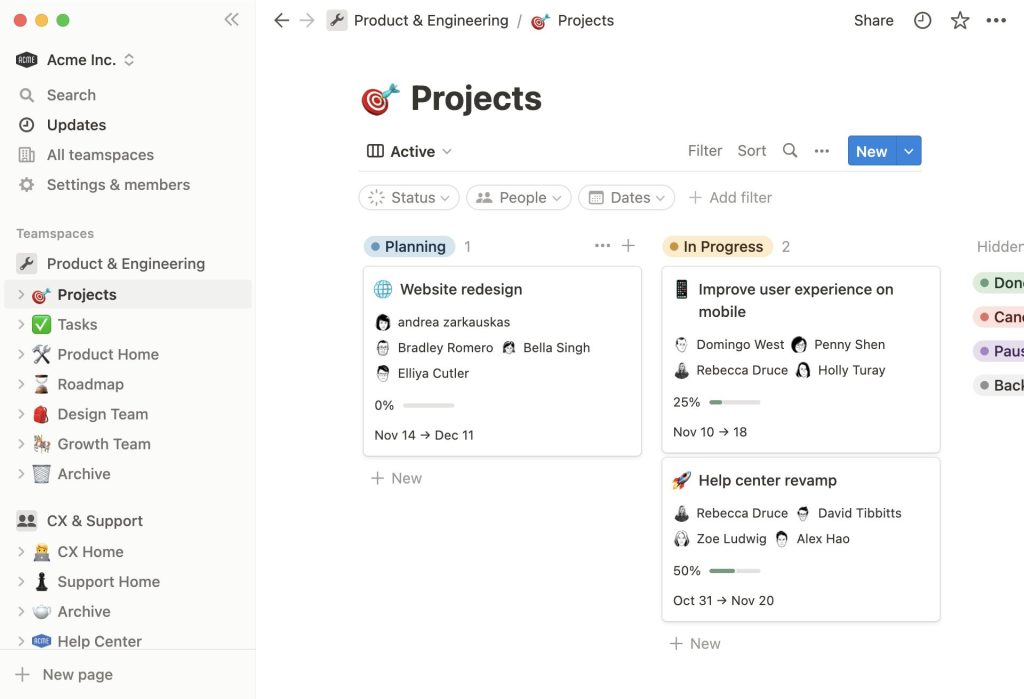
Notion is hard to explain because it’s not just one thing. It’s a wiki + database + project manager + note-taker all mashed together. You can have a page that’s partly text, partly a task database, partly an embedded file, and partly a kanban board.
For remote teams, this means context never gets lost. Your project management lives right alongside your documentation, meeting notes, and team wiki. Everything’s connected and searchable.
I’ve seen remote teams build their entire operations in Notion – project management, employee handbooks, meeting notes, client databases, content calendars. The fact that everything lives in one connected workspace is huge for distributed teams needing a single source of truth.
Templates: Your Head Start
The template gallery has hundreds of pre-built setups for project management, and the community shares thousands more. I grabbed a “remote team wiki” template and customized it instead of building from scratch. Saved hours.
Popular templates for remote teams:
- Project roadmaps with linked tasks
- Team directories and org charts
- Meeting notes with action items
- Product documentation hubs
- Content calendars with status tracking
You’re not starting from a blank page, which dramatically reduces setup time.
Pricing: What You Actually Need
| Plan | Price | Best For | Storage |
| Free | $0 | Individuals | Limited |
| Plus | $10/user/mo | Small teams | Unlimited files |
| Business | $18/user/mo | Companies | Advanced features |
| Enterprise | Custom | Large orgs | SAML, advanced admin |
Real costs:
- 10-person team on Plus: $1,200/year
- 25-person team on Plus: $3,000/year
What most remote teams need: Plus plan for unlimited file uploads and version history. Free plan works for solo use but limits team collaboration.
Learning Curve: Not as Easy as It Looks
Notion looks simple but has hidden complexity. Building databases, linking pages, setting up relations – it takes time to master. The learning curve is steeper than people expect.
Reality check: Plan on 1-2 weeks for your remote team to feel comfortable. Power users will take a month to really leverage advanced features.
Onboarding tip: Start with templates, don’t build from scratch. Add your own content to proven structures.
Real-Time Collaboration: Pretty Good
Multiple people can edit simultaneously, you see who’s viewing or editing, commenting works well. It’s not quite as smooth as Google Docs, but it’s good enough for most remote collaboration.
What works: Co-editing pages, inline comments, @mentions for notifications
What’s clunky: Occasional sync delays, conflicts with rapid simultaneous editing
Integration Limitations: The Big Weakness
Notion connects to some tools but way fewer than ClickUp or Asana. If integrations are critical for your remote workflow, you’ll get frustrated.
What connects: Slack, Google Drive, GitHub, Figma (limited)
What doesn’t: Most everything else without workarounds
Workaround: Zapier or Make can connect Notion to other tools, but requires technical knowledge. The API exists but isn’t beginner-friendly.
Complement vs Standalone: The Real Question
My hot take: Notion works best as a complement, not a replacement for dedicated PM tools.
Use Notion for:
- Team wikis and documentation
- Meeting notes and knowledge base
- SOPs and processes
- Onboarding materials
- Company handbook
Use dedicated PM tool for:
- Daily task tracking
- Sprint planning
- Timeline/Gantt views
- Time tracking
- Dependencies and automations
I’ve seen remote teams try to do everything in Notion and get frustrated with its limitations as a pure PM tool. The sweet spot? Notion for knowledge management, Asana/ClickUp for project execution.
Pros:
✅ All-in-one workspace reduces tool sprawl
✅ Excellent for documentation and wikis
✅ Flexible page structure
✅ Great templates available
✅ Beautiful, clean interface
Cons:
❌ Not purpose-built for project management
❌ Steeper learning curve than expected
❌ Limited integrations
❌ Real-time collaboration not as smooth as Google Docs
❌ Can get messy without good structure
Final Verdict
Rating: 4.4/5
Notion excels at documentation and knowledge management. For remote teams drowning in scattered docs, wikis, and meeting notes, it’s transformative.
But as a pure project management tool? It’s functional but not ideal. The lack of native timeline views, dependencies, and integrations holds it back.
Bottom line: Perfect for documentation-heavy remote teams. Use it alongside a dedicated PM tool for best results, or use it standalone if your PM needs are simple.
Start with the free plan for individuals, upgrade to Plus ($10/user/mo) when you need team features.
7. Wrike: Best for Enterprise Remote Teams
⭐ Rating: 4.5/5 | Starting Price: $9.80/user/month | Free Plan: No
At a Glance: Is Wrike Right for You?
✅ Perfect for: Enterprise teams (30+), regulated industries, complex workflows, need for advanced reporting
❌ Skip if: Small team, startup budget, simple project needs, want quick setup
Enterprise Features That Justify The Cost
Wrike is what you graduate to when “friendly” tools start breaking down. It’s powerful, robust, and built for enterprises with complex needs.
What sets it apart:
Resource Management – See who’s overloaded and who has capacity across your entire remote organization. I used this to identify one team consistently underwater while another had spare time, leading to restructuring that fixed everything.
Custom Workflows – Handle complex approval processes across departments and time zones. “Task submitted → approver A notifies → if approved → routes to approver B → if approved → changes status to In Progress.” Essential for enterprise remote teams.
Workload Views – Prevent burnout by visualizing team capacity. Crucial when managing distributed teams where you can’t see who’s struggling.
Advanced Audit Logs – Track every change for compliance. Know who did what, when, and why.
Reporting & Analytics: Actually Useful
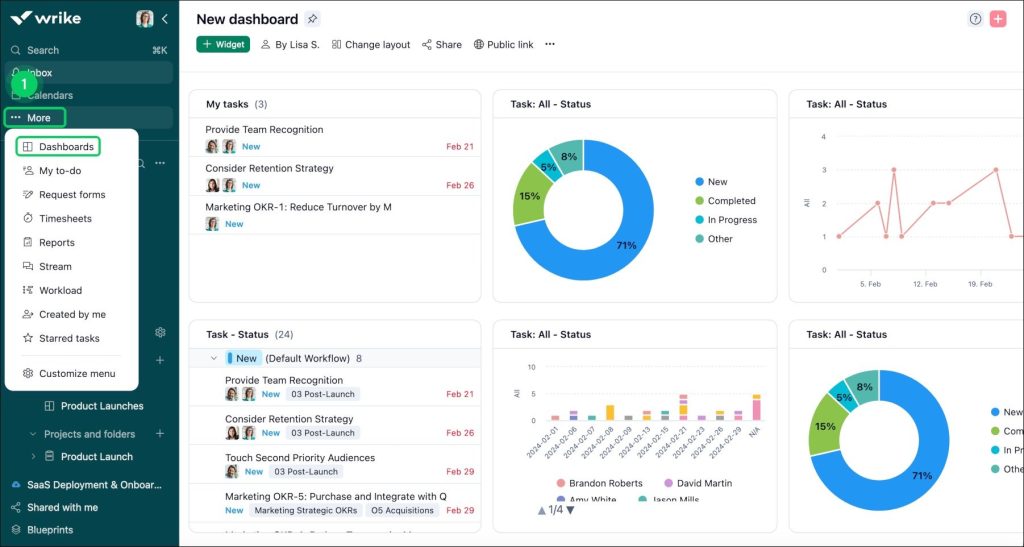
Create custom reports on literally any metric – time spent per project, budget vs actuals, team productivity trends, project health across portfolios.
What you can track:
- Project profitability
- Resource utilization
- Time tracking across teams
- Custom KPIs and metrics
- Cross-project dependencies
For enterprise remote teams, this visibility is essential. You can’t rely on informal office conversations to catch problems early.
Security & Compliance: Taken Seriously
Certifications: SOC 2 Type II, GDPR compliance, HIPAA available, ISO 27001
Features: Two-factor authentication, SSO, advanced permission controls, data residency options
When remote workers log in from anywhere, robust security isn’t optional. Wrike delivers enterprise-grade protection.
Pricing: Not Cheap
| Plan | Price | Best For |
| Professional | $9.80/user/mo | Teams starting out |
| Business | $24.80/user/mo | Most enterprises |
| Enterprise | Custom (~$30-40/user/mo) | Large organizations |
Real costs:
- 50-person team on Business: ~$15,000/year
- 100-person team on Enterprise: ~$36,000-48,000/year
Is it worth it? If you actually need these features, yes. I’ve seen enterprise remote teams try cheaper tools and end up with a franken-stack costing more in headaches and workarounds.
vs Other Enterprise Solutions
Wrike vs Asana Business
- Wrike: More powerful resource management and reporting
- Asana: Easier to use, better for cross-functional teams
- Verdict: Wrike for complex enterprises, Asana for simplicity
Wrike vs Monday.com Enterprise
- Wrike: Better for regulated industries, stronger compliance
- Monday: More visual, easier adoption
- Verdict: Wrike for security-critical work, Monday for visual teams
Wrike vs Microsoft Project
- Wrike: Cloud-based, better for remote teams
- MS Project: More powerful but complex, desktop-focused
- Verdict: Wrike for distributed teams, Project for traditional PM pros
Implementation: Plan Accordingly
Timeline: 4-8 weeks minimum for proper setup
What’s involved: Workspace customization, workflow configuration, integrations, team training, data migration
Support options:
- Dedicated implementation team
- Customer success manager (Enterprise)
- Training resources and certification
- Priority support channels
Don’t try to DIY this. Use Wrike’s implementation support – migration is painful but they reduce the pain significantly.
Pros:
✅ Powerful resource management
✅ Advanced reporting and analytics
✅ Enterprise-grade security
✅ Handles complex workflows
✅ Scales to 1,000+ users
Cons:
❌ Expensive ($15K+ for 50 people)
❌ Longer implementation (4-8 weeks)
❌ Steeper learning curve
❌ Overkill for small teams
Final Verdict
Rating: 4.5/5
Wrike is the enterprise powerhouse. If you’re managing 30+ remote workers with complex needs, regulated industry requirements, or need serious reporting, the price is justified.
Bottom line: Choose Wrike when you’ve outgrown simpler tools and actually need enterprise capabilities. Skip it if you’re a startup or small team – you’re paying for features you don’t need yet.
→ Visit Wrike Official Website
8. Teamwork: Best for Client-Facing Remote Project Management
⭐ Rating: 4.4/5 | Starting Price: $10.99/user/month | Free Plan: Yes (5 users)
At a Glance: Is Teamwork Right for You?
✅ Perfect for: Agencies, consultancies, client service teams, anyone doing billable work
❌ Skip if: Internal projects only, don’t need time tracking/billing, want simpler interface
Client Collaboration: The Main Event
Teamwork is purpose-built for agencies and teams working with clients. You can give clients limited access to their specific projects without showing them your internal chaos.
What clients can do:
- View project progress and timelines
- Comment on tasks and deliverables
- Approve work and provide feedback
- See time tracking reports
- Access project files
What clients can’t see:
- Your internal discussions
- Other client projects
- Team workload and capacity
- Your profit margins
- Internal task estimates
This is huge for remote agencies where you can’t walk clients through progress in person. They feel involved without getting in your way.
Time Tracking & Billing: Actually Built-In
Most PM tools make you add integrations for time tracking. Teamwork has it native, which matters more than you’d think.
Time tracking features:
- Start/stop timers on any task
- Manual time entry with descriptions
- Billable vs non-billable time designation
- Set billing rates per person or project
- Lock time entries after billing
- Timesheets for approval workflows
Billing capabilities:
- Generate invoices from tracked time
- Set different rates for different work types
- Track expenses against projects
- Invoice directly or export to accounting software
I’ve used this to identify we were spending way too much unbilled time on one client. Changed the engagement structure and improved profitability by 20%.
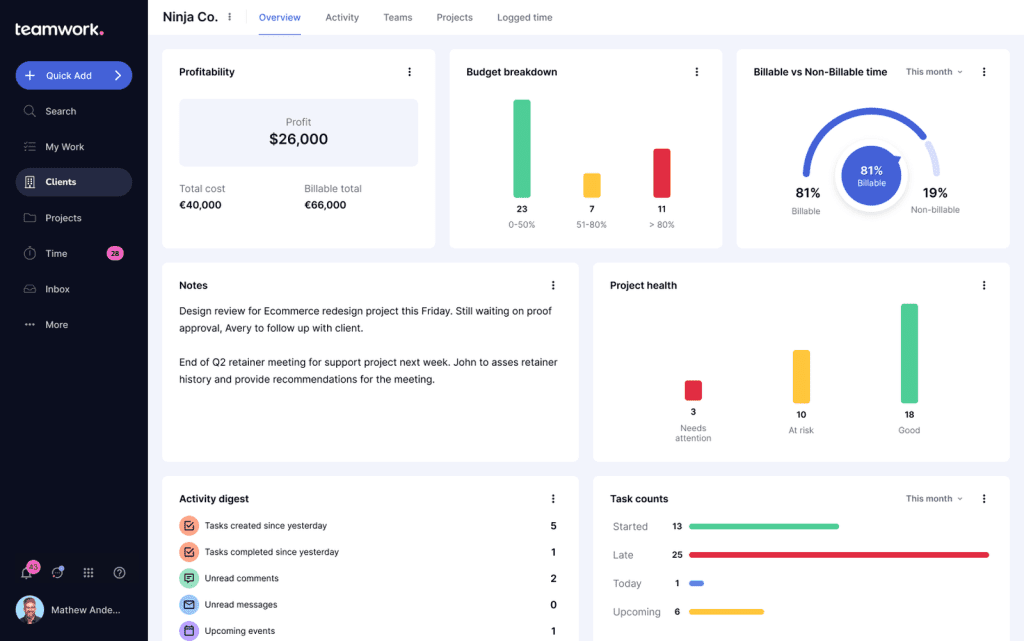
Project Profitability: Know Your Numbers
This is Teamwork’s secret weapon for agencies. Set project budgets, track actual costs based on time and billing rates, see in real-time whether projects are making or losing money.
What you can track:
- Estimated hours vs actual hours
- Budget vs actual costs
- Profit margins per project
- Team member utilization rates
- Which clients are most profitable
For remote agencies, this visibility is critical. You can’t rely on gut feelings when you’re distributed.
Resource Management & Capacity Planning
See everyone’s workload across multiple projects. Identify who’s overloaded and who needs more work. Way better than hoping team members speak up when overwhelmed (they usually don’t).
Features:
- Visual workload charts
- Capacity planning by hours
- Skill-based resource allocation
- Project staffing templates
- Milestone dependencies
Pricing: What You Actually Need
| Plan | Price | Best For | Key Features |
| Free Starter | $0 | Testing | Up to 5 users, limited |
| Deliver | $10.99/user/mo | Small agencies | Time tracking, basic features |
| Grow | $19.99/user/mo | Most agencies | Client billing, profitability |
| Scale | Custom | Large agencies | Advanced features, support |
Real costs:
- 10-person agency on Grow: $2,398/year
- 20-person agency on Grow: $4,798/year
Most remote agencies need Grow for client billing, profitability tracking, and custom fields. Deliver is too limited for serious client work.
For Agencies:
✅ Client portals are excellent
✅ Built-in time tracking and billing
✅ Profitability tracking essential
✅ Resource management prevents burnout
❌ Can feel like overkill for simple projects
For Internal Teams:
✅ Solid project management features
✅ Good reporting and dashboards
❌ Paying for client features you don’t need
❌ Better options exist (Asana, ClickUp)
For Consultancies:
✅ Perfect for billable work tracking
✅ Professional client experience
✅ Capacity planning helps staffing
❌ Learning curve steeper than simpler tools
Accounting & Invoicing Integrations
Connects with major accounting platforms so billable time flows directly to invoices.
Integrations:
- QuickBooks (Online and Desktop)
- Xero
- FreshBooks
- Harvest
- Stripe for payments
Push billable time directly to invoices without manual entry. For remote teams doing client work, this automation saves hours monthly and reduces billing errors.
Pros:
✅ Purpose-built for client work
✅ Excellent time tracking and billing
✅ Project profitability tracking
✅ Professional client portals
✅ Strong resource management
✅ Accounting integrations
Cons:
❌ More expensive than alternatives
❌ Overwhelming features initially
❌ Mobile apps could be better
❌ Overkill if no client component
Final Verdict
Rating: 4.4/5
Teamwork is the obvious choice for remote agencies, consultancies, and any team doing billable client work. The client collaboration features alone make it worth considering, and profitability tracking pays for itself.
Bottom line: Choose Teamwork if you do client work and need time tracking/billing built-in. Skip it if you’re managing internal projects with no client component – you’re paying for features you won’t use.
Start with the free plan to test with 5 users, upgrade to Grow ($19.99/user/mo) when you need client billing and profitability features.
How to Choose the Right Project Management Software for Your Remote Team
Okay, so I’ve thrown a ton of information at you. How do you actually decide? Let me walk you through the decision process I use when consulting with remote teams.
First, assess your team size and where you’re headed. If you’re just 2-3 people right now, don’t pay for enterprise features. But if you’re planning to grow to 20 people in the next year, don’t choose a tool you’ll immediately outgrow. Think 12-18 months out, not just today.
Identifying must-haves vs nice-to-haves is critical. Sit down with your team (or at least a few key people) and make two lists. Must-haves are features you literally can’t function without. Nice-to-haves are things that would be cool but you could work around. Don’t let yourself get seduced by fancy features you won’t actually use!
Budget considerations go beyond the sticker price. Calculate the total cost: per-user fees times your team size, plus any add-ons you need, plus the cost of integrations or complementary tools. Also factor in migration costs if you’re switching from another tool – that time ain’t free. I’ve seen teams choose the “cheap” option only to spend more on workarounds and additional tools.
Getting team buy-in is where most implementations fail. If you just announce “we’re switching to Tool X” without input, people will resist. Instead, involve your team in the decision. Have them trial 2-3 options and vote. When people feel ownership of the choice, adoption is way smoother. Trust me on this – I learned it the hard way!
Trial period strategies matter too. Don’t just sign up and aimlessly click around. Set up a real project, invite your team, and actually use the tool for your work during the trial. Test the features you identified as must-haves. Try the mobile app. See how the support team responds when you have questions. A 14-day trial flies by if you’re not intentional.
Migration considerations can’t be ignored if you’re switching tools. How easy is it to import your existing projects and tasks? Does the new tool have import tools or would you be manually recreating everything? Sometimes the “better” tool isn’t worth the migration pain. Factor this into your decision!
Red flags that a tool isn’t right: if your team complains constantly after the first month, if you find yourself needing multiple workarounds for basic stuff, if the tool is so slow it kills productivity, or if you’re paying for features nobody uses. Don’t fall victim to sunk cost fallacy – if it’s not working, switch before you waste more time!
Project Management Software Comparison Table
| Feature | ||||||||
|---|---|---|---|---|---|---|---|---|
| Starting Price | $8/user/month | $10.99/user/month | $7/user/month | $5/user/month | $299/month flat | $10/user/month | $9.80/user/month | $10.99/user/month |
| Best For | Visual teams | Task management | All-in-one needs | Simple kanban | Teams of 15+ | Documentation-heavy | Enterprise teams | Client work & agencies |
| Free Plan | ||||||||
| Mobile App | ||||||||
| Top Feature | Visual boards & automation | Multiple project views | Customization & features | Simplicity & ease of use | Flat pricing & communication | Flexibility & wikis | Advanced reporting | Client billing & profitability |
Tips for Successfully Implementing Project Management Software in Remote Teams
Alright, you’ve chosen your tool. Now comes the hard part – actually getting your remote team to use it! I’ve implemented project management software with probably a dozen different remote teams at this point, and I’ve learned some lessons the hard way.
Onboarding strategies make or break adoption. Don’t just send an email with login credentials and expect magic to happen. Schedule a live walkthrough (record it for different time zones!), create quick-start guides specific to your team’s workflows, and designate “champions” in different departments who can help their teammates. The best onboarding I ever did involved 15-minute 1-on-1 sessions with each team member showing them exactly how the tool related to THEIR work specifically.
Setting up workflows and templates before launch is essential. Your team should log in and see a system that’s ready to use, not a blank slate. Create project templates for your common project types, set up your standard workflows, and populate some example projects so people can see how it works. This pre-work takes time but dramatically improves adoption.
Common mistakes I see all the time: trying to replicate your old tool exactly in the new one (embrace new workflows!), making everything visible to everyone (information overload!), not setting clear naming conventions (chaos!), and neglecting to archive old completed projects (clutter!). Learn from my mistakes, please!
Handling resistance requires empathy and persistence. Some team members will resist any change, especially remote workers who have their groove with existing tools. Listen to their concerns, show them specifically how the new tool makes their life easier, and be patient. I usually give the vocal resisters extra attention and training – once they come around, they often become advocates.
Training resources should be ongoing, not one-and-done. Create a library of short video tutorials, maintain a FAQ doc, and schedule weekly office hours in the first month where people can ask questions. For remote teams especially, having async training resources people can reference when they’re stuck is crucial.
Measuring success helps you know if the implementation is working. Track metrics like: what percentage of tasks are being updated regularly, how many team members are logging in daily, whether projects are getting completed on time more often, and how many “where is X?” questions you’re getting in Slack (that number should drop!). After three months, do a team survey to get honest feedback.
When to consider switching is a hard question. I’d say give any new tool at least three months before judging – it takes time for new habits to form. But if after three months people are still constantly complaining, if you’re seeing declining usage, or if you’re spending more time fighting the tool than actually getting work done, it might be time to cut your losses. Sometimes a tool just doesn’t fit your team culture, and that’s okay!
Conclusion
Choosing the best project management software for your remote team doesn’t have to be overwhelming. The truth is, there’s no single “best” tool – only the best tool for YOUR specific team’s needs, budget, and workflow style.
From my experience testing all of these platforms with real remote teams, here’s my quick recommendation: If you’re a small team just getting started, try Trello or Asana’s free plan. If you need something more robust with lots of customization, ClickUp or Monday.com are incredible values. And if you’re managing an enterprise remote team with complex needs, Wrike or Teamwork will give you the power you need.
The most important thing? Pick one tool and commit to it. The biggest mistake I see remote teams make is tool-hopping every few months, which destroys productivity and frustrates everyone. Choose wisely, invest time in proper setup, and give your team at least 3 months to adjust before considering a switch.
What project management software is your remote team currently using? Drop a comment below and let me know what’s working (or not working) for you – I’d love to hear your experiences!
If you’re looking to boost your team’s productivity and minimize distractions, check out Focus Mode HQ for tools that help remote teams stay focused.

David Park researches and reviews productivity software, AI tools, and automation workflows. He helps professionals work smarter by finding the tools that actually deliver results.