Working remotely comes with a unique set of productivity challenges. Without the structure of an office, it’s easy to lose track of time, get distracted by household tasks, or struggle to disconnect at the end of the day. The right tools can make the difference between a chaotic work-from-home experience and one where you actually get your best work done.
I’ve spent months testing productivity apps specifically from a remote worker’s perspective — managing asynchronous communication, staying focused without someone looking over my shoulder, and keeping projects organized across different time zones. This guide covers 8 of the best productivity apps for remote workers in 2026, each one chosen to solve a real remote work problem.
If you’re tired of switching between tools and still feeling unproductive at the end of the day, this stack will help you build a system that actually works — no matter where you’re working from.
Quick Picks: Best Productivity Apps for Remote Workers in 2026
Short on time? Here are my top recommendations for building a remote-friendly productivity stack:
| App | Best For | Free Plan | Starting Price |
|---|---|---|---|
| Todoist | Task management across teams and time zones | Yes | $5/month |
| Google Calendar | Scheduling and time blocking | Yes | Free |
| Toggl Track | Tracking billable hours and focus time | Yes | $10/month |
| Forest | Deep focus and distraction blocking | Yes | $3.99 one-time |
| Notion | Remote team wikis, docs, and project management | Yes | $10/month |
| Zapier | Automating repetitive remote work tasks | Yes | $19.99/month |
| Bitwarden | Secure password sharing for remote teams | Yes | $10/year |
| Slack | Asynchronous team communication | Yes | $8.75/month |
How I Tested and Selected These Apps
Every tool on this list has been used in a real remote work environment for at least 30 days. I evaluated each app on these criteria:
- Remote-first features: Does it work well with asynchronous workflows, different time zones, and remote team collaboration?
- Cross-platform availability: Can you use it on desktop, mobile, and web without losing functionality?
- Integration depth: Does it connect with the other tools in a remote worker’s stack?
- Learning curve: Can a remote worker get started in under 30 minutes?
- Value for money: Does the free tier actually work, or do you need to pay immediately?
I spent three months testing these apps in my daily remote workflow, tracking real productivity metrics to see which ones made a measurable difference in focus, task completion, and work-life balance.
1. Todoist — Best Task Management App for Remote Teams
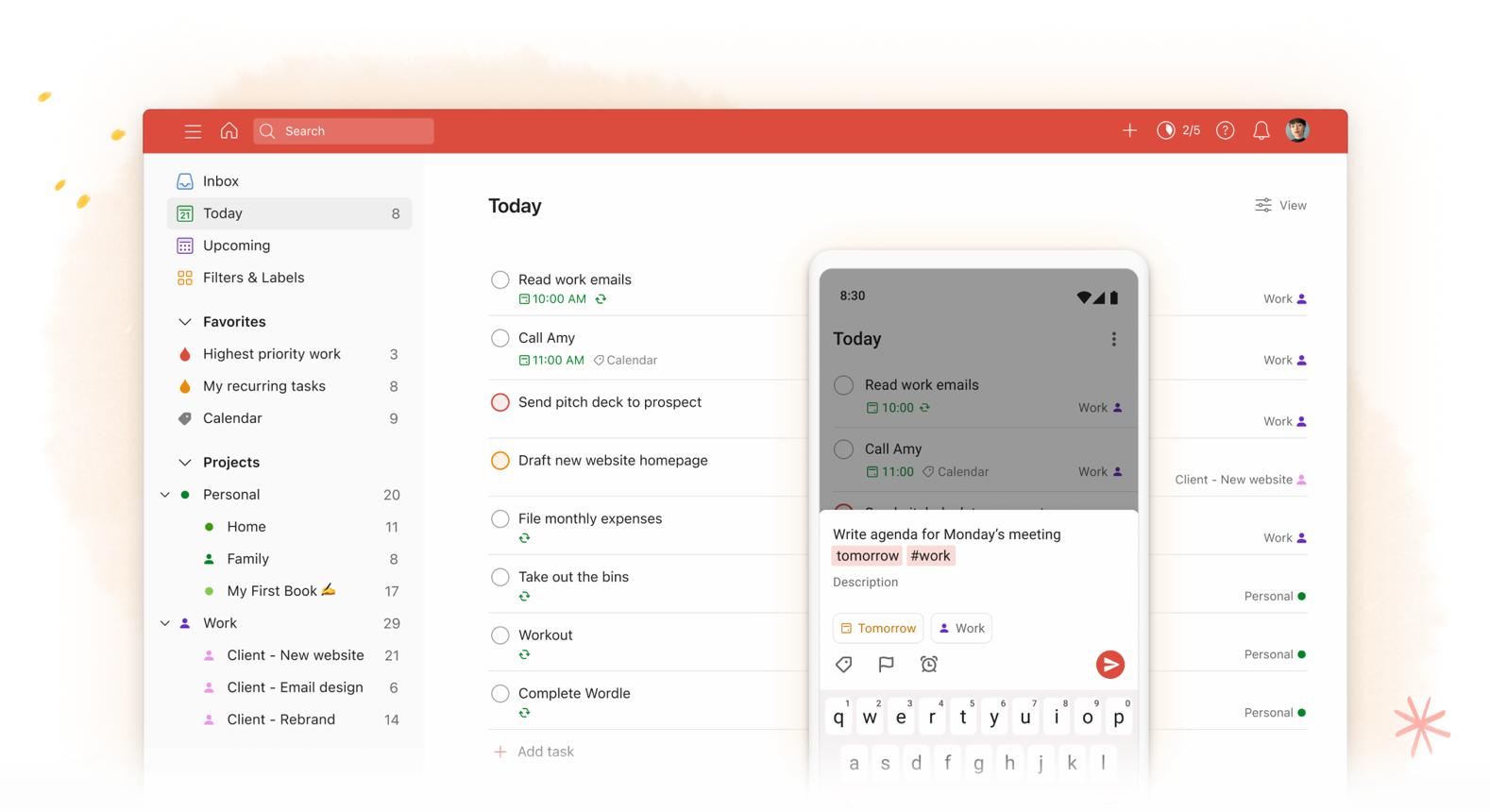
Todoist is the closest thing to a “set it and forget it” task manager. As a remote worker, I need something that syncs instantly across my phone, laptop, and tablet — and Todoist does this better than anything else I’ve tested.
What makes Todoist especially good for remote work is its collaboration features. You can share projects with team members, assign tasks with deadlines, and use comments to discuss work without jumping into another app. The natural language input (“meet with design team tomorrow at 2pm”) saves me about 10-15 minutes a day.
- Platforms: Web, Mac, Windows, iOS, Android, Linux
- Free plan: Up to 5 projects, 5 collaborators per project
- Key remote feature: Shared projects with comments and task assignments
- Natural language input captures tasks in seconds
- Syncs instantly across all devices
- Collaboration features work well for async remote teams
- Excellent filtering and labeling system
- Best features locked behind Pro subscription
- No built-in time tracking
- Can feel overwhelming for simple task lists
2. Google Calendar — Best Calendar App for Remote Work
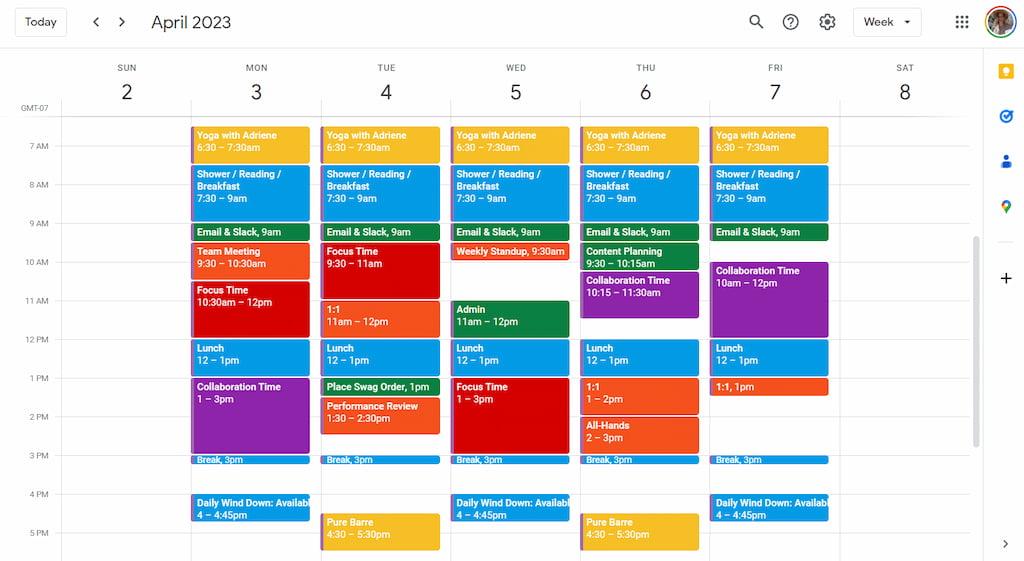
Google Calendar remains the gold standard for remote work scheduling. For remote workers, your calendar is your real to-do list — it is where you block focus time, schedule meetings across time zones, and protect your boundaries.
The “focus time” feature lets you automatically block deep work periods, and Google Calendar handles time zone conversions better than any competitor. I use “out of office” entries to signal when I’m offline — crucial for maintaining boundaries when your office is 10 feet from your bedroom.
- Platforms: Web, iOS, Android
- Price: Free; Workspace from $6/month
- Key remote feature: Time zones, focus time, appointment slots
- Best time zone handling of any calendar app
- Focus time scheduling protects deep work blocks
- Free with no limitations for individual use
- Appointment slots make 1:1 scheduling effortless
- No desktop app (web-only outside browser)
- Can get cluttered without disciplined use
- Privacy concerns for some users
3. Toggl Track — Best Time Tracking for Remote Workers
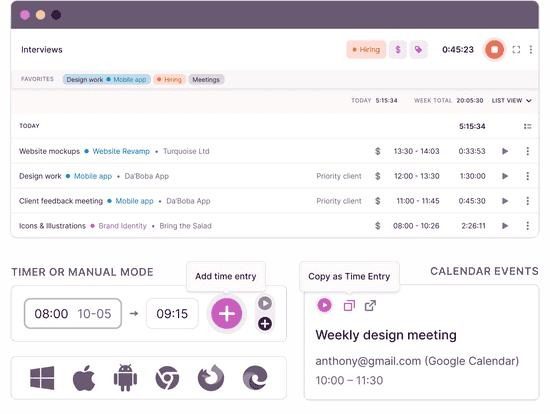
If you are a remote worker who bills by the hour or just wants to understand where your time actually goes, Toggl Track is the tool to beat. I thought I knew how I spent my day before using this — I was wrong by about two hours.
The one-click timer forces you to be intentional about what you are doing right now. The reports reveal patterns you would never notice otherwise, like that “quick Slack check” that actually costs you 45 minutes a day. The idle detection catches when you forget to stop tracking.
- Platforms: Web, Mac, Windows, iOS, Android, browser extensions
- Free plan: Up to 5 users, unlimited time entries
- Key remote feature: One-click timer, idle detection, team dashboard
- One-click timer is frictionless and fast
- Idle detection catches forgotten time entries
- Reports reveal where your time actually goes
- Team dashboard shows async work distribution
- Free plan reports are basic
- No built-in project management features
- Constant tracking can feel tedious for some
4. Forest — Best Focus App for Deep Work
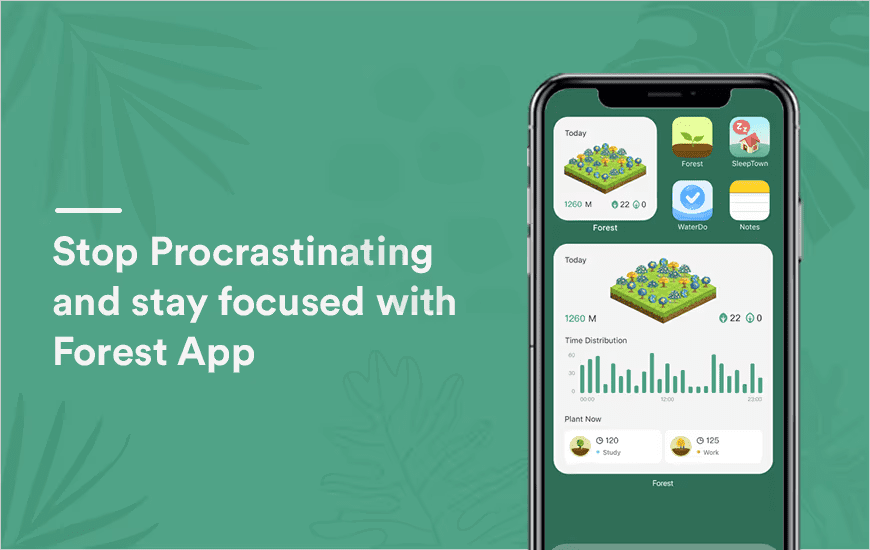
Forest takes a creative approach to focus: you plant a virtual tree that grows while you work, and it dies if you leave the app. It sounds gimmicky, but the gamification genuinely works. I have seen my daily deep work increase from about 2 hours to over 5 since I started using it.
For remote workers, the biggest productivity killer is not laziness — it is the constant temptation to check notifications, browse social media, or start household tasks. Forest creates a simple psychological barrier that keeps you in focus mode. You can also plant real trees through their partnership with Trees for the Future.
- Platforms: iOS, Android, browser extension
- Price: $3.99 one-time purchase
- Key remote feature: Focus timer with phone-blocking, whitelist for work apps
- Extremely effective at preventing phone distractions
- One-time purchase — no subscription
- Real tree planting adds environmental motivation
- Simple enough that you will actually use it
- No desktop app (browser extension only)
- Limited features compared to full focus apps
- Cannot distinguish useful vs distracting apps
5. Notion — Best All-in-One Workspace for Remote Teams
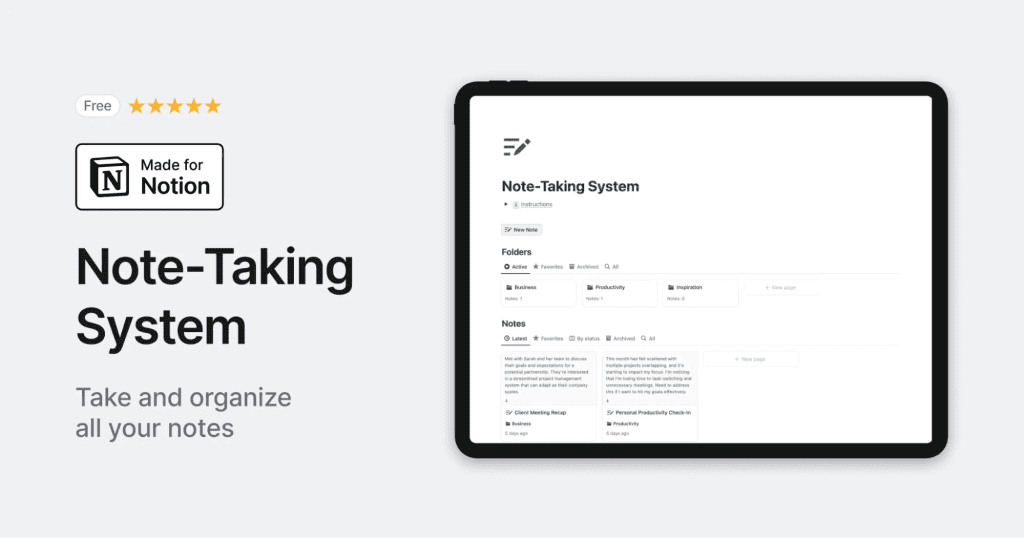
Notion is the closest thing to a “second brain” for remote workers. It combines notes, wikis, project management, and databases into one flexible platform. I use it for everything from client project tracking to personal goal setting.
For remote teams, Notion shines as a shared knowledge base. Instead of digging through Slack history to find that decision from three months ago, everything lives in a searchable wiki. The AI features are genuinely useful for summarizing meeting notes and drafting documentation.
- Platforms: Web, Mac, Windows, iOS, Android
- Free plan: Unlimited pages, 7-day page history
- Key remote feature: Team wikis, connected databases, AI writing assistant
- Incredibly flexible — adapts to any workflow
- Excellent for remote team knowledge bases
- Generous free plan for individual use
- Templates make setup fast for common use cases
- Steep learning curve for advanced features
- Mobile app is slower than desktop
- No offline mode on desktop
6. Zapier — Best Automation Tool for Remote Workflows
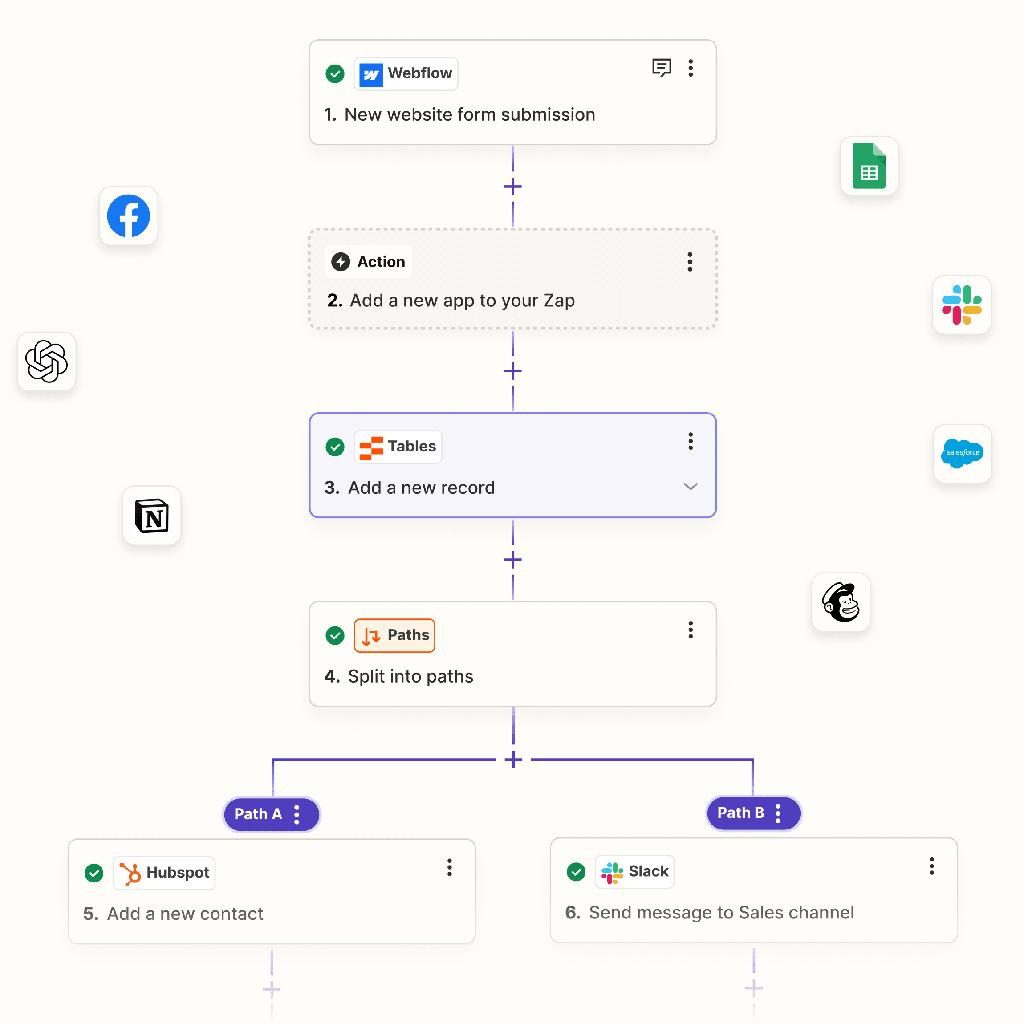
Zapier is the glue that connects your remote work tools. Every remote worker has a stack of apps that do not talk to each other. Zapier creates automated workflows that move information between apps without you lifting a finger.
I use Zapier to automatically save email attachments to Google Drive, create Todoist tasks from Slack messages, and log time entries into Toggl Track. Each automation saves 5-10 minutes, and I have about 20 running at any time. That is roughly 3 hours saved per week.
- Platforms: Web (no app needed — runs in background)
- Free plan: 5 Zaps, 100 tasks/month, 2-step automations
- Integrations: 7,000+ apps
- Eliminates repetitive data entry across apps
- Thousands of app integrations available
- No coding knowledge required to set up Zaps
- Free plan handles basic automation needs
- Free plan very limited (100 tasks/month)
- Paid plan starts at $19.99/month
- Hard to debug when a Zap fails
7. Bitwarden — Best Password Manager for Remote Teams
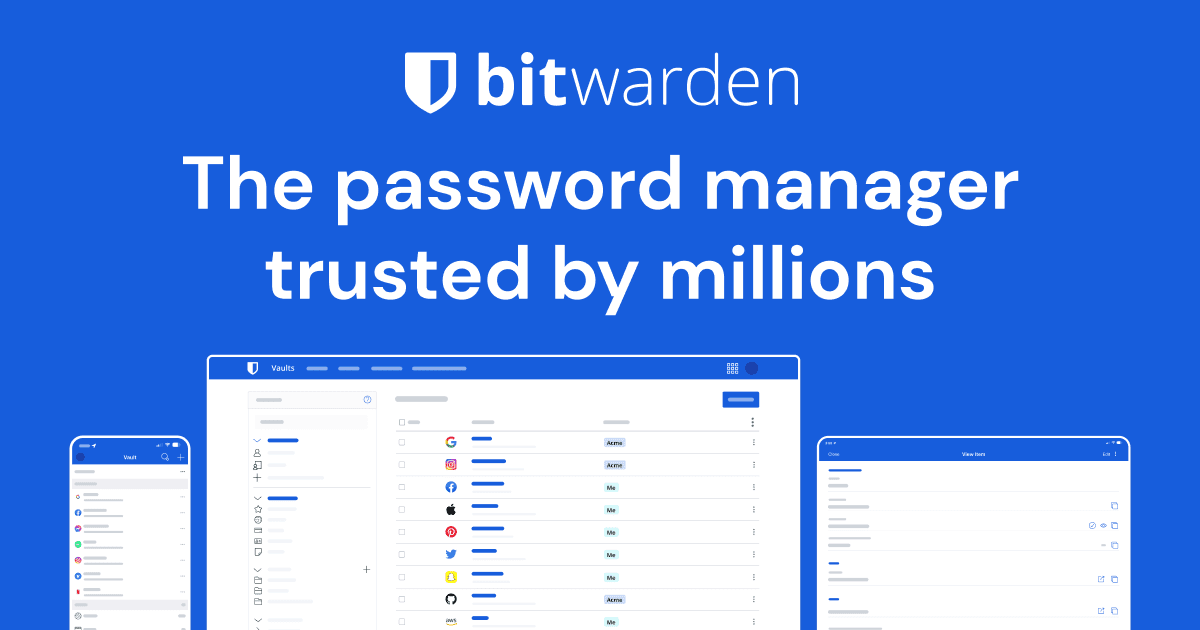
Bitwarden is the most affordable, open-source password manager available. For remote workers, a password manager is not optional: you are logging into dozens of SaaS tools daily, and reusing passwords across them is a serious security risk.
Bitwarden lets you share passwords securely with team members without revealing the actual password. The browser extension autofills login forms instantly. At $10 per YEAR for premium, it is the best deal in productivity software.
- Platforms: Web, Mac, Windows, Linux, iOS, Android, browser extensions, CLI
- Free plan: Unlimited passwords, unlimited devices, 2FA support
- Key remote feature: Secure team sharing, organization folders
- Open source and audited — trustworthy security
- Unlimited passwords on free plan
- Premium is $10/year — incredible value
- Self-hosting option for privacy-conscious teams
- Interface looks dated compared to competitors
- No advanced reporting on free plan
- Team sharing setup takes a few minutes
8. Slack — Best Team Communication for Remote Work
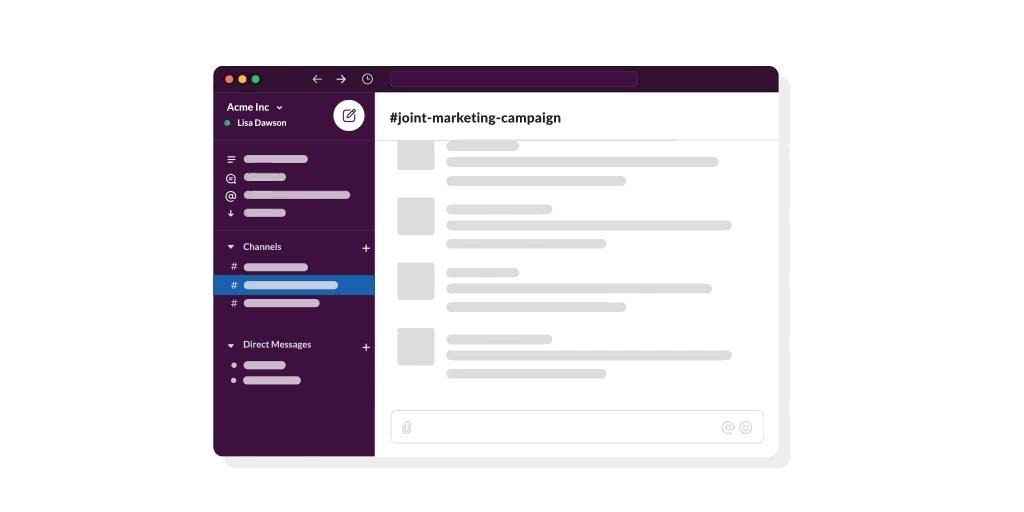
Slack is the standard for remote team communication. It replaces the hallway conversations, quick check-ins, and impromptu meetings that disappear when teams go remote.
The key to using Slack effectively is structure. I organize channels by project, use do-not-disturb hours religiously, and rely on async communication instead of expecting instant replies. The huddle feature is perfect for quick voice conversations that do not need a full meeting.
- Platforms: Web, Mac, Windows, iOS, Android, Linux
- Free plan: 90-day message history, 10 app integrations
- Key remote feature: Channels, huddles, async messaging, Slack Connect
- Best-in-class for async team communication
- Channels keep conversations organized by topic
- Huddles for quick voice chats without full meetings
- Slack Connect allows secure external collaboration
- Free plan limits message history to 90 days
- Can become noisy without good channel discipline
- Notifications need careful setup to avoid burnout
How to Build Your Remote Work Productivity Stack
You do not need all 8 apps at once. Here is how to prioritize starting from scratch:
- Start with Google Calendar + Todoist. These two form the foundation. Your calendar protects your time, and Todoist captures your tasks.
- Add Slack for team communication. If you work with others, Slack replaces chaotic email threads.
- Add Toggl or Forest depending on your problem. Different symptoms, different solutions — but only add one.
- Add Notion for documentation. Once you have more than a handful of projects, you need a knowledge base.
- Add Bitwarden and Zapier last. Important but not urgent. Automate only after workflows are consistent.
Frequently Asked Questions About Productivity Apps for Remote Workers
What are the best productivity apps for remote workers in 2026?
The best stack for most remote workers includes Todoist (task management), Google Calendar (scheduling), Toggl Track (time tracking), Forest (focus), Notion (documentation), Zapier (automation), Bitwarden (security), and Slack (communication). Start with the first two and add others as needed.
Is there a free productivity app that actually works?
Yes — Todoist (free for 5 projects), Google Calendar (completely free), and Bitwarden (unlimited passwords free) are genuinely useful without paying a cent. Forest is $3.99 one-time and worth every penny.
How many productivity apps do I really need?
Start with 3-4. A calendar, a task manager, a communication tool, and either a time tracker or focus app. Adding more than 7 tools creates friction that defeats the purpose.
How do I stay productive working from home without supervision?
Structure is the answer. Use Google Calendar to time-block your day, Todoist to capture every task so nothing slips, and Forest or Toggl to stay honest about where your attention goes. Accountability comes from systems, not supervisors.
What is the best way to avoid distractions when working remotely?
Combination approach: Forest to block distracting apps during focus time, Slack DND mode to prevent notification breaks, and time-block your calendar so you always know what to work on next.
Are paid productivity apps worth it for remote workers?
For most remote workers, free versions are sufficient. Upgrade when you hit specific limits — like needing more Todoist projects or Toggl reports. Bitwarden Premium at $10/year is the only no-brainer upgrade.
The Best Productivity Stack Is the One You Actually Use
After months of testing these tools in a real remote work environment, one lesson stands out: the specific app matters less than your willingness to stick with a system. The best productivity app in the world will not help if you switch tools every two weeks chasing a magic solution.
Start with the tools that solve your most painful problem right now. Drowning in tasks? Start with Todoist. Cannot focus? Start with Forest. Do not know where your time goes? Start with Toggl Track. Add tools one at a time, and only when you genuinely feel the need.
For more remote work productivity advice, check out our guides on energy management vs time management and how to build a daily productivity routine.

Sophia Carter has spent years testing productivity tools and workspace setups. She helps remote workers build efficient home offices that support deep focus, ergonomics, and better workflows.